Validating Your Amazon Data in Daasity
Important things to know when analyzing your Amazon Seller Central data in Daasity
Use this guide to understand which explores and dashboards to use in Daasity based on the reports you already use within Amazon.
Amazon Fulfillment Reports
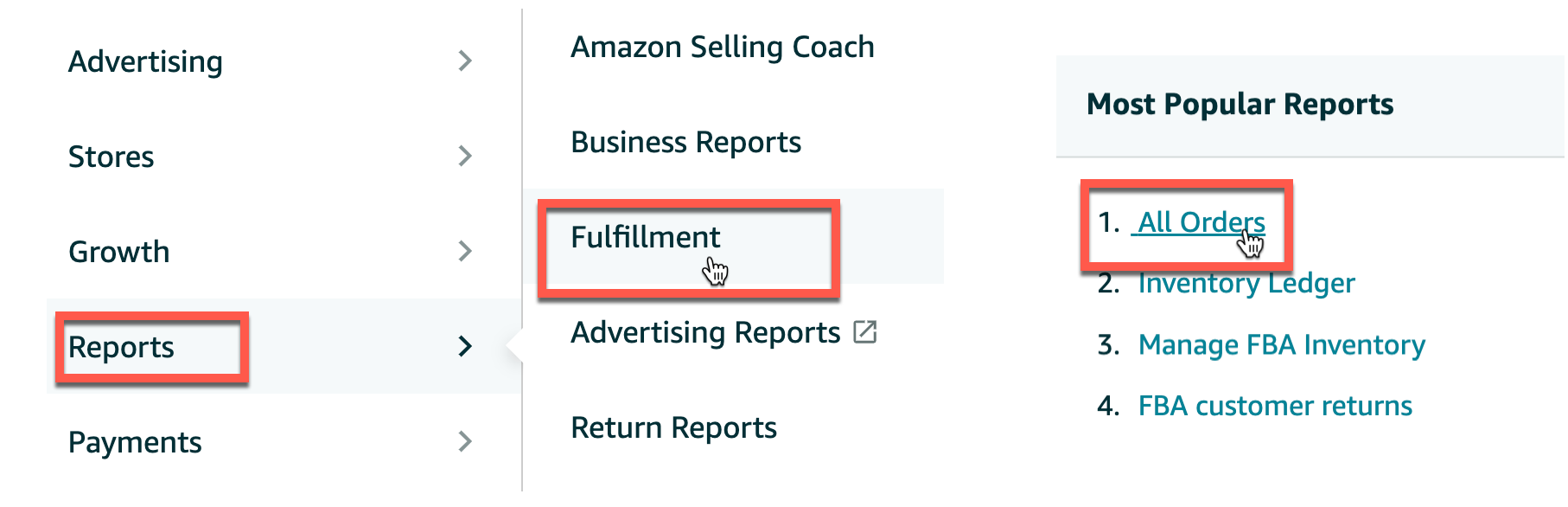
Almost all of the order-based Amazon reporting in Daasity uses data from the All Orders report:

Where to analyze this data
You can analyze data from the All Orders report in the following places.
Filter for Source Name = asc to isolate Amazon data
If you have both Amazon and owned Ecommerce data in Daasity, you'll need to filter for the asc source name to only show data from Amazon
Explores
Order Line Revenue
Transactional Sales
Daily Plan to Actual
Daily Company Metrics
Lifetime Value Time Series
Dashboards
LTV & RFM
Retention
Orders & Revenue
Daily Flash
Daily Flash vs Plan
Hourly Flash
Weekly Flash
Repurchase Rates
Product (Except for the Product Detail Page Performance, which uses the Sales and Traffic Business Report)
Raw data tables
AMAZON_SELLER_CENTRAL.GET_FLAT_FILE_ALL_ORDERS_DATA_BY_LAST_UPDATE_GENERAL
How to validate this data
Known causes for discrepancies
The data you see in your Daasity reporting will vary slightly from the raw All Orders reports you download from the Amazon Seller Central UI for the following reasons:
Timezone conversion
The raw report date/time values are always in UTC. The order data in your Daasity reporting will be converted to the timezone you have specified in your Daasity App settings.
Currency conversion
The monetary values in the raw Orders by Last Updated Date report will be in the source currency. The order data in your Daasity reporting will be converted to the master currency you have specified in your Daasity App settings. This will only be important to know if you are selling in multiple countries.
Multiple order lines for the same SKU
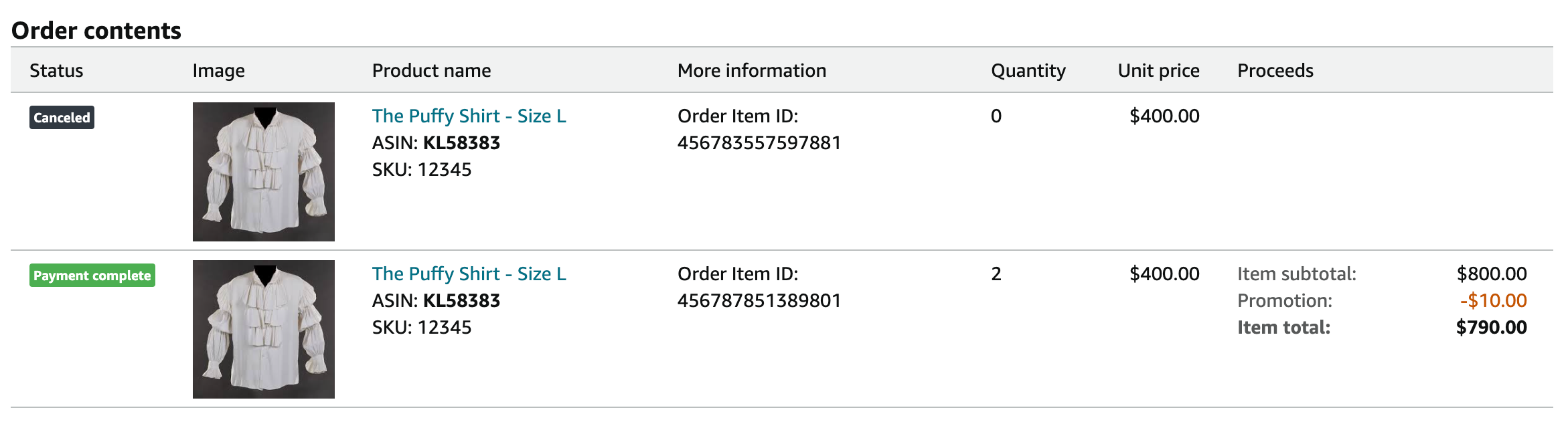
Amazon sometimes creates orders that have multiple lines for the same SKU, like in the example screenshot below:

In this scenario, Daasity will pick up only one of the lines from the order and drop the other. This will result in a discrepancy in some orders' sales totals and item counts when comparing in Daasity vs Amazon. This happens in only a small subset of orders (typically less than 2%), but it unfortunately will have an impact on your reporting.
The core reason for this issue is that the raw Amazon report we use for order-based reporting — Flat File Orders by Last Update Report (or the "All Orders" report as it's named in the UI) — accurately reflects the contents of the order, BUT it does not provide the unique order item ID that you see in the screenshot:
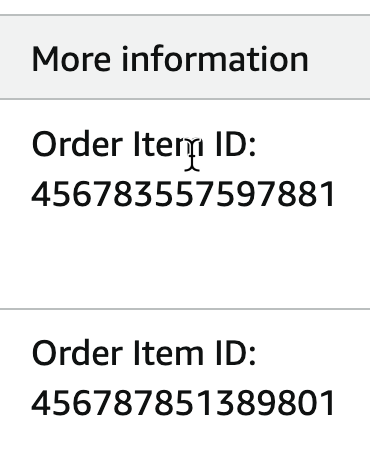
If this unique order item ID was included in the report, we would use it as a primary key to help us ensure that we avoid loading duplicate data while also capturing updates to the same line over time. But since the order item ID does not come through in the raw data, we need to create a unique key from the information available in the file. We use the combination of order ID + SKU for the unique ID. In the cases like the example above, this combination is not truly unique — only the order item ID is truly unique — and as a result only one of the rows will be loaded to avoid data duplication.
Choose the Order Date report when comparing data with Daasity
When you download the All Orders report, you have the option of choosing to filter by Order Date or Last Updated Date:

If you are comparing data for a particular month between Daasity and the Amazon platform, it's best to choose the Order Date option.
Don't use the Last Updated Date option. If you're trying to compare data for orders placed in January 2024, for example, and you choose the Last Updated date option, that file could contain orders that were placed prior to January 2024. Additionally, if an order placed in January 2024 was updated in a later month, that order would not show up in that report download.
Compare gross sales in Daasity with the sum of item-price in the All Orders exports
Since the export contains and item-price column and a quantity column, you may (understandably) assume that you need to multiply item-price by quantity to get the full sales amount for the line item. In reality, item-price will reflect the sales amount for the entire line — it is not a unit price.
Amazon Business Reports
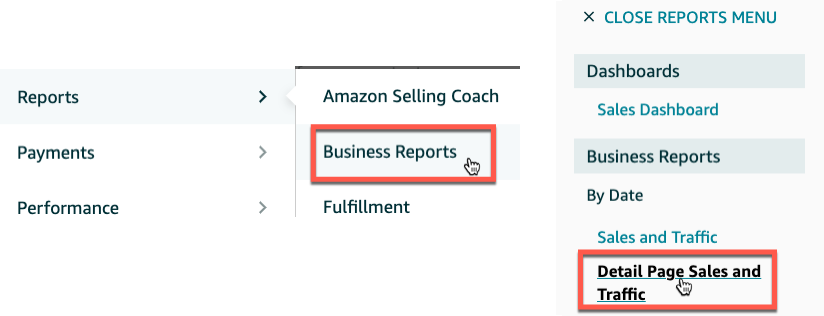
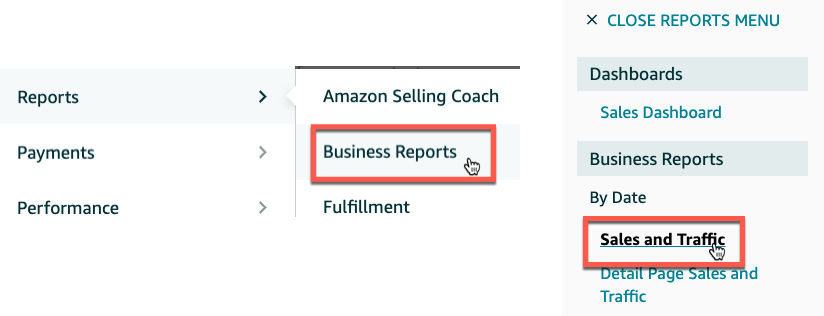
Daasity standard reports will use data from the Sales and Traffic report and the Detail Page Sales and Traffic report from Amazon.
Where to analyze this data
Amazon Sales and Traffic report

You can analyze data from the Sales and Traffic report in the following places:
Filter for Data Source = Amazon to isolate Amazon data
If you have both Google Analytics and Amazon data connected to Daasity, you'll need to filter for the Amazon data source to only show data from Amazon.
Explores
Traffic
Daily Plan to Actual*
Dashboards
Analytics & Attribution
Daily Flash*
Daily Flash vs Plan*
Weekly Flash*
* Only sessions from the Amazon Sales and Traffic report are used in these reports/explores. The sales and order data will be from the Amazon Orders by Last Updated Date fulfillment report.
Raw data tables
AMAZON_SELLER_CENTRAL.SALES_AND_TRAFFIC_REPORT
Amazon Detail Page Sales and Traffic report

You can analyze data from the Detail Page Sales and Traffic report in the following places:
Filter for Data Source = Amazon to isolate Amazon data
If you have both Google Analytics and Amazon data connected to Daasity, you'll need to filter for the Amazon data source to only show data from Amazon.
Explores
Product Page
Dashboards
Product (Only the Product Detail Page Performance tile)
Raw data tables
AMAZON_SELLER_CENTRAL.SALES_AND_TRAFFIC_SKU_REPORT
Known causes for discrepancies
Where this data is used in standard reports (listed in the previous section), it should match the UI exactly, except for any updates that have been made to orders since the data was extracted. For example, if we extract and transform the data at 1AM, there may be some changes between that time and when you analyze the data in the morning that will not be reflected in the Daasity reports.
However, when if you compare data from the Amazon Business Reports with other order-based reporting in Daasity (e.g.: Order Line Revenue, Transactional Sales, Daily Plan to Actual), there will be discrepancies for the following reasons:
Timezone conversion
The Amazon Business Reports will reflect the marketplace timezone set by Amazon. So if you are looking at reports for a US marketplace, for example, all of the data will reflect the Los Angeles time zone.
Keep this in mind when comparing data from your Business Reports with Amazon order data in Daasity. All order data in Daasity is taken from the Orders by Last Updated Date fulfillment report and has been converted to match your Daasity account timezone settings. If your Daasity account is set to a timezone different from the marketplace you are comparing in the Amazon UI, you should expect a discrepancy.
Data loss for orders with multiple lines for the same SKU
As mentioned in the Amazon Fulfillment Reports section, there is an issue with the data export if an order has multiple lines for the same sku. Please read the Known causes for discrepancies section for the Fulfillment Reports for more details.
Was this helpful?