Comparing Your Amazon Seller Central Orders to Daasity
To check the accuracy of your Amazon Seller Central Data in Daasity please follow the steps below.
Amazon Sales and Order data (Pending Status)
Comparing the Source Data with Daasity's Extracted Data
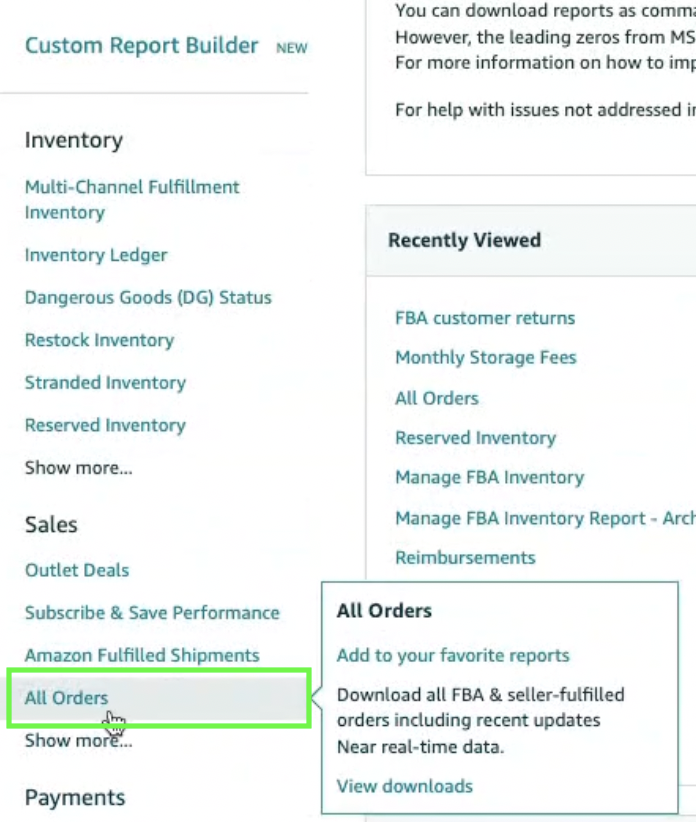
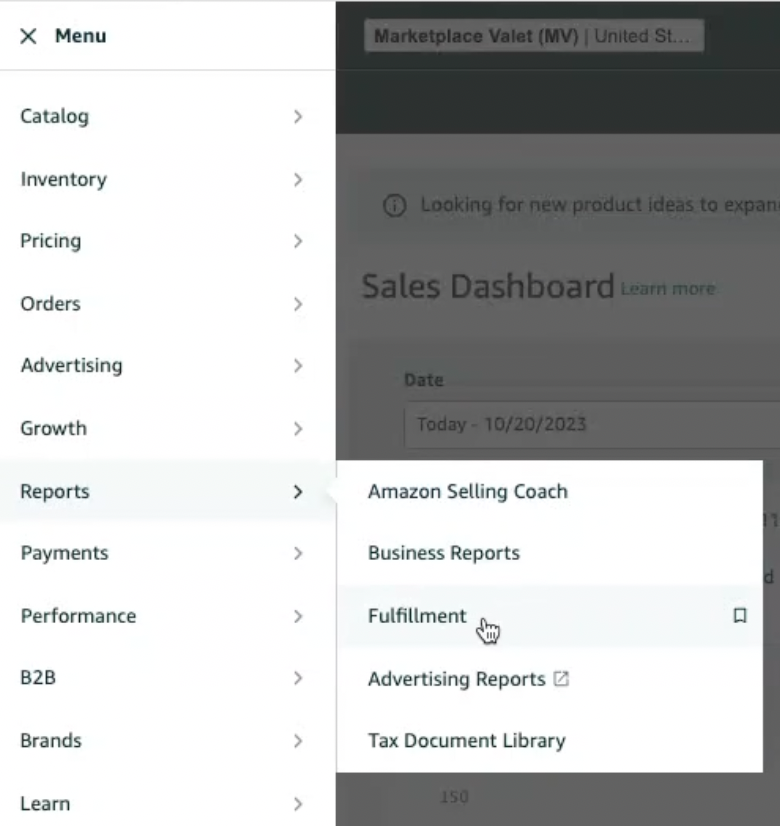
1. Navigate to the Fulfillment Report

2. Open the All Orders Report

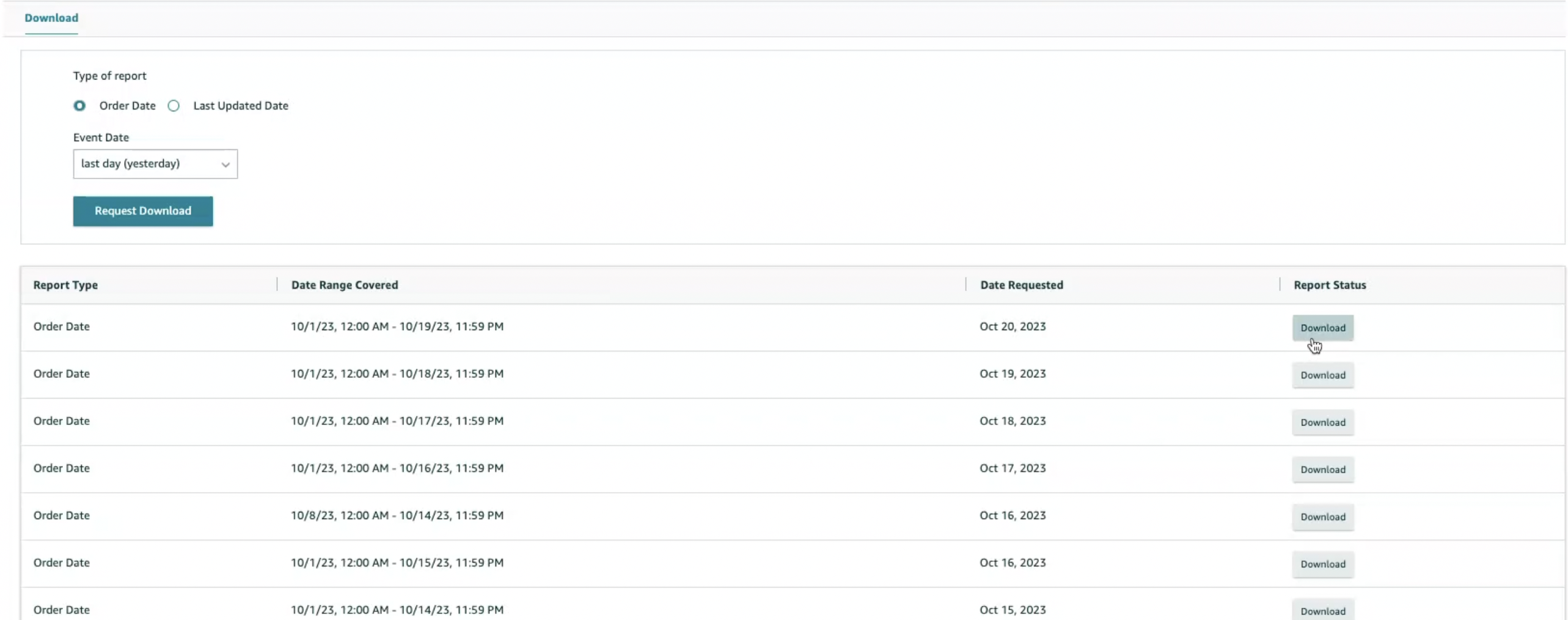
3. Download the All Orders Report to a .CSV Spreadsheet

4. Compare the Downloaded All Orders Report to the Orders in your Daasity UI
Discrepancies with the Business Reports
How to Grant Daasity Access to Amazon Seller Central
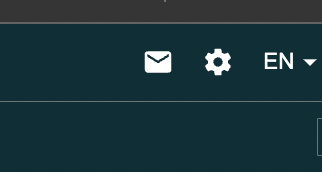
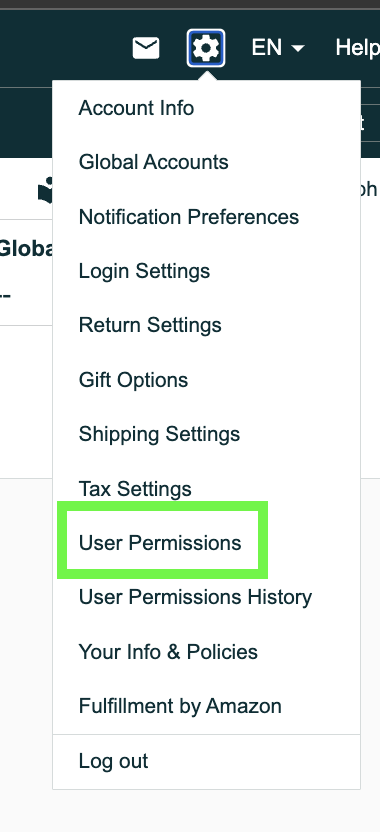
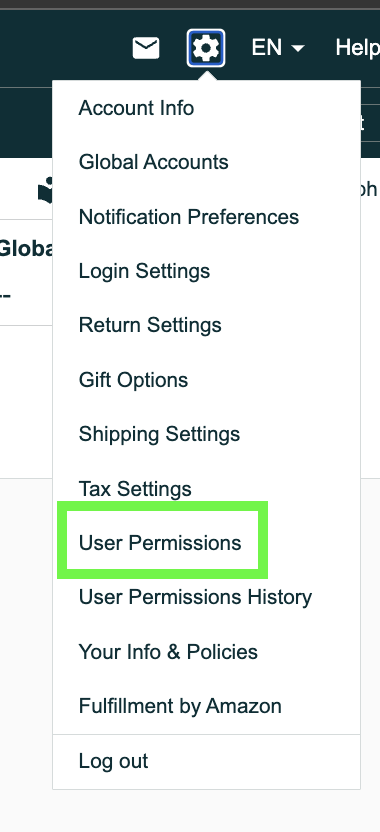
Click on the Gear (Settings) from your Home Screen in Amazon Seller Central

Choose 'User Permissions' from the Drop Down

Scroll Down to Add New User

Enter Daasity Information and Click Invite

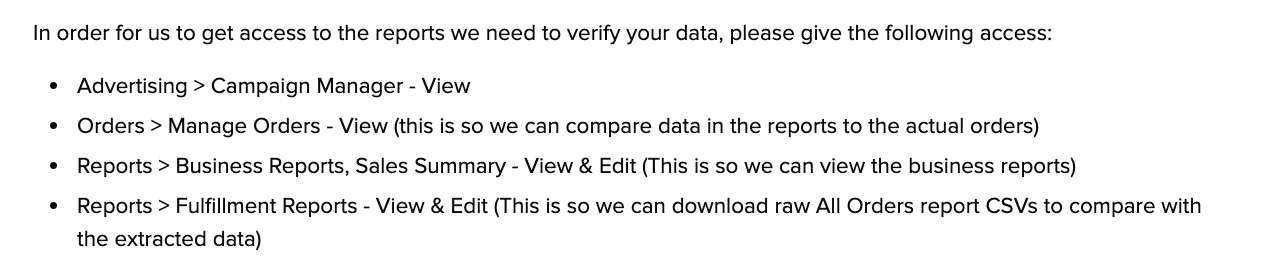
Grant Access to ALL of The Reports Listed Below


Click Manage Permissions Next to our User

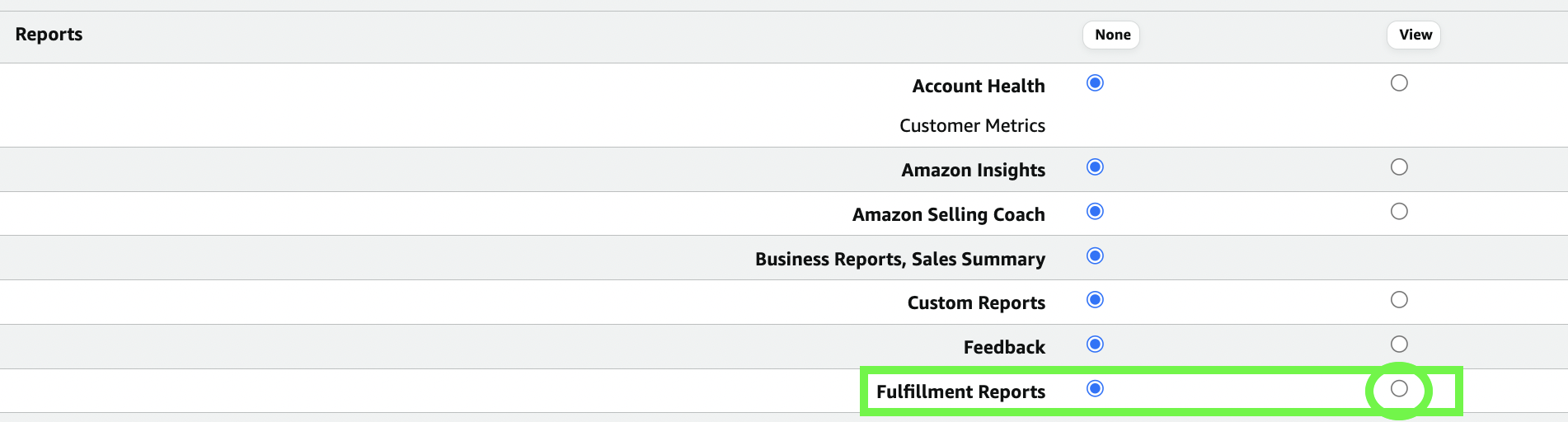
Scroll Down to Reports and Click 'View' Access for "Fulfillment Report"

Scroll to the Bottom of the Page and Click "Continue"

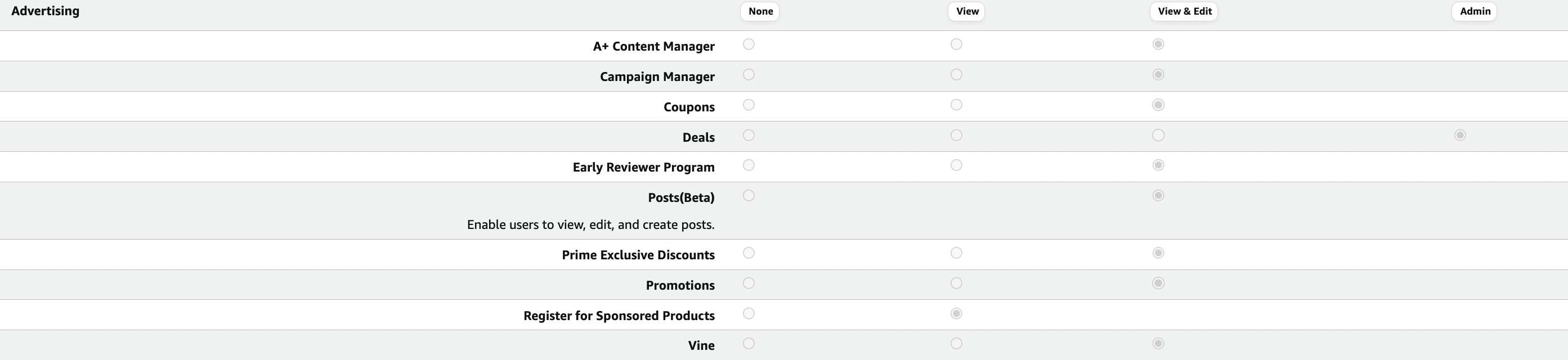
Grant Access to Advertising

Click Manage Permissions Next to our User

Scroll Down to Advertising and Click 'View' Access for All Advertising Reports

Was this helpful?