> For the complete documentation index, see [llms.txt](https://help.daasity.com/llms.txt). Markdown versions of documentation pages are available by appending `.md` to page URLs; this page is available as [Markdown](https://help.daasity.com/core-concepts/data-integrations/setup-guides/digital-integrations/target-plus/integration-setup.md).
# Integration Setup
Follow these steps to set up your Target Plus integration.
## Step 1: Navigate to Integrations
Navigate to the Integrations screen by clicking **Connect** then **Integrations** on the left nav bar
## Step 2: Select New Integration
Click on New Integration on the top right
## Step 3: Choose the Target Plus integration
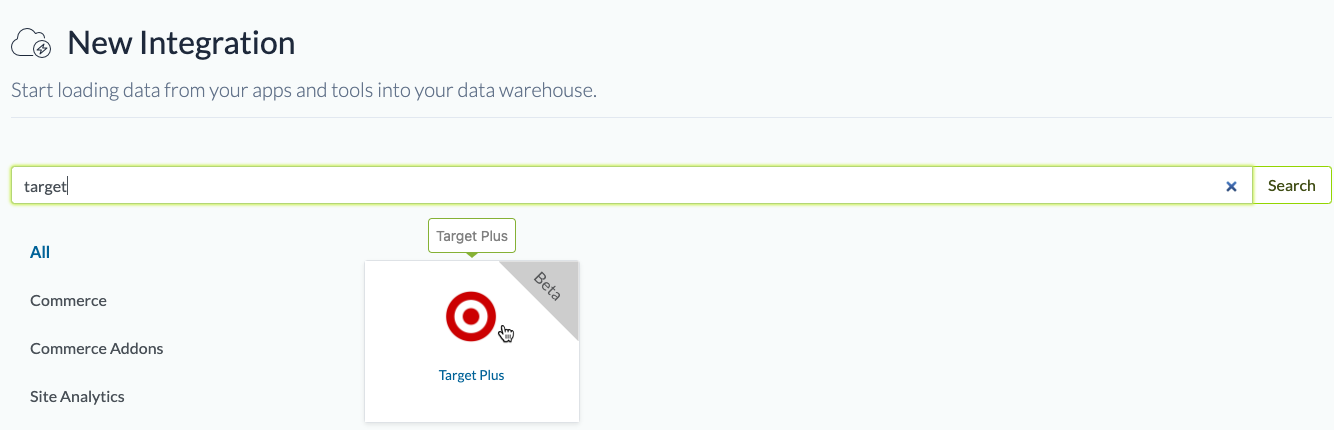
In the search box, type "target" and choose the Target Plus integration.
## Step 4: Name the integration
Give the integration a name. This is the name that will be displayed in your integrations list in the Daasity app.
## Step 5: Authorize the integration
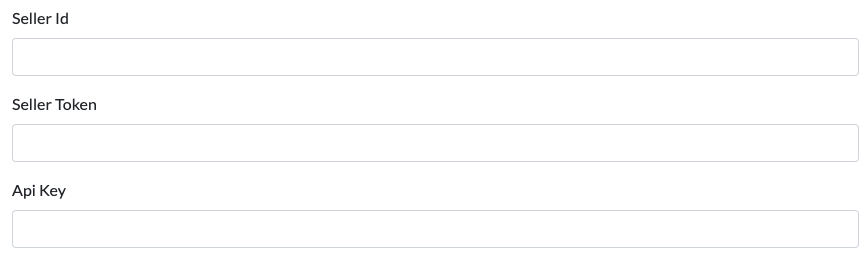
To give Daasity access to your Target Plus data for extraction, you'll need to generate a Seller Id, Seller Token, and API Key through the Target Plus portal and then enter them in the appropriate fields.
**Seller ID**
1. Log into [plus-portal.target.com](https://plus-portal.target.com)
2. Navigate to **Business Info -> Basic Info**
3. Copy the **SMS ID** value and use this value for your Seller ID
**API Key**
1. In plus-portal.target.com, navigate to **Partner Settings -> API Tokens**
2. Click the blue pencil edit button on the right side of the screen
3. Create a new API token, copy the value, and use this for your **API Key**
**Seller Token**
1. Navigate to [developer.target.com](https://developer.target.com)
2. Navigate to **API Management -> Apps and Keys**
3. Click the large red "**+**" in the upper right
4. Generate a new seller token and use this in the Daasity app
## Step 6: Save the integration
## Step 7: Load history
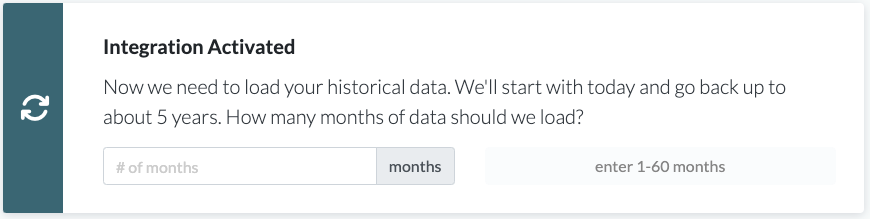
From the integration details screen, trigger a load of up to 5 years of history:
This will load your historical data into your database.
When we have transformation code developed for this integration, the data will show in your order-based reporting the following day. Currently while this is in beta, it will only load raw data into your data warehouse.