
Customizing Base Daasity Code
What are refinements?
Refinements are how you will customize the Base Daasity explores and views to your business needs.
Refinements are a feature of Looker that allow you to overwrite and append LookML code without editing the original code directly. This is useful for customizing imported files — which power the Hub & Spoke setup — since there is no way to edit them directly.
This article is meant to help you understand the most important aspects of refinements. If there are questions we have not answered here, you may be able to find the answers in Looker's LookML refinements documentation.
How do refinements work?
Refinements are contained in generic .lkml files. They are formatted similarly to normal explore and view files, but with some key differences. When Looker processes a refinement, it meshes the content of the refinement with the contents of the original object that is being refined. In pretty much all cases, the contents of the refinement will take precedence over the contents of the original.
In refinement files, you'll reference a view or explore that already exists in the imported files — the only difference being that you will precede them with a "+". Then you can overwrite existing elements of the original views and explores, or you can add fields and parameters to them.
The diagram below shows a basic example of refining a single field from a Base Daasity view. There are two files: the original order_line_revenue.view.lkml file that is imported from the hub, and the order_line_revenue_refinements.lkml file from the spoke, which contains the refinements. The output section of the diagram shows how the contents of the two files mesh together:
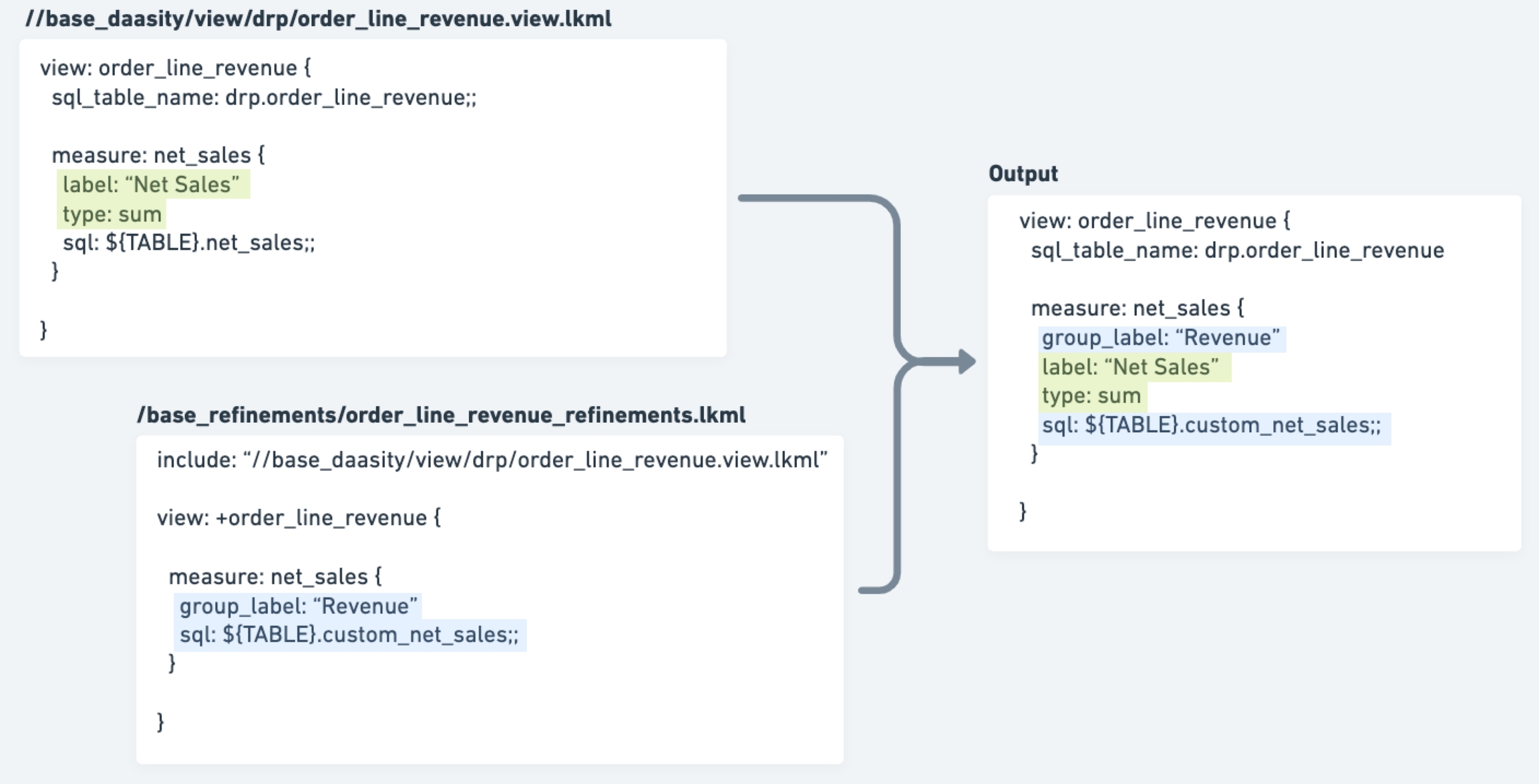
In this example, the refinement file modifies the net_sales measure in two ways: 1. adding a group label and 2. changing which database column is aggregated by the measure.
The net_sales measures in both files include a sql parameter, but with different contents. In situations like this, the contents of the refinement take precedence and overwrite the original value.
There is no group_label defined in the original net_sales measure, but we are defining it in the refinements. So the net_sales output inherits the group_label from the refinement.
Note that we only need to include the parameters in the refinement that we are overwriting or adding. All of the other parameters that we didn't specify in the refinement will just be kept intact from the original object.
Keep reading for more examples for specific use cases.
Creating refinement files
We recommend you keep all of your refinement files within the base_refinements folder.
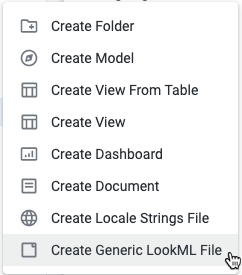
Refinement files are generic LookML files — not view or explore files. They are the last option in the Add a file or folder menu:
A refinement file always contains at least 2 parts:
At least 1
includeparameterThe value of the parameter should be the path of the file that contains the base explore or view that you're refining. Note that if you're referencing a file in the imported base_daasity project, you need to start the path with double-slashes (
//)This makes the contents of the Base Daasity explore or view file available for refinement
At least 1
exploreorviewparameterThis contains the identifier of the explore or view that you're refining, prefixed with a "+" sign. The "+" sign tells Looker that this is a refinement of an existing object
Your refinements will live within this parameter
If we wanted to create a refinement files for the Base Daasity Marketing Performance explore, the file would need to be set up like this:
If we wanted to create a refinement file for the Base Daasity Master Spend view, the file would need to be set up like this:
More refinement examples
Was this helpful?