> For the complete documentation index, see [llms.txt](https://help.daasity.com/llms.txt). Markdown versions of documentation pages are available by appending `.md` to page URLs; this page is available as [Markdown](https://help.daasity.com/technical-docs/workflows-and-scheduling/managing-workflows.md).
# Managing Workflows
This page provides information on how to test, run, and manage the workflows in your account.
## Overview
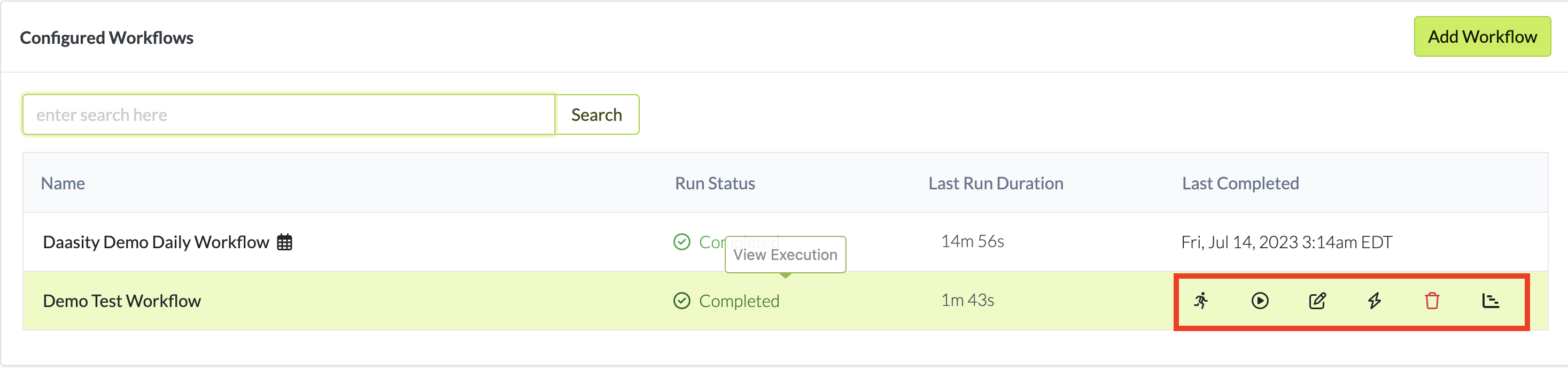
Once a workflow is created, you have 6 different options to manage the workflow you have created. You can do each of the following from the main Workflow screen:
[Test](#test-a-workflow) - Run the transformation portion of your workflow on a [test data warehouse](/technical-docs/warehouse/test-data-warehouse/test-data-warehouse-overview.md).
[Run](#run-a-workflow) - Run the workflow on your production warehouse on-demand. You can choose to run the entire workflow or only specific parts.
[Edit](#editing-a-workflow) - Make changes to the workflow and adjust the extractions, transformations, and / or schedules of the workflow.
[Activate / Deactivate](#activating-deactivating-a-workflow) - Turn the schedule on or off without deleting the workflow.
[Delete](#deleting-a-workflow) - Remove the workflow permanently from the app.
[Show Timeline](#showing-the-last-execution-timeline) - Show a graph of the time it took to extract, load, and transform the data the last time the workflow ran. This will only appear if the workflow has run at least once.
## Test a workflow
Testing a workflow enables you to run the transformation portion of your workflow on the [Test Data Warehouse](/technical-docs/warehouse/test-data-warehouse.md) that you have created. This is good SQL code development practice as it will enable you to validate that the transformation code you have created generates the expected output before you put the transformation code into production
{% hint style="warning" %}
You will not be able to test a workflow unless a test data warehouse has been created
{% endhint %}
To test a workflow follow these steps:
1. Click Test Workflow
2. Select the Test Warehouse and Branch to run
3. Run the workflow
4. View Workflow Results
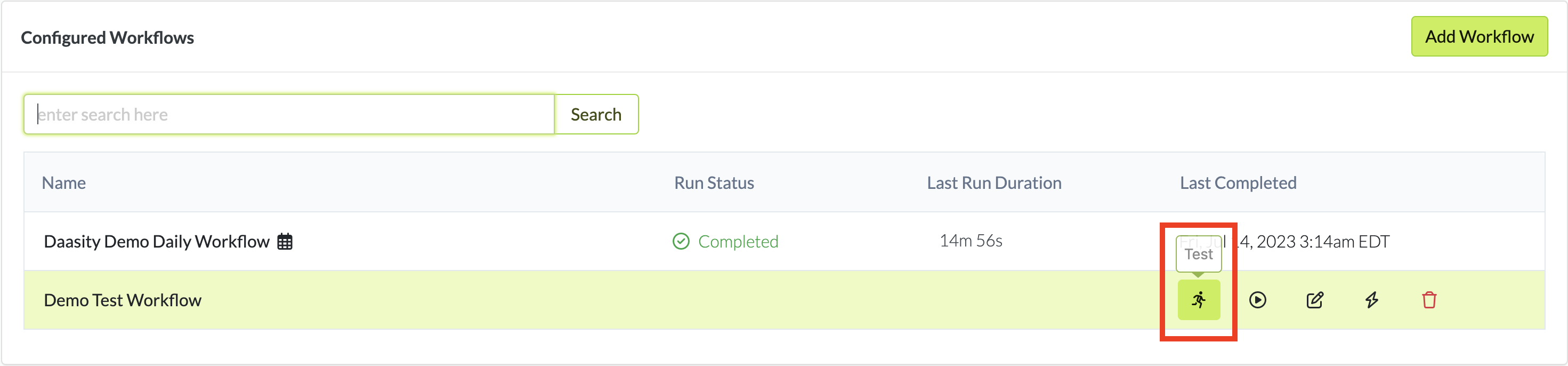
Click on the test workflow icon next to the workflow you want to test
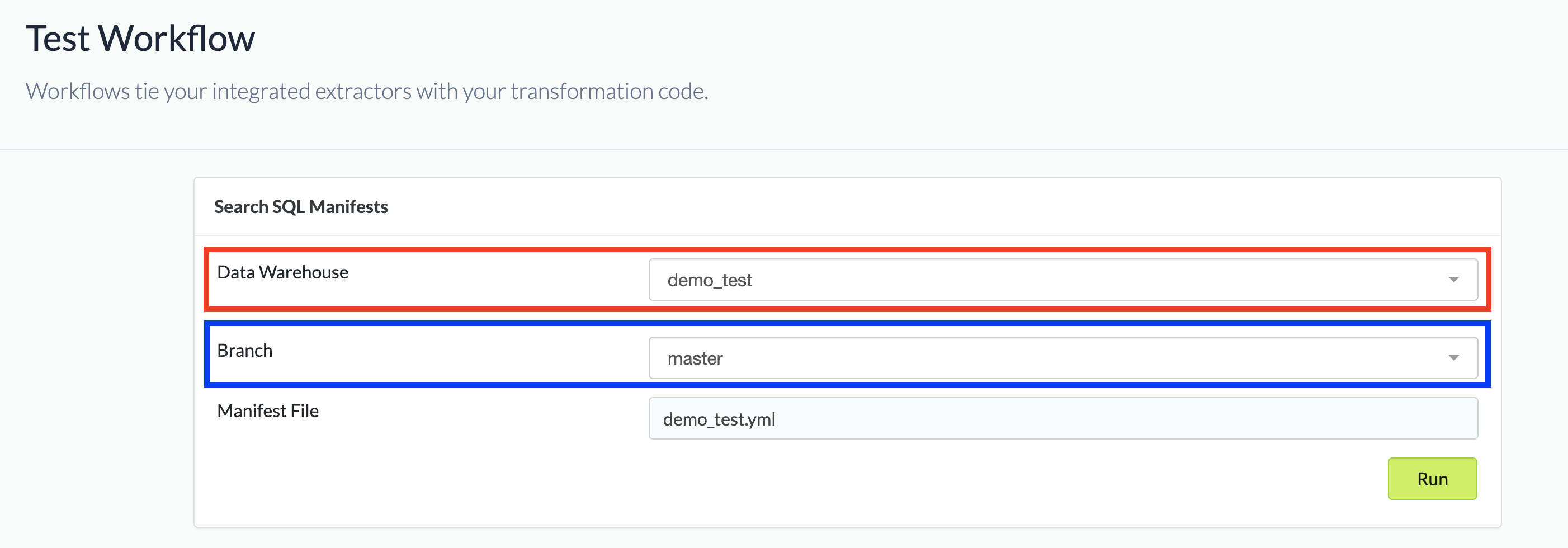
This will take you to the test workflow page where you will be able to select the test warehouse you want to run the code on and the branch of code you want to run by selecting the appropriate value from the two dropdowns.
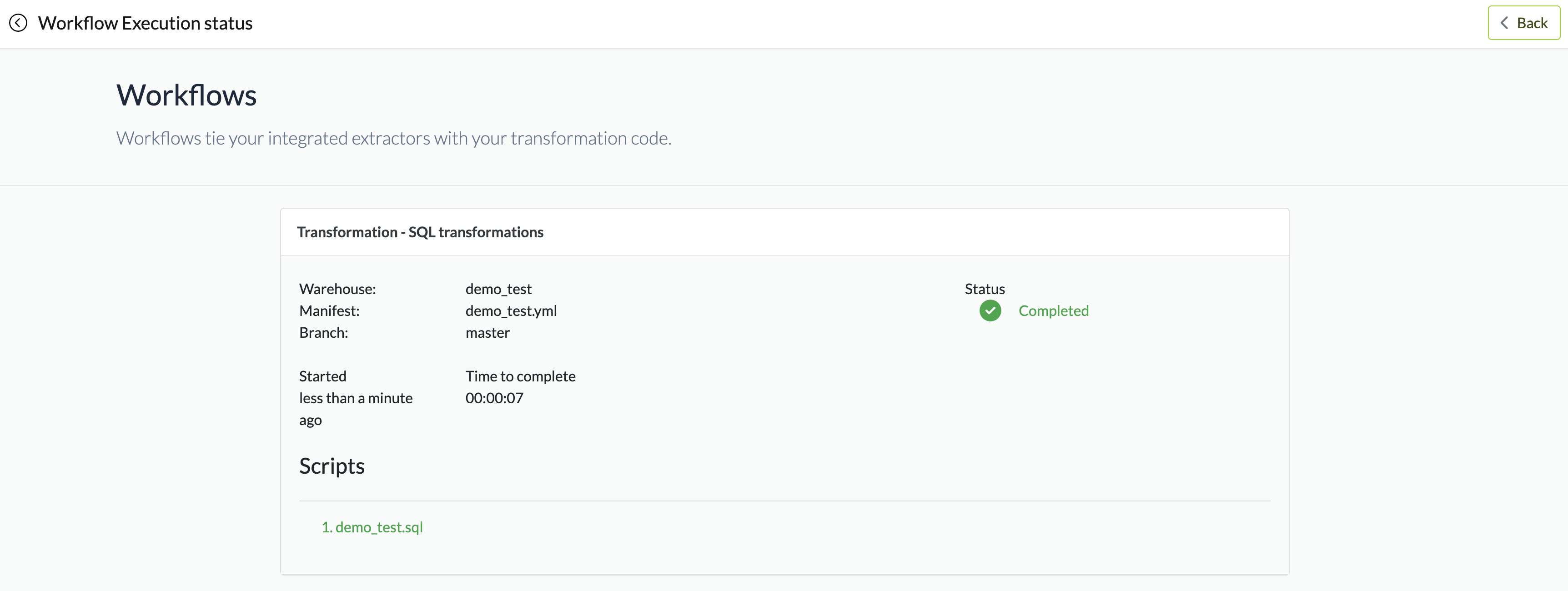
Once the selection are made, click on the Run button to execute the workflow. This will run the workflow and take you to the Workflow Execution Status screen where you can track the workflow running
The workflow will either complete or fail giving you detailed information on the failure reason
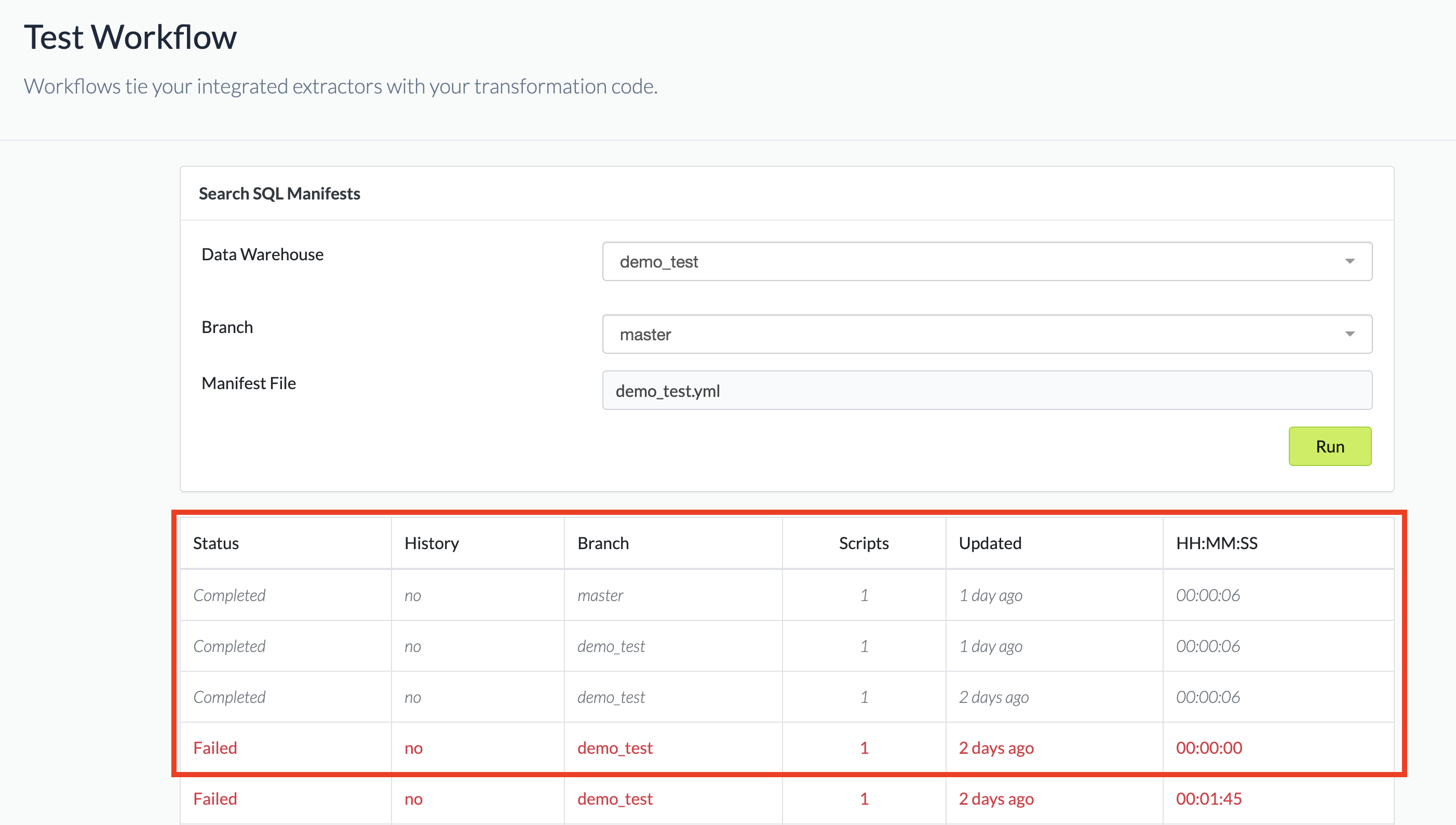
From the Test Workflow screen you will be able to see the results of prior workflow executions and drill into the workflow execution status screen to see details on that workflow test
## Run a workflow
Running a workflow enables you to run on-demand the entire extract, load, transform and operationalize parts of your workflow or to run just certain specific portions
To run a workflow, follow these steps:
1. Click Run Workflow
2. Select the components you want to run
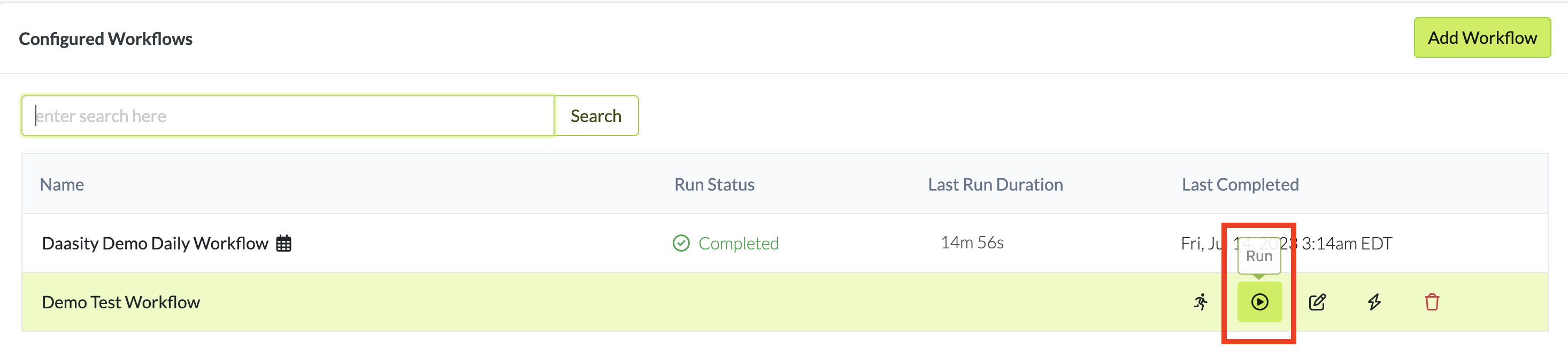
Click on the run workflow icon next to the workflow you want to run
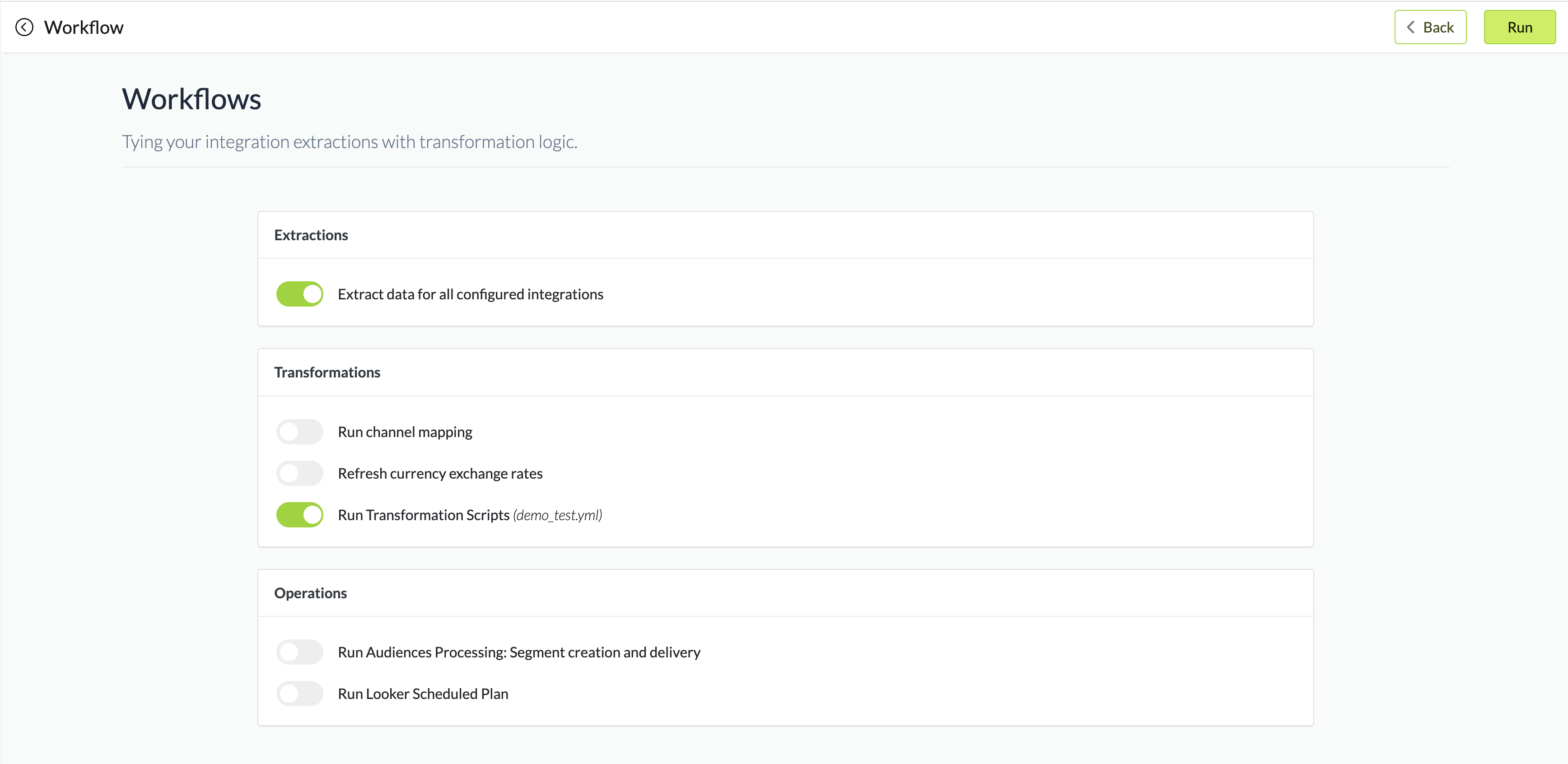
This will take you to the Workflows screen where you will select the Extractions, Transformations and Operations that you would like this one-time workflow execution to run
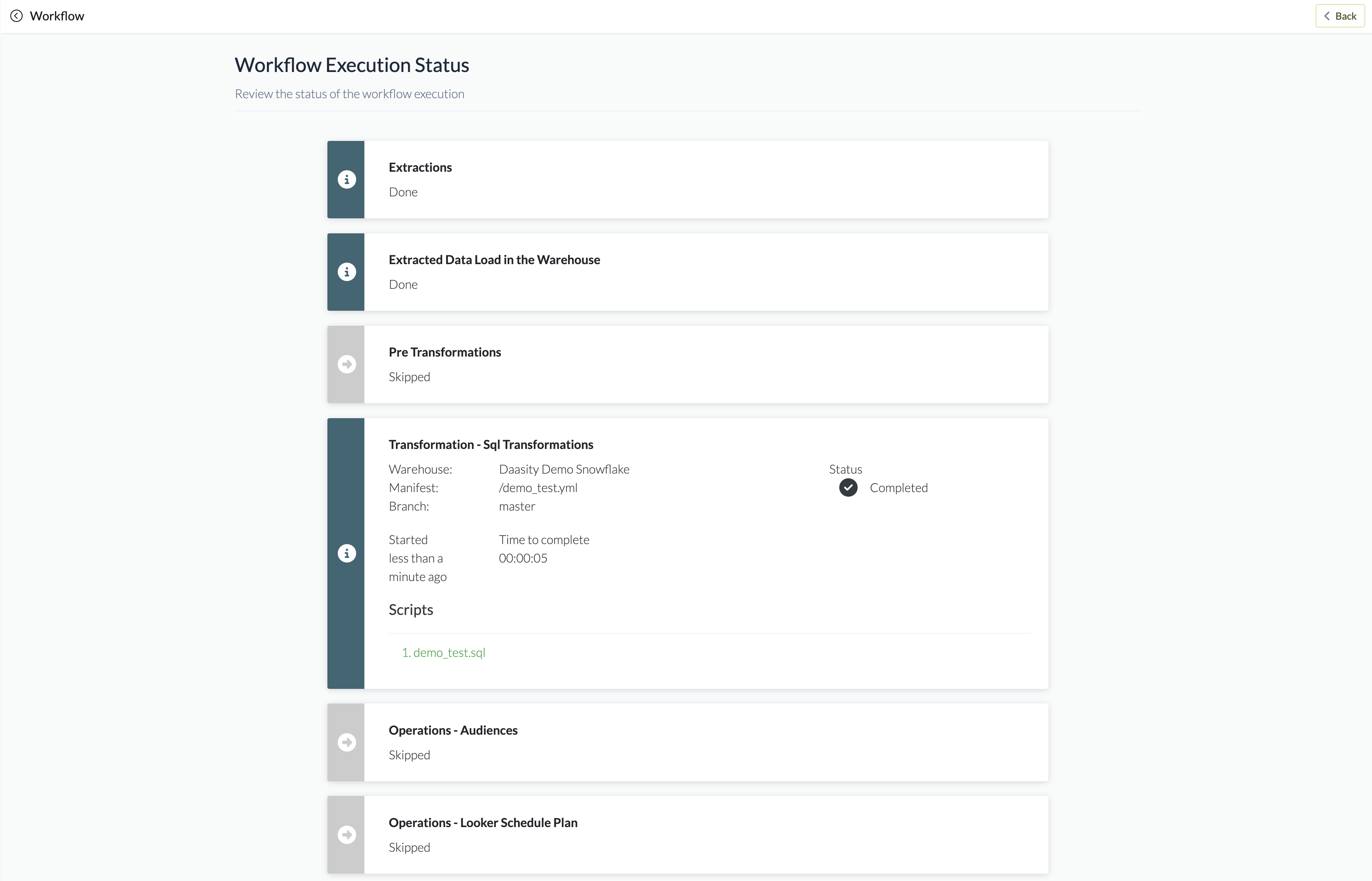
Once you have selected the appropriate sections and clicked run the app will take you to the Workflow Execution Status page where you can monitor the status of this one-time execution
## Edit a workflow
Editing a workflow enables you to make changes to the workflow and adjust the extractions, transformations and / or schedules of the workflow
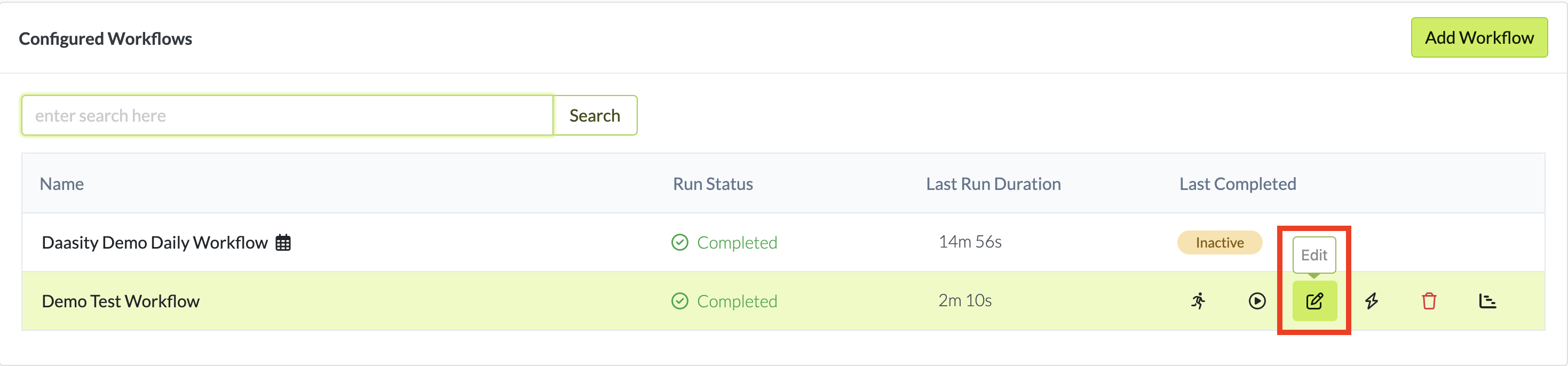
To edit a workflow just click on the edit workflow button next to the workflow you want to edit and make the changes similar to how you would in [Creating Workflows](/technical-docs/workflows-and-scheduling/creating-workflows.md)
## Activate / deactivate a workflow
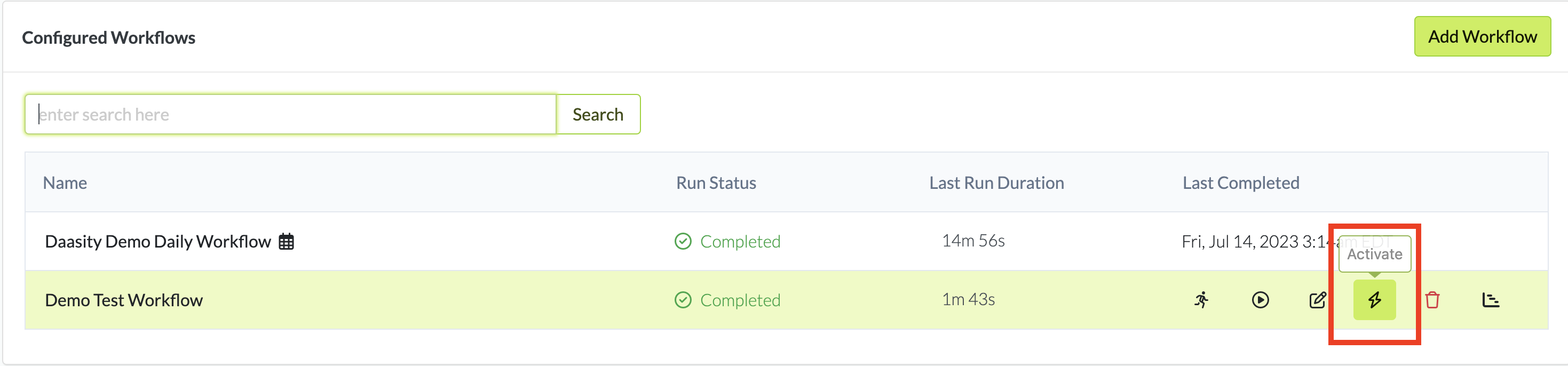
Activating / Deactivating a workflow enables you to turn the schedule on or off so that the workflow follows the schedule as defined in setup.
To activate a workflow click on the activate button next to the workflow you want to turn on:
Which will prompt you to confirm you want to activate the workflow:
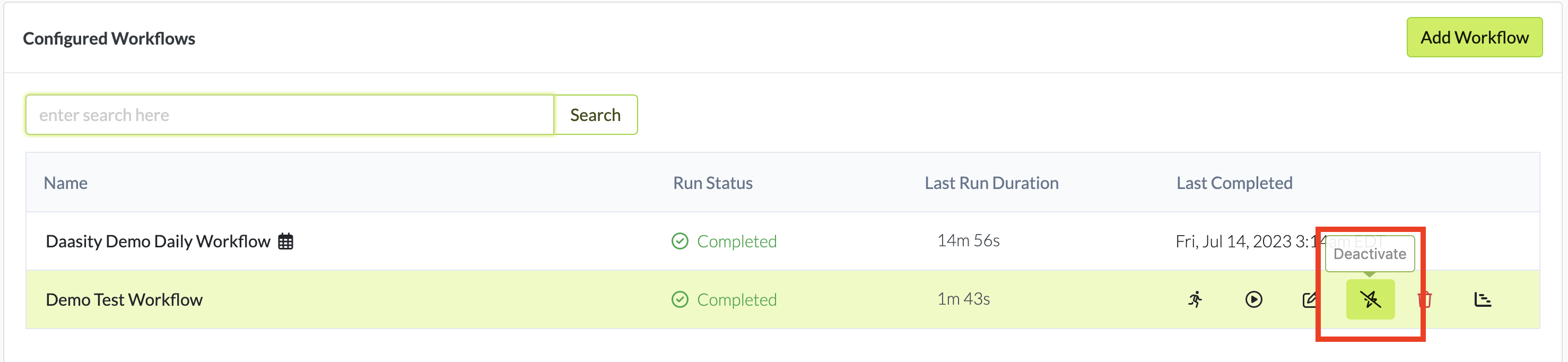
You can deactivate a workflow by clicking on the deactivate button next to the active workflow you want to turn off:
Which will prompt you to confirm you want to deactivate the workflow:
## Delete a workflow
Deleting a workflow will remove the workflow from the UI.
{% hint style="danger" %}
Deleting a workflow is permanent. The Daasity Support team cannot recover a workflow that has been deleted.
{% endhint %}
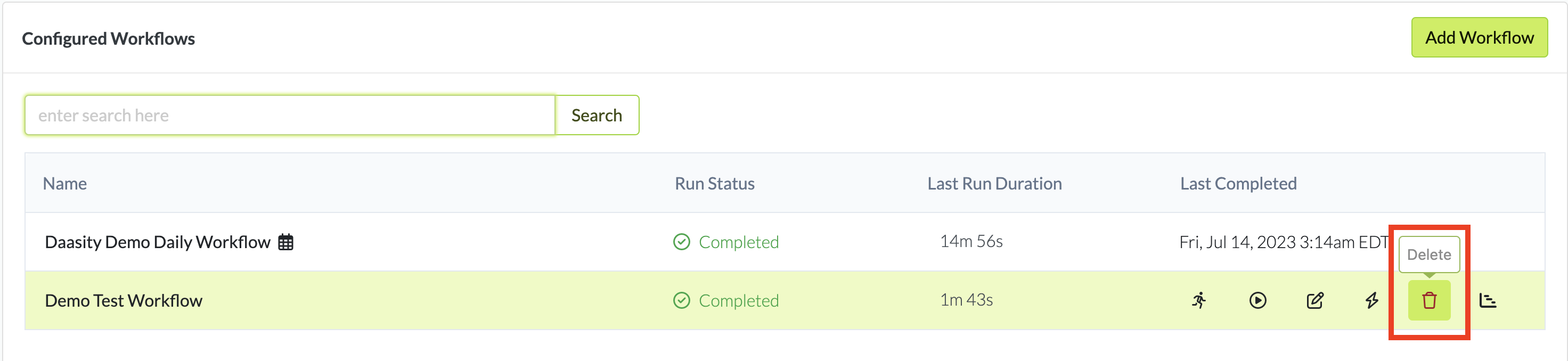
To delete a workflow click on the delete button next to the workflow you want to remove:
Which will prompt you to confirm you want to delete the workflow
## Show the last execution timeline
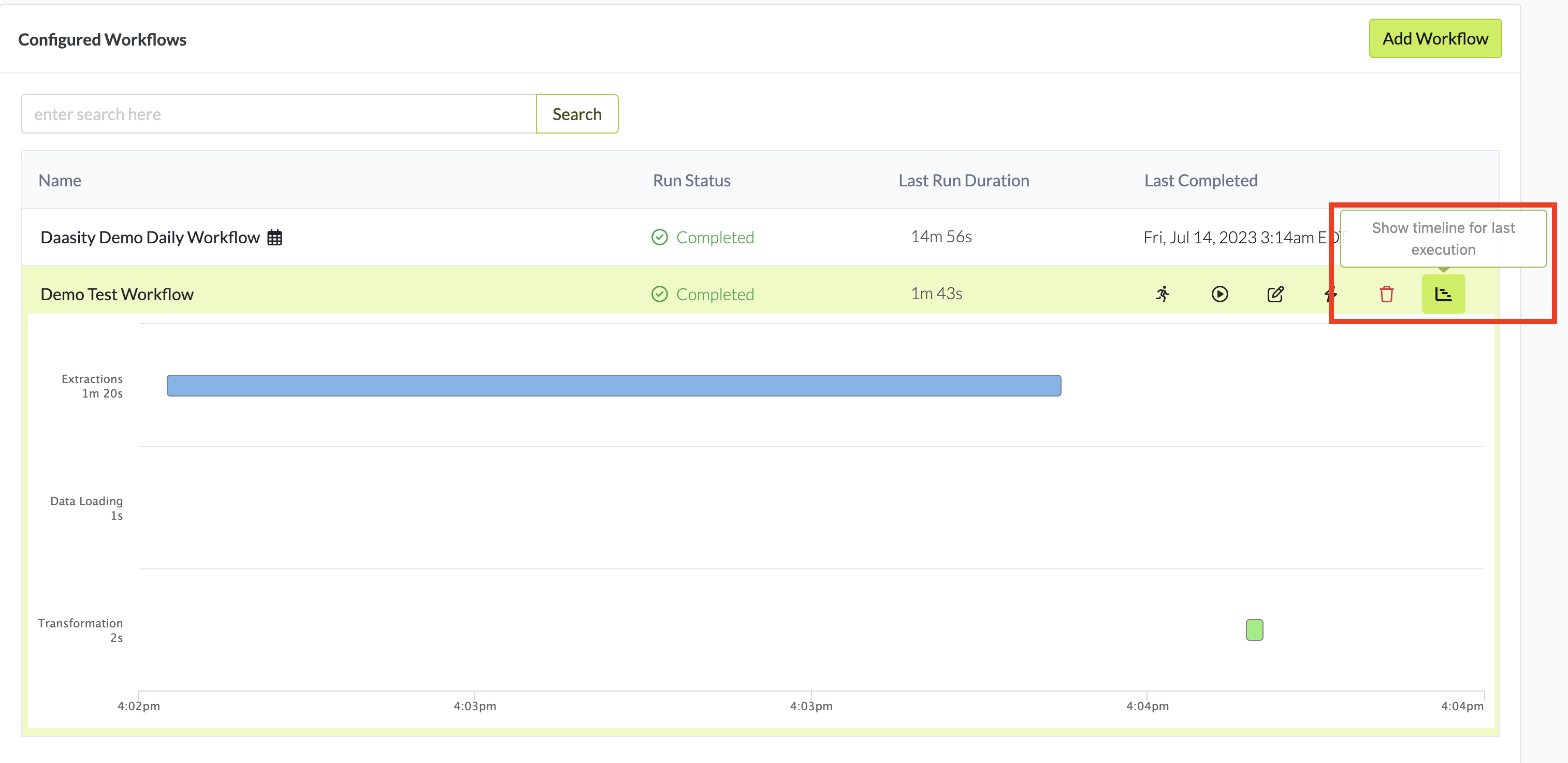
Showing the timeline for the last execution will expand the window to show you a graph of the time it took to extract, load and transform the data the last time the workflow ran. To view the graph click on the the show timeline button next to the workflow:
{% hint style="info" %}
This button will show only if the workflow has been run at least once.
{% endhint %}
 [Test](#test-a-workflow) - Run the transformation portion of your workflow on a [test data warehouse](/technical-docs/warehouse/test-data-warehouse/test-data-warehouse-overview.md).
 [Run](#run-a-workflow) - Run the workflow on your production warehouse on-demand. You can choose to run the entire workflow or only specific parts.
 [Edit](#editing-a-workflow) - Make changes to the workflow and adjust the extractions, transformations, and / or schedules of the workflow.
 [Activate / Deactivate](#activating-deactivating-a-workflow) - Turn the schedule on or off without deleting the workflow.
 [Delete](#deleting-a-workflow) - Remove the workflow permanently from the app.
 [Show Timeline](#showing-the-last-execution-timeline) - Show a graph of the time it took to extract, load, and transform the data the last time the workflow ran. This will only appear if the workflow has run at least once.