> For the complete documentation index, see [llms.txt](https://help.daasity.com/llms.txt). Markdown versions of documentation pages are available by appending `.md` to page URLs; this page is available as [Markdown](https://help.daasity.com/technical-docs/warehouse/test-data-warehouse/create-a-redshift-test-warehouse.md).
# Create a Redshift Test Warehouse
This page outlines the steps you need to take to create a test warehouse when you are using Redshift
## Overview
The test warehouse feature allows you to follow good software development practices by enabling you to test your code in a non-production environment before merging your changes into production. Follow these steps to create your test warehouse
In AWS:
1. [Create a snapshot of your Redshift Cluster](#creating-a-snapshot-in-redshift)
2. [Restore the snapshot to the Provisioned Cluster](#restore-the-snapshot)
3. [Make the Cluster is publicly accessible](#make-the-cluster-publicly-accessible)
In the Daasity App:
1. [Navigate to Warehouse Page](#navigate-to-the-warehouse-page)
2. [Enter Warehouse information](#enter-warehouse-information)
3. [Test the connection](#test-the-connection)
4. [Destroy the Test Warehouse](#destroy-test-warehouse)
### Creating a snapshot in Redshift
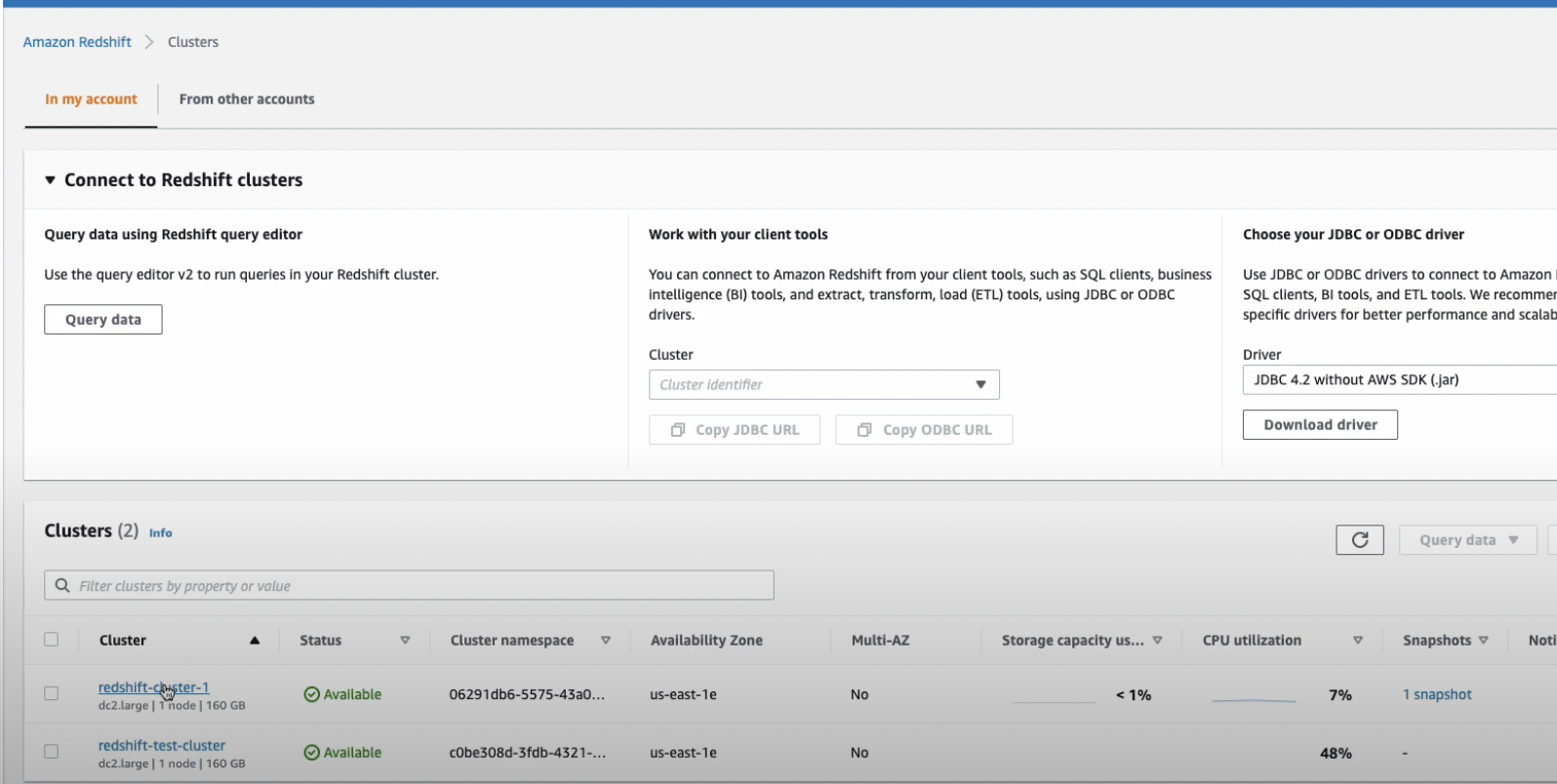
Login into your AWS Redshift Console
Click on your cluster
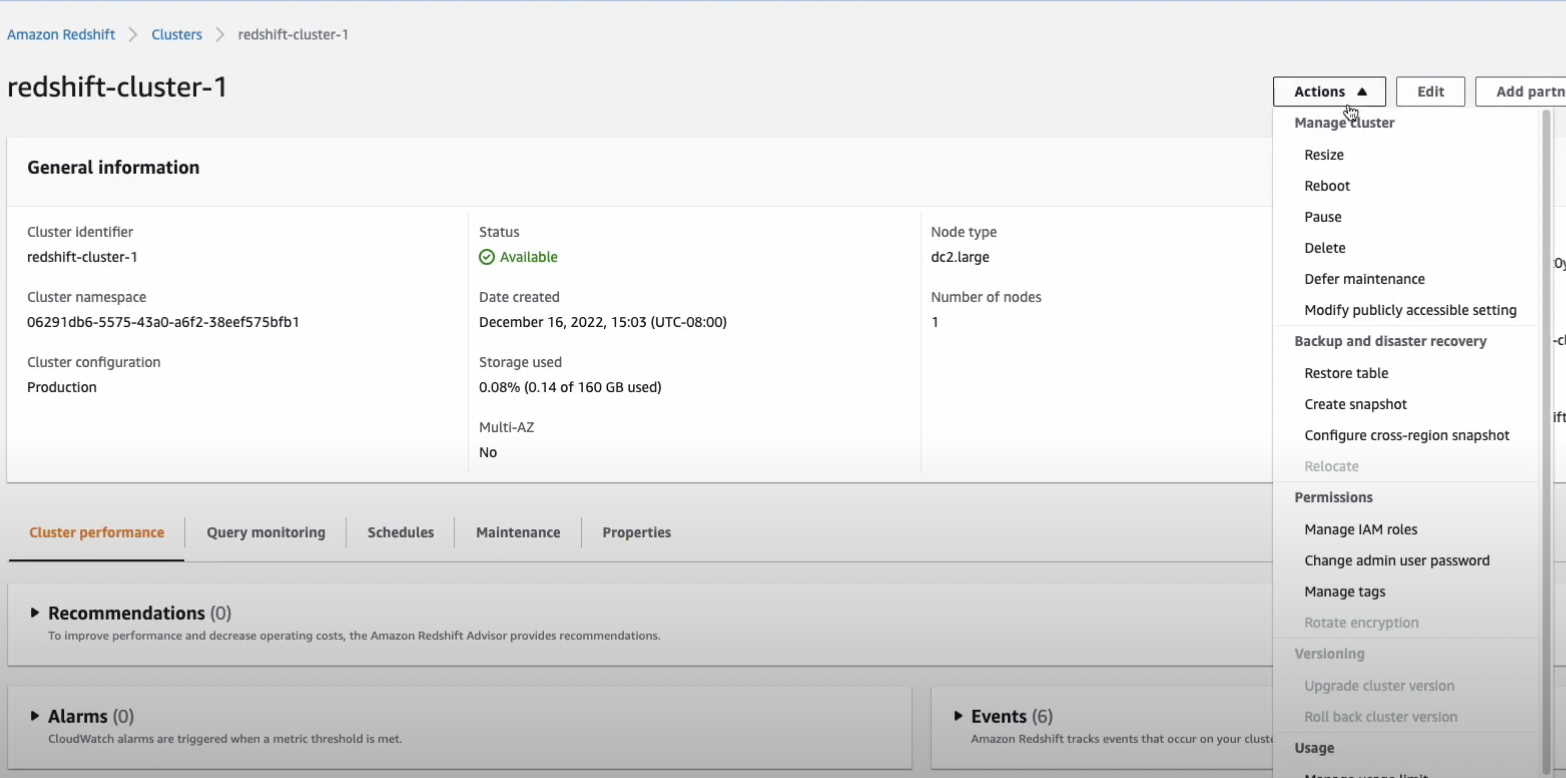
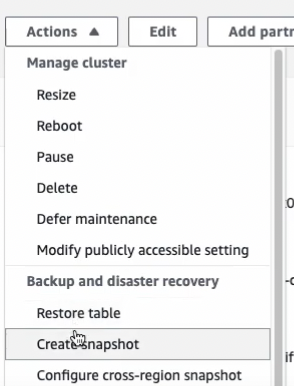
Navigate to Actions
Click "Create Snapshot"
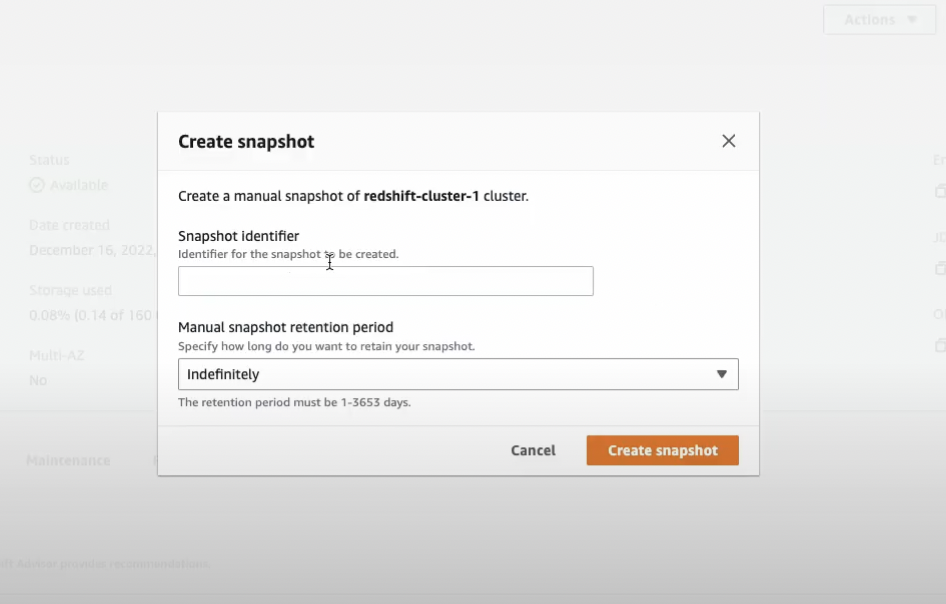
Give the snapshot a name and select the retention period for the backup. We recommend a the shortest amount of time as we only need this snapshot to provision a test warehouse
### Restore the snapshot
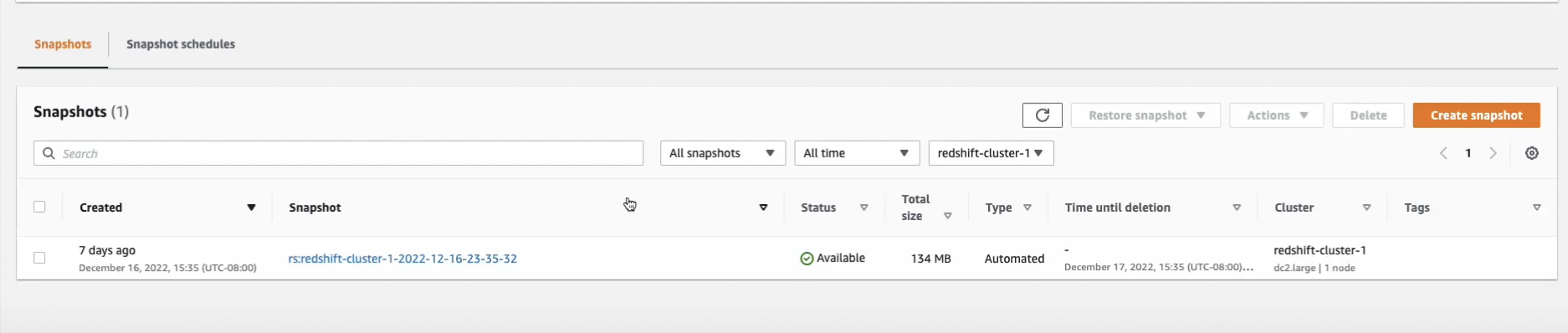
Once the snapshot has been created, find the snapshot by clicking on the cluster you backed up and navigate to the snapshot screen
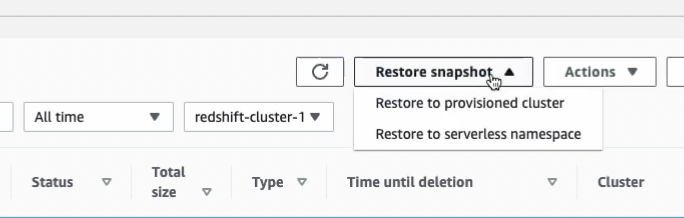
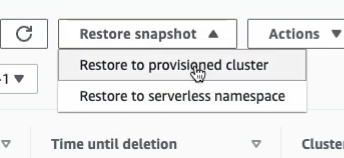
From the "Restore Snapshot" dropdown select "Restore to provisioned cluster"
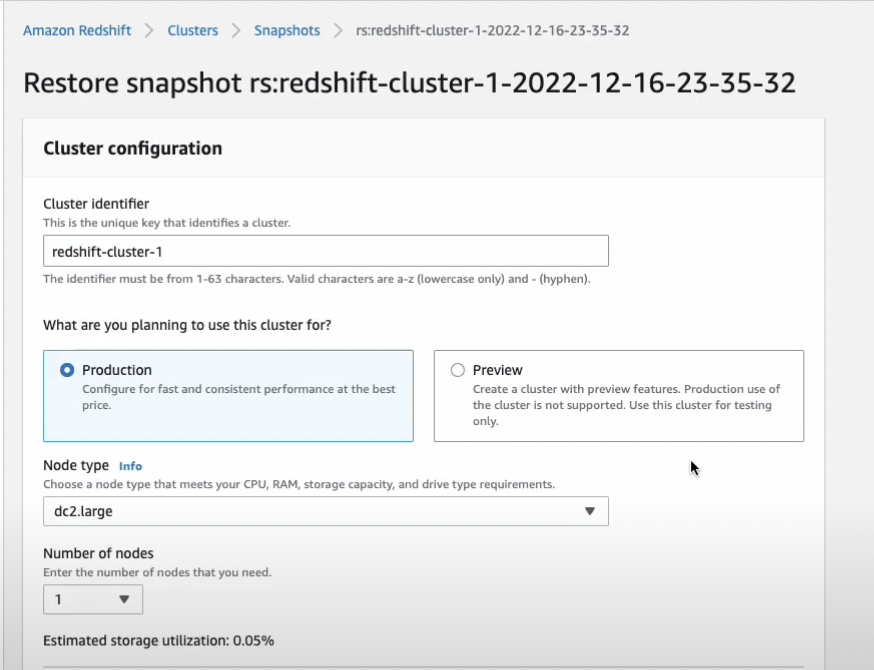
Give the cluster a name, select "Production" and make sure to choose the appropriate Node type and number of nodes
{% hint style="info" %}
You should select the same Node type and Number of nodes as the original cluster that you are copying
{% endhint %}
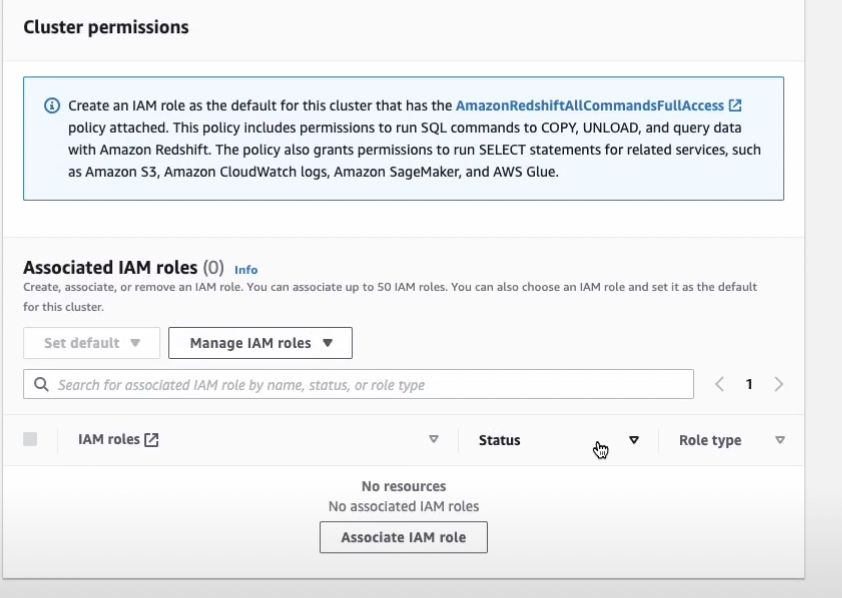
In the "Cluster permissions" make sure to add the correct IAM roles
{% hint style="danger" %}
You will not be able to access the Test Warehouse within Daasity if you do not add the correct IAM roles
{% endhint %}
### Make the cluster publicly accessible
Click on the test cluster from the main page
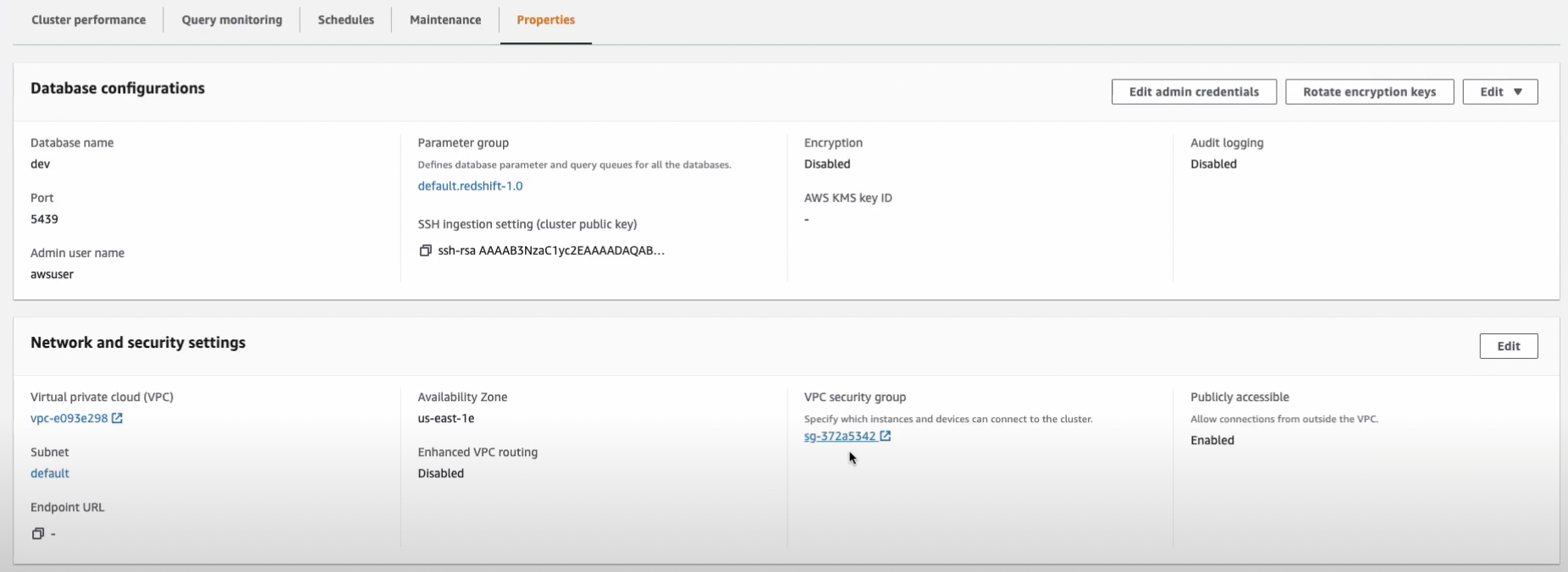
Click on "Properties"
And set the permissions to "Publicly Accessible"
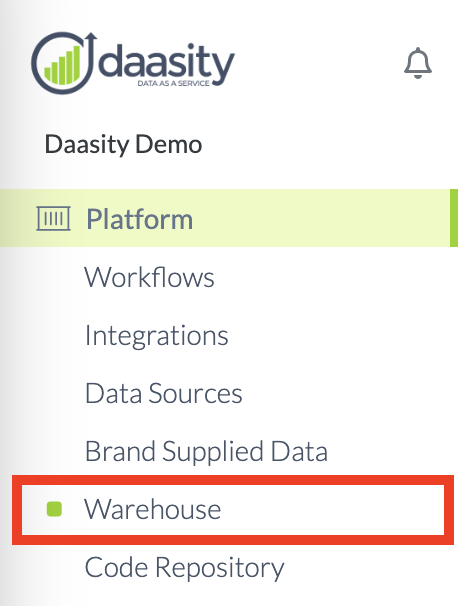
### Navigate to the Warehouse page
In the Daasity App navigate to the Warehouse page
### Enter warehouse nformation
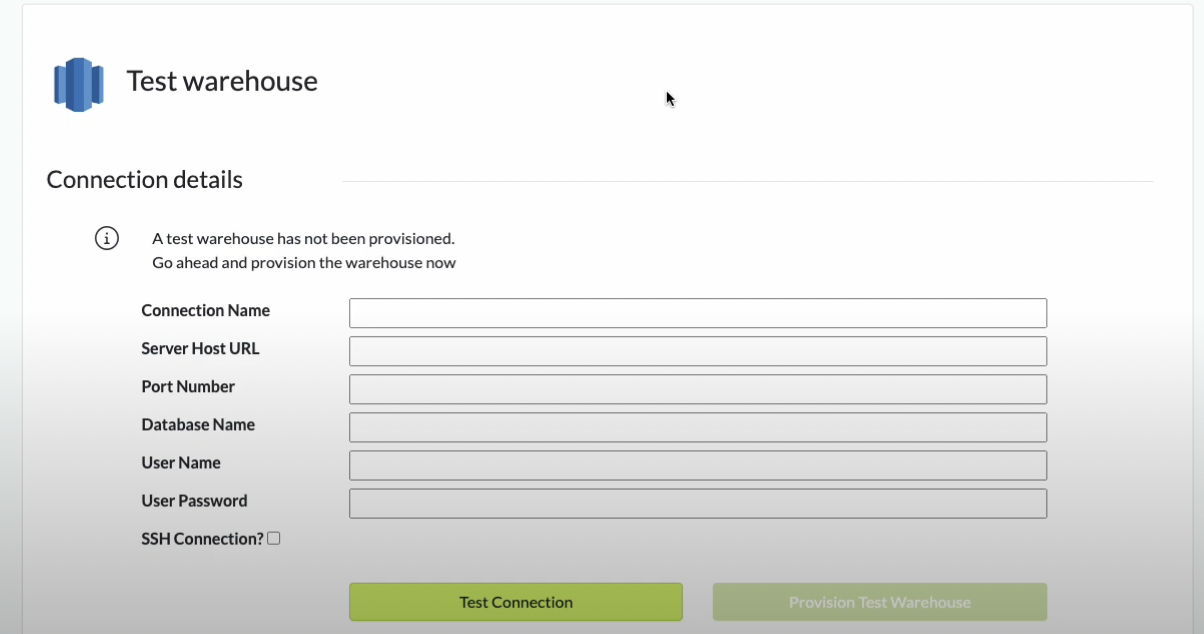
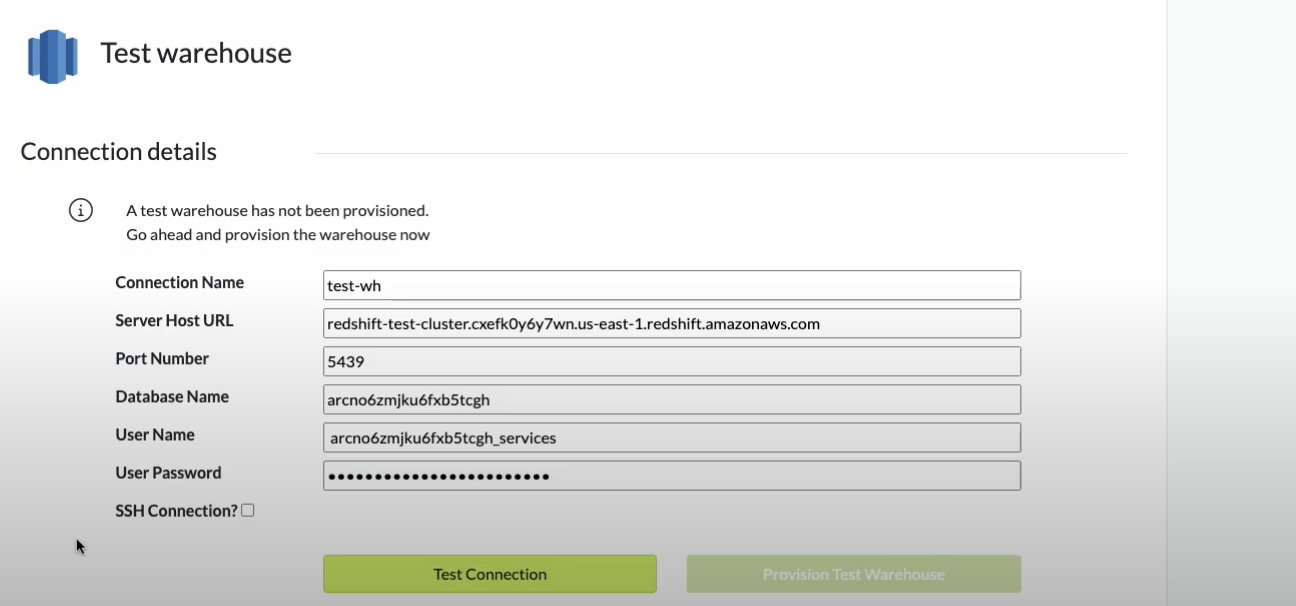
You will need to enter connection information for your Redshift Cluster
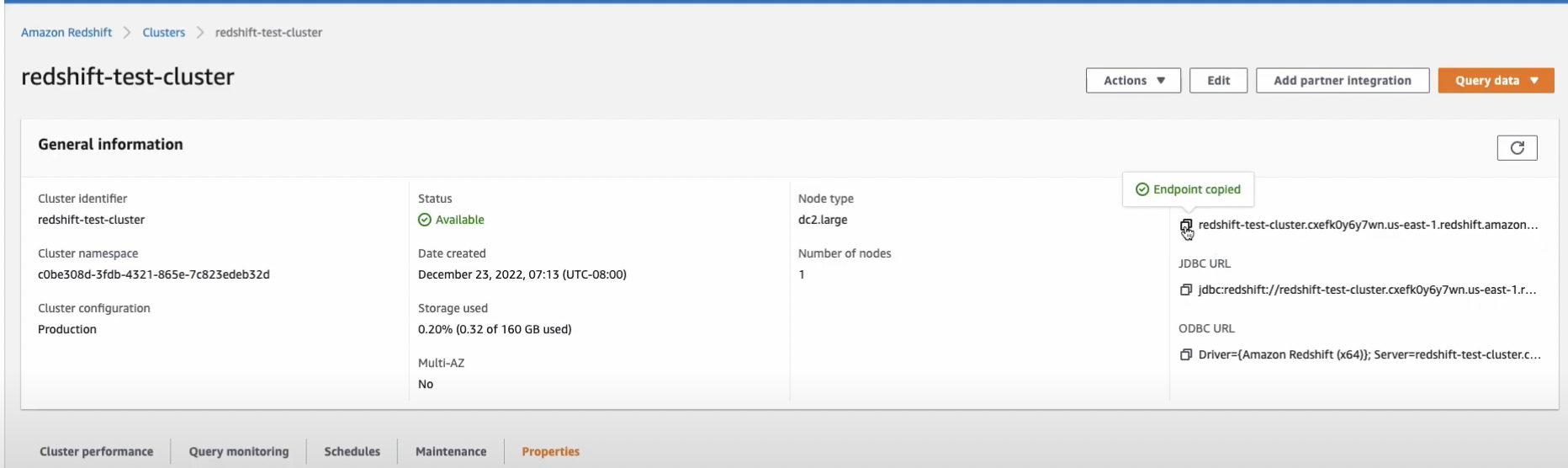
You can get this information from AWS
And enter into the Daasity App
{% hint style="warning" %}
Make sure to delete all the information after the .com that was copied over
{% endhint %}
Will become
{% hint style="info" %}
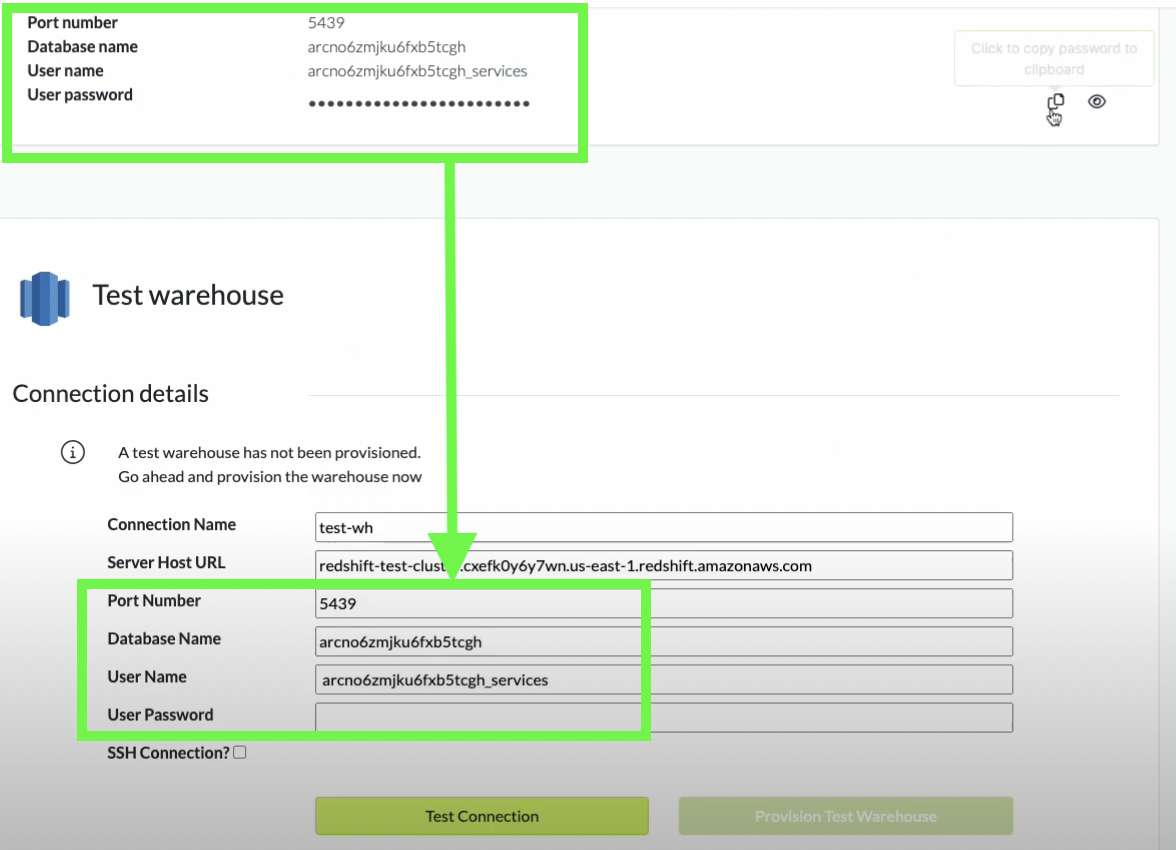
You can copy the Port Number, Database Name, User Name and User Password from your production warehouse as these will be the same
{% endhint %}
### Test the connection
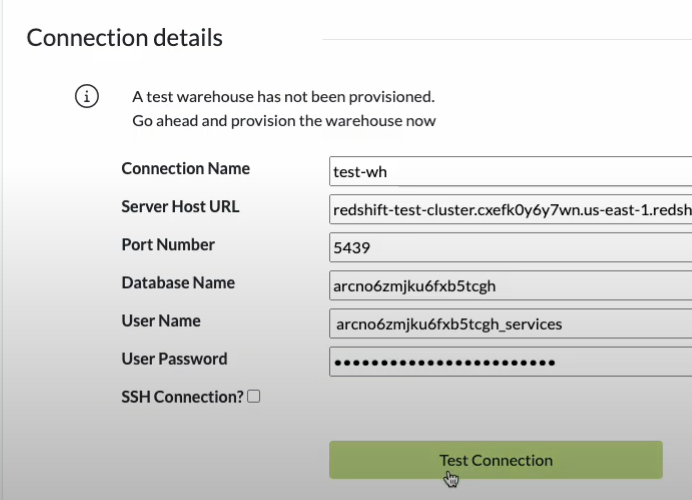
Once the information has been added test the connection by clicking on "Test Connection"
Once the test passes click on "Provision Test Warehouse" to complete setup
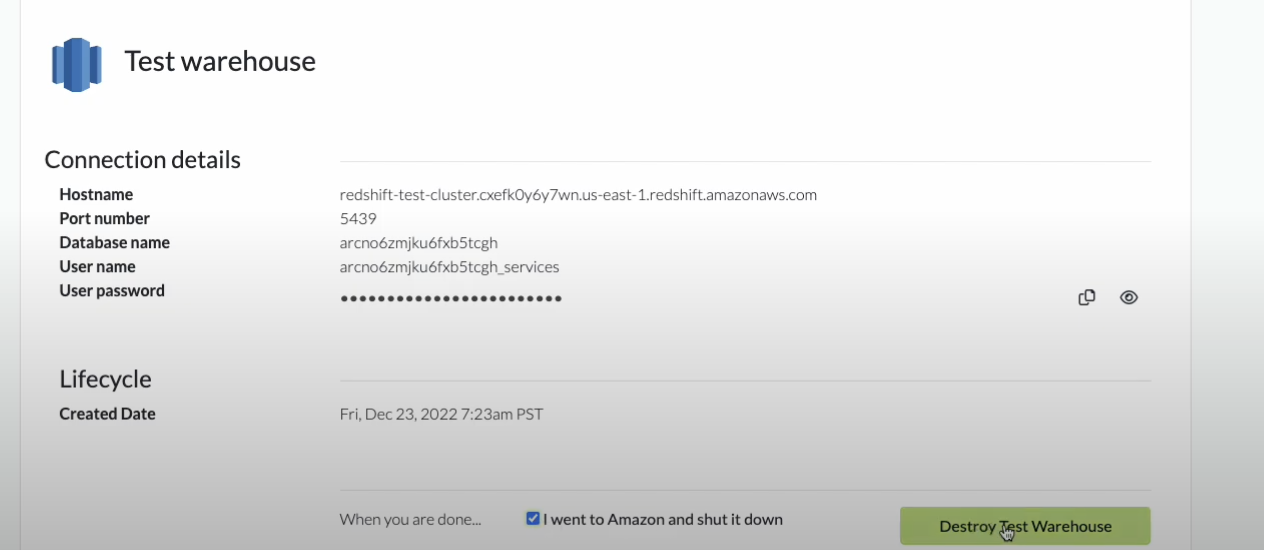
### Destroy test warehouse
Your test warehouse is a one-time snapshot of your production warehouse and thus you should destroy the test warehouse once your testing is complete. In order to destroy the test warehouse you will need to delete the cluster in Redshift and then destroy the test warehouse in the Daasity App