> For the complete documentation index, see [llms.txt](https://help.daasity.com/llms.txt). Markdown versions of documentation pages are available by appending `.md` to page URLs; this page is available as [Markdown](https://help.daasity.com/core-concepts/data-integrations/setup-guides/digital-integrations/skio/integration-setup.md).
# Integration Setup
## Step 1: Navigate to 'New Integration' screen
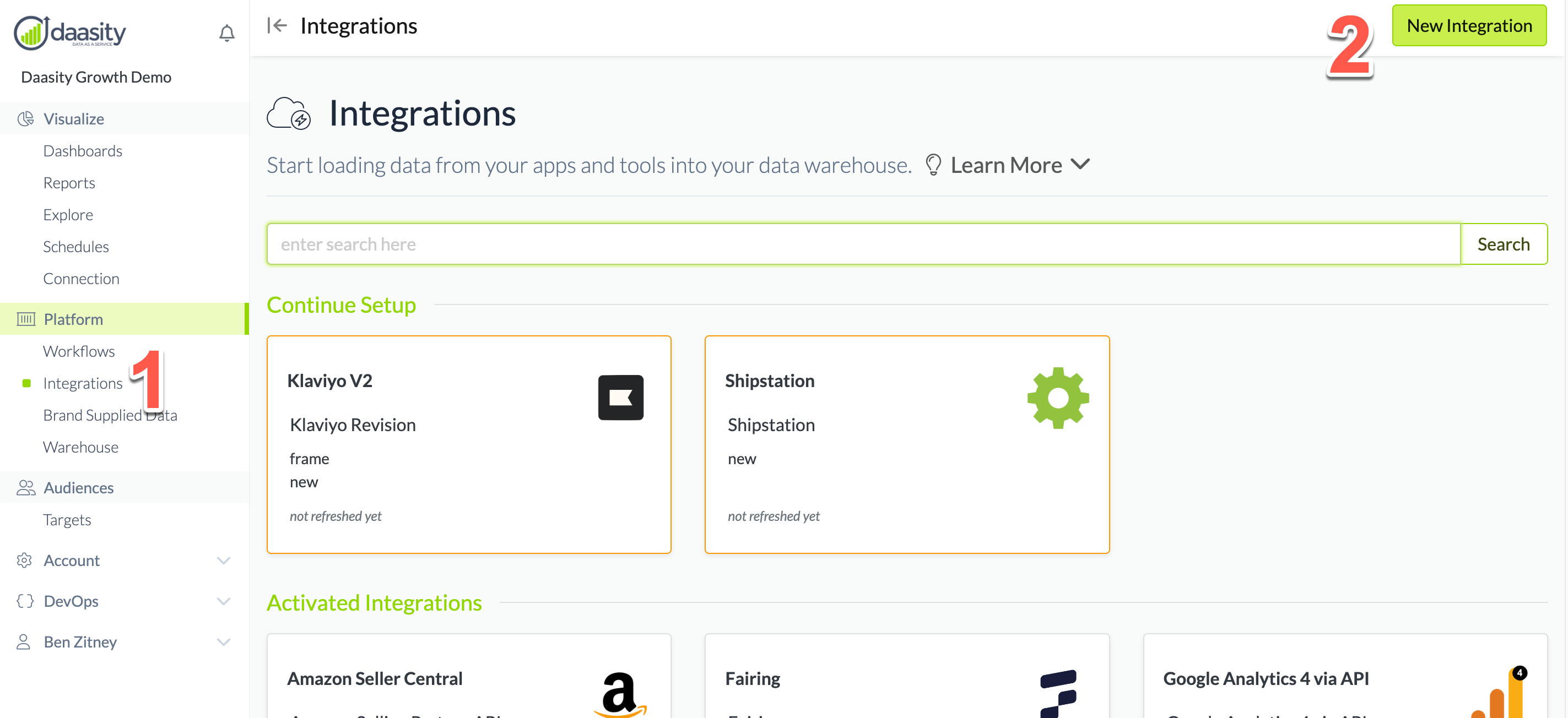
In the Daasity app, click **Integrations** in the left-hand menu, and then the **New Integration** button in the upper-right corner.
## Step 2: Choose the SKIO integration
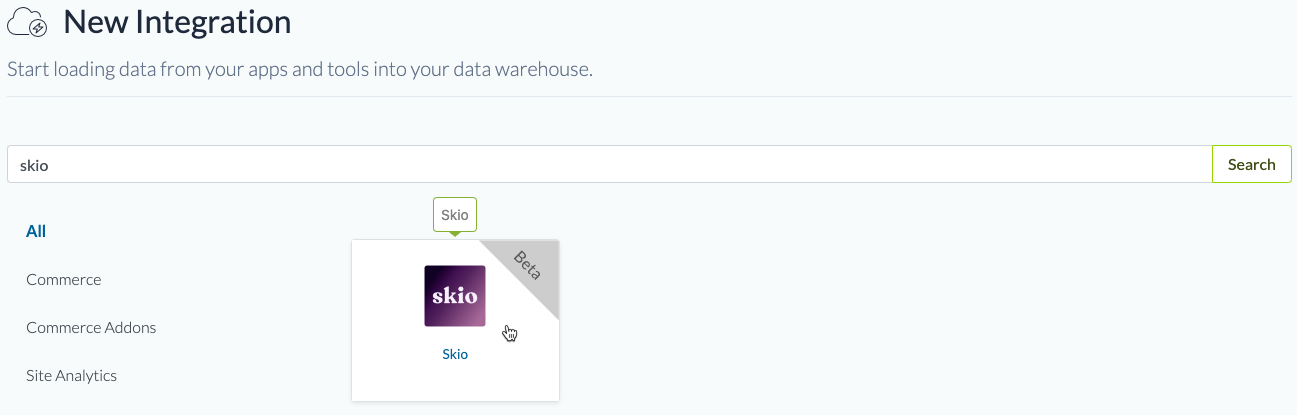
In the search box, type "skio" and choose the SKIO integration.
## Step 3: Name the integration
Give the integration a name. This is the name that will be displayed in your integrations list in the Daasity app.
## Step 4: Authorize the integration
To give Daasity access to your SKIO data for extraction, you'll need to create an API key in the SKIO admin and input it in the Daasity app:
## Step 5: Save the integration
## Step 6: Wait for dataset to be ready
Once you authorize the app, there will be a waiting period — typically a few hours — before your dataset is ready for syncing with Daasity. If it takes longer than a day for the dataset to be ready, please contact .
## Step 7: Load history
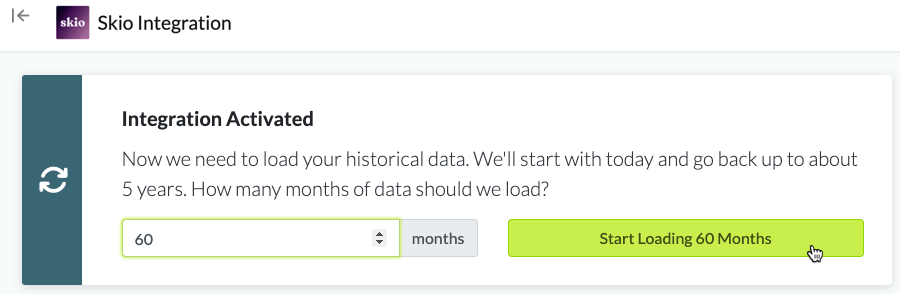
From the integration details screen, trigger a load of up to 5 years of history:
This will load your historical data into your database.
You will see the data reflected in your [subscription dashboard](/core-concepts/dashboards/report-library/data-source-dashboards/subscription.md) and explores after the next daily workflow runs.