Integration Setup

Step 1: Integrations

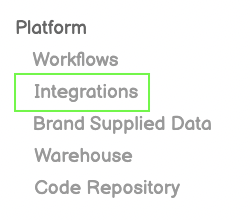
Click Integrations from Left-Side Menu Bar
Step 2: New Integration

Click the New Integration Button on top-right of screen
Step 3: Google Analytics 4

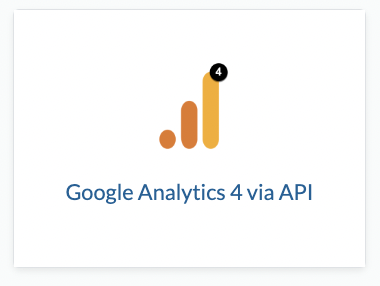
Click the Google Analytics 4 icon from the Integration Page
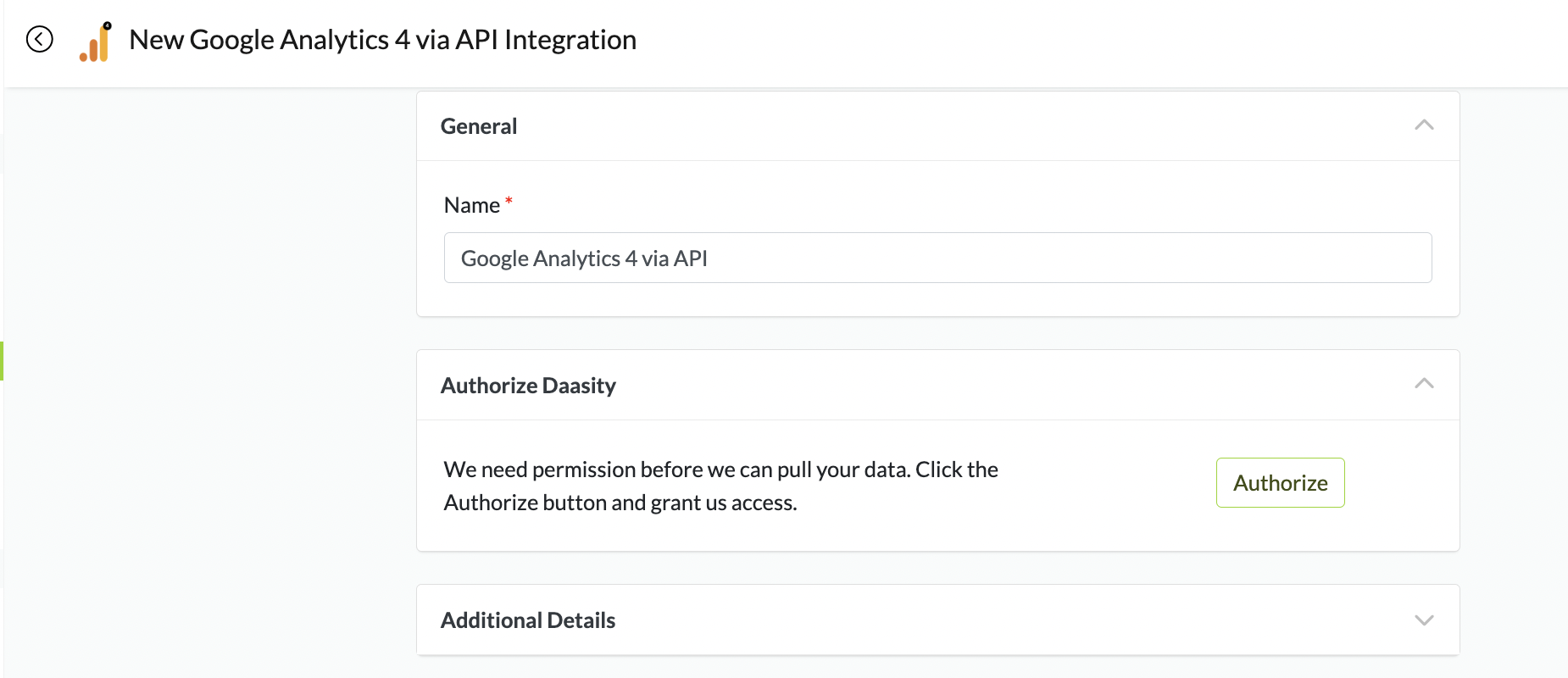
Step 4: Authorize Daasity

circle-exclamation
Click Authorize to Connect to API

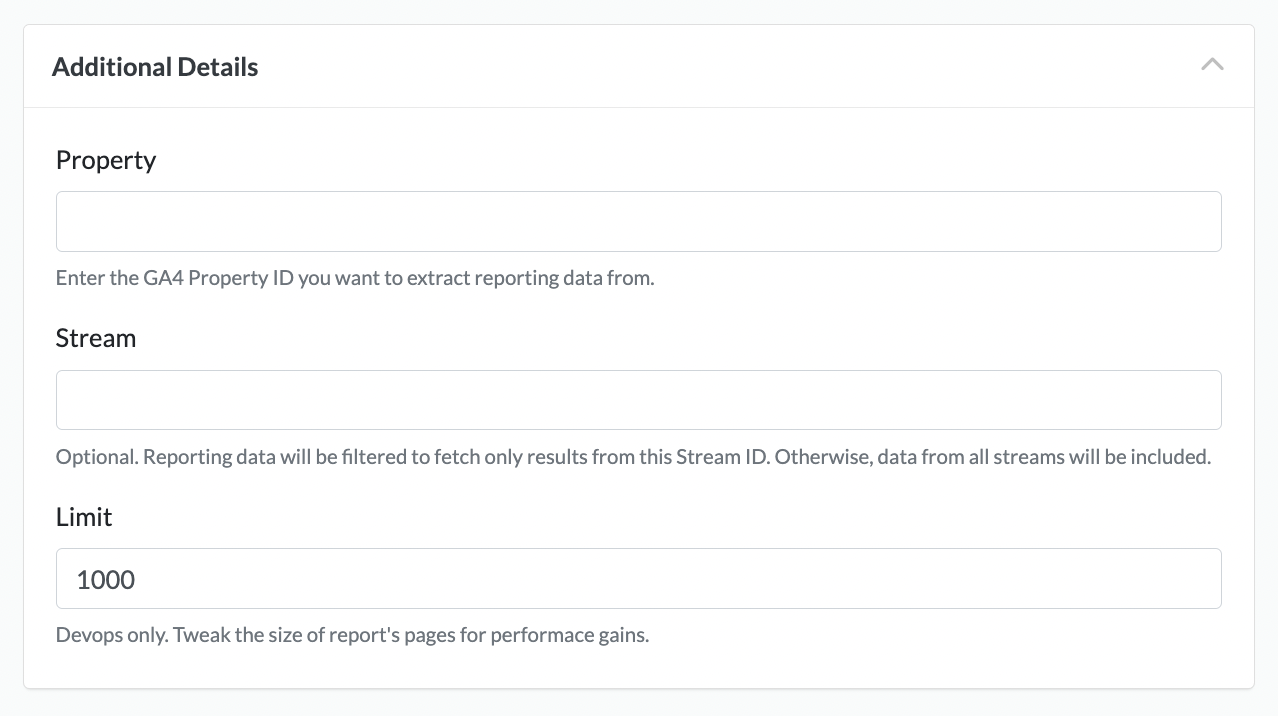
Step 5: Enter Property ID

circle-exclamation
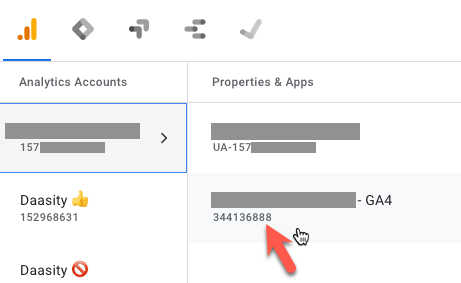
Enter the Property ID (Stream is Optional)
circle-exclamation

You can find the Property ID from the GA4 user interface.

In the Account Navigator, The Property ID is listed under the Property Name
circle-exclamation

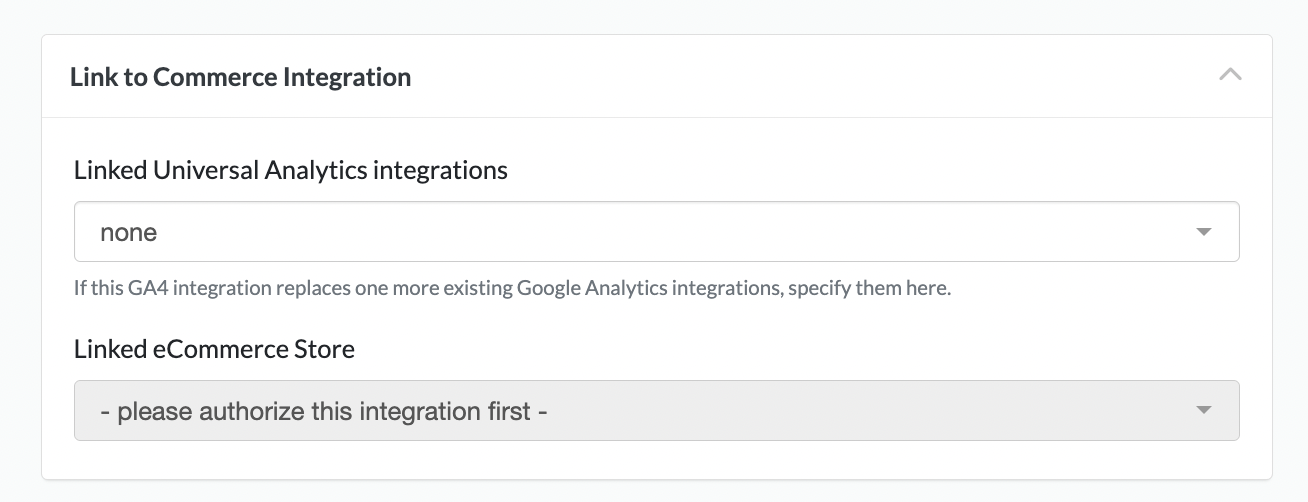
Choose your UA Integration and Ecommerce Store from the Dropdown Menus
Select a Cutover Dae

circle-exclamation

This field will be used in UTS features that blend UA & GA4 data together.

In those reports, if there is overlapping UA & GA4 data, Daasity will use the Cutover Date to determine the date when we should start Prioritizing GA4 data over UA data.

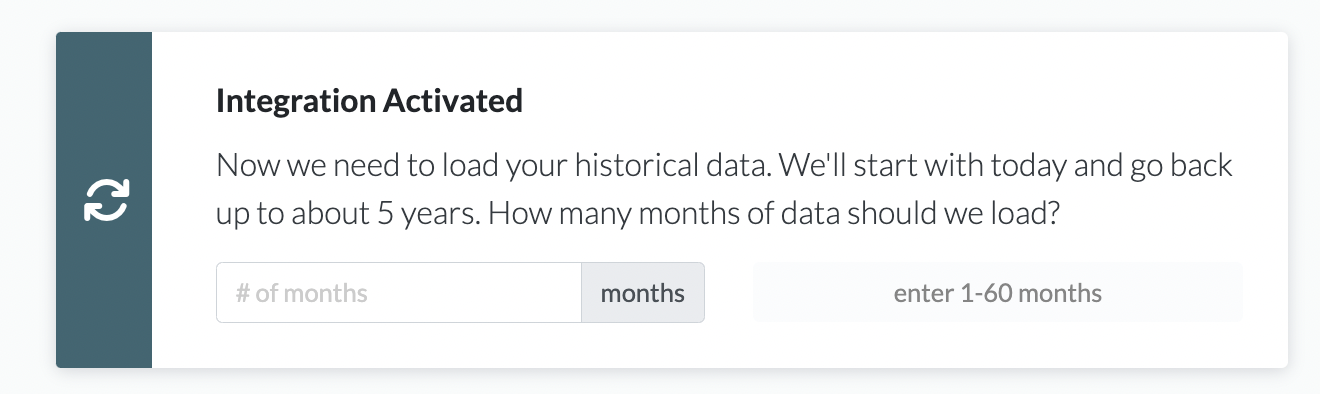
Step 7: Load Historical Data

Enter the Number of Months You Want to Load

Was this helpful?