> For the complete documentation index, see [llms.txt](https://help.daasity.com/llms.txt). Markdown versions of documentation pages are available by appending `.md` to page URLs; this page is available as [Markdown](https://help.daasity.com/core-concepts/data-integrations/setup-guides/digital-integrations/algolia/integration-setup.md).
# Integration Setup
To connect Algolia please follow the steps below
{% hint style="warning" %}
You should get an API Key via Algolia UI or their support team prior to following these steps. Read this [Algolia article](https://www.algolia.com/doc/guides/security/api-keys/) to learn more about how to add API keys
{% endhint %}
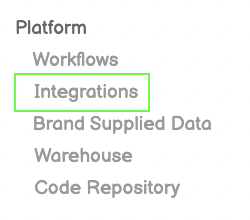
## Step 1: Navigate to Integrations
Navigate to the Integrations screen by clicking on Integrations on the left nav bar
## Step 2: Select New Integration
Click on New Integration on the top right
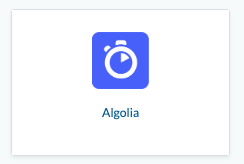
## Step 3: Select Algolia
Find and click on the Algolia icon
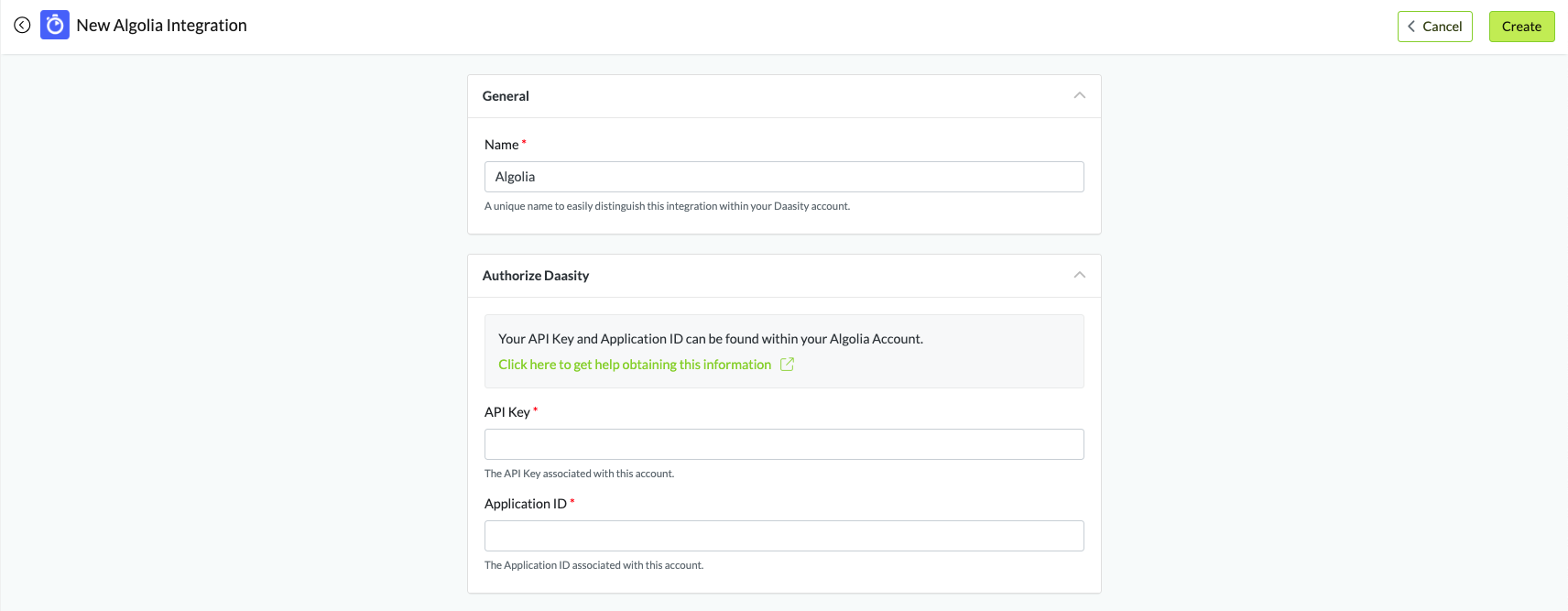
## Step 4: Create the Integration
* Give your Integration a name
* Enter the API Key
* Enter the Application ID
* Click on Create in the upper right once the fields have been completed
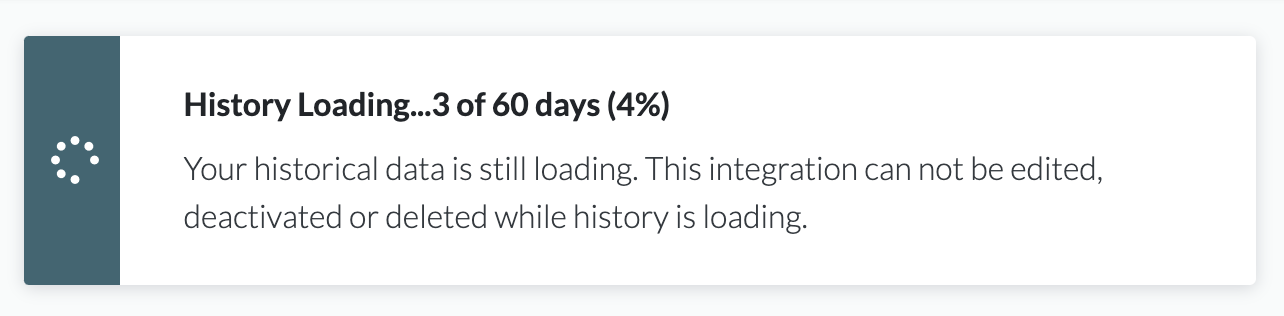
## Step 5: Load Historical Data