> For the complete documentation index, see [llms.txt](https://help.daasity.com/llms.txt). Markdown versions of documentation pages are available by appending `.md` to page URLs; this page is available as [Markdown](https://help.daasity.com/core-concepts/data-integrations/custom-data-inputs/bigquery-datasource.md).
# BigQuery Datasource
## Purpose of this integration
The BigQuery Datasource integration isn't technically an integration — it's a utility that will be used by other integrations. It establishes credentials that will be used to access a BigQuery project that contains data you want to extract into Daasity.
Once you have a BigQuery Datasource set up, you will use it as the connection source for one or more BigQuery Table Replicators, where the actual data extraction happens."
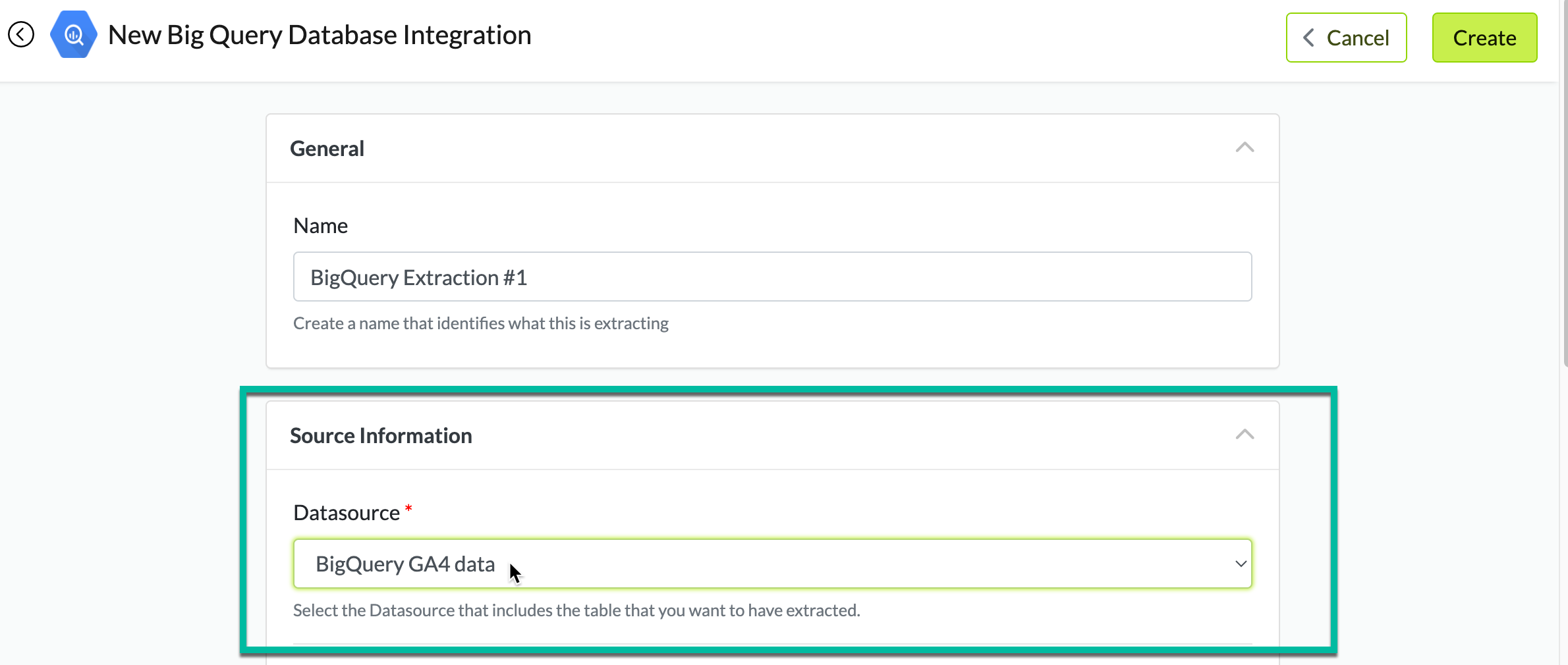
Once you've set up a BigQuery Datasource, it will appear in the Datasource dropdown when creating a BigQuery Table Replicator:
## Setup Instructions
Step 1: Create a service account for Daasity
In order for Daasity to be able to extract your GA4 BigQuery data, we need you to create a service account that we can use to give us read access.
If you haven't already created a service account for Daasity, you can start by navigating to
In the details section, use whatever name, ID, and description details you prefer:

***
Grant the service account **BigQuery User** and **BigQuery Data Viewer** roles:

***
Granting users access to the service account is entirely optional. This will just dictate what other Google Cloud Platform users can see this service account:

Finally, click **DONE**.
Step 2: Generate a service account key for the Daasity service account
The service account key will act as a password that will allow the Daasity service account access to your BigQuery data.
To generate it, first navigate to
Then, click on the email of the service account you created in the previous step:

***
On the next page, navigate to the **KEYS** tab:

***
Click **ADD KEY** and choose **Create new key**:

***
In the pop-up, choose **JSON** and click **CREATE**:

This should generate a .json file that will be downloaded to your computer. You will use this file in the next step.
Step 3: Add the service account key to the BigQuery Datasource
In this step, you're going to add the service account and key information you generated in the previous step in the **General** section of the integration settings:

**Name:** Enter the name that you will want to see in the UI and Datasource dropdowns elsewhere
**Email**: The service account email
**JSON Service Key**: Enter the info from the JSON key you generated in the previous step.
You have 2 choices of how to do this:
A. Drag the file you downloaded in Step 4 onto the screen where it says **Drag file here**, or
B. Open the file you downloaded in Step 4, copy the contents, click the **Enter Key** tab, and paste the contents
Once you have filled out all of this info, click **CREATE** in the upper right corner. You will now be able to select this datasource when creating new BigQuery Table Replicators.