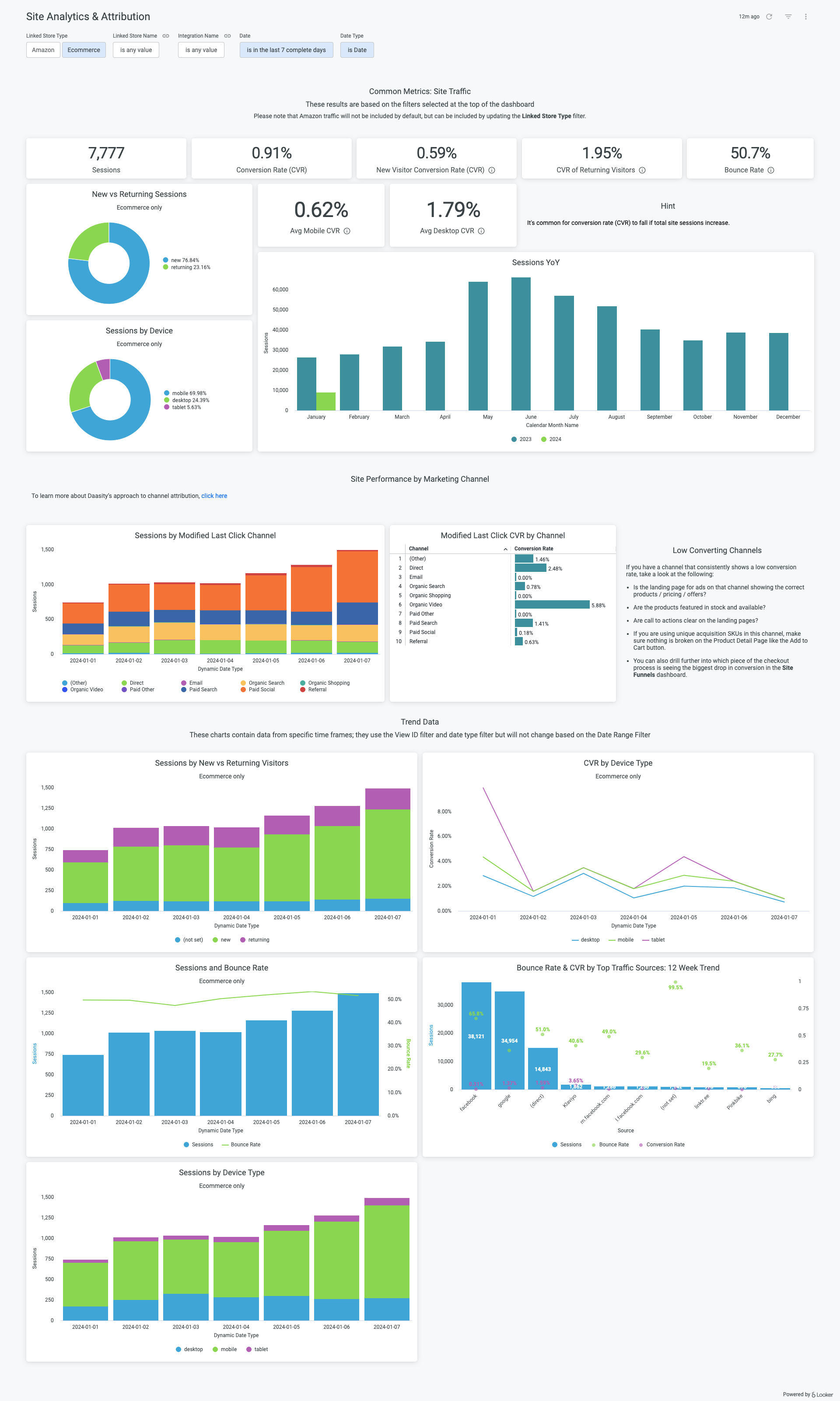
> For the complete documentation index, see [llms.txt](https://help.daasity.com/llms.txt). Markdown versions of documentation pages are available by appending `.md` to page URLs; this page is available as [Markdown](https://help.daasity.com/core-concepts/dashboards/report-library/ecommerce-performance/site-analytics-and-attribution.md).
# Site Analytics & Attribution
## Overview
The **Site Analytics & Attribution** dashboard helps you keep a pulse on how many potential customers are viewing your website or your products on Amazon and the rate at which they are purchasing. It enables you to segment performance, as you would in the Google Analytics UI, by key dimensions like device type, new vs. returning users, and marketing channels.
## Data sources
All of the visualizations in this dashboard use the **Traffic** explore, which contains data from the following sources:
* **Universal Analytics** and **Google Analytics 4** — The data from these sources will be blended dependent on the cutover date you specify in your **Google Analytics** **4** integration. [-> Learn more about Universal Analytics and Google Analytics 4 data here.](https://help.daasity.com/important-concepts/blending-universal-analytics-and-ga4-data)
* **Amazon Business Reports** — If you have the **Sales and Traffic** report enabled in your **Amazon Seller Central** integration, you will also see traffic data in here from Amazon. Note, however, that Amazon does not provide the level of detail provided by Google Analytics, so you will not be able to drill down to the extent at which you can drill down with GA data.
{% hint style="info" %}
**Amazon vs. your ecommerce store**
Since many of the segmented visualizations apply only to Google Analytics data (since GA provides more detailed data than Amazon), the dashboard is set to show only ecommerce data by default. You can toggle between Amazon and ecommerce data using the **Linked Store Type** filter at the top of the dashboard.

{% endhint %}
## Setup
The **Site Analytics & Attribution** dashboard will be available in your dashboard list by default. However, it will only contain data if you have a [Google Analytics](https://help.daasity.com/extract/integrations/google-analytics-universal-analytics/integration-setup) integration, [Google Analytics 4 via API](https://help.daasity.com/extract/integrations/google-analytics-4/api-integration/integration-setup) integration, or [Amazon Seller Central integration](https://help.daasity.com/extract/integrations/amazon-seller-central/integration-setup/configure-amazon-reports) (with the **Sales and Traffic** report enabled).