# Schedule a Report or Dashboard

## Growth Merchants

Merchants under a Daasity Growth license can schedule Reports and/or Dashboards within the Daasity Interface by following these steps.

### Create New Schedule

{% hint style="success" %}
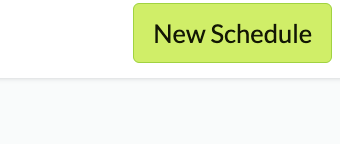
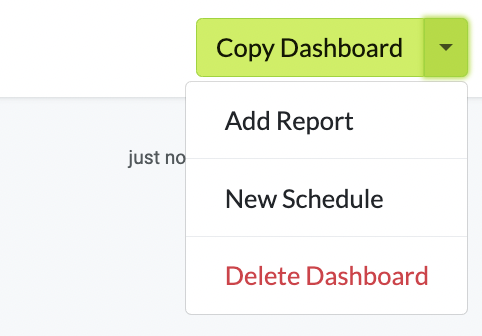
If you are Viewing the Dashboard that you want to Schedule - **Click the Copy Dashboard Dropdown Menu in the top-right corner and Click New Schedule.**
{% endhint %}

<figure><img src="https://content.gitbook.com/content/amTMWiPne1v1V3L7mbuj/blobs/UAD8vqvQfFhNdAA7jZXV/Screen%20Shot%202023-11-27%20at%201.12.27%20PM.png" alt=""><figcaption><p>Click New Schedule</p></figcaption></figure>

{% hint style="success" %}
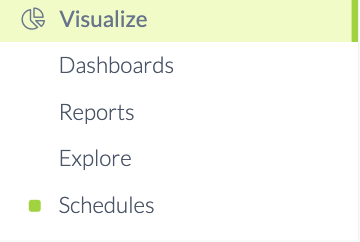
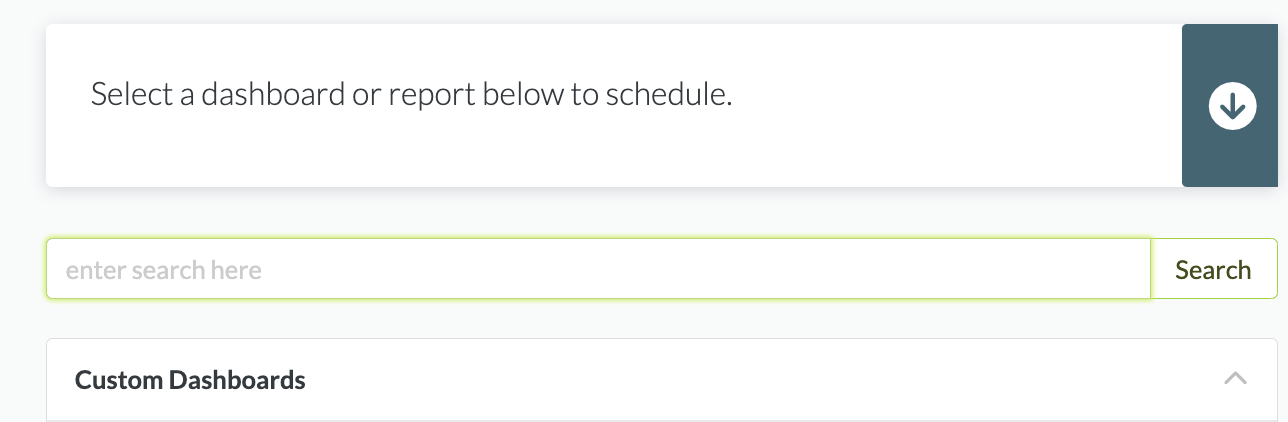
You can also Click Schedule from the Side-Menu Bar > New Schedule > Choose the Dashboard you want to Schedule.
{% endhint %}

<figure><img src="https://content.gitbook.com/content/amTMWiPne1v1V3L7mbuj/blobs/IpFNcmYIJTWYSPqyZTiT/schedules%20in%20menu%20bar.png" alt=""><figcaption><p>Choose Schedules </p></figcaption></figure>

<figure><img src="https://content.gitbook.com/content/amTMWiPne1v1V3L7mbuj/blobs/mlRfSMX8mjyVj6HqQASs/Screen%20Shot%202023-11-27%20at%201.25.05%20PM.png" alt=""><figcaption><p>New Schedule</p></figcaption></figure>

<figure><img src="https://content.gitbook.com/content/amTMWiPne1v1V3L7mbuj/blobs/XHadqsphFCElFeLW40qd/Screen%20Shot%202023-11-27%20at%201.26.27%20PM.png" alt=""><figcaption><p>Choose the Dashboard You want to Schedule</p></figcaption></figure>

### Set Schedule Parameters

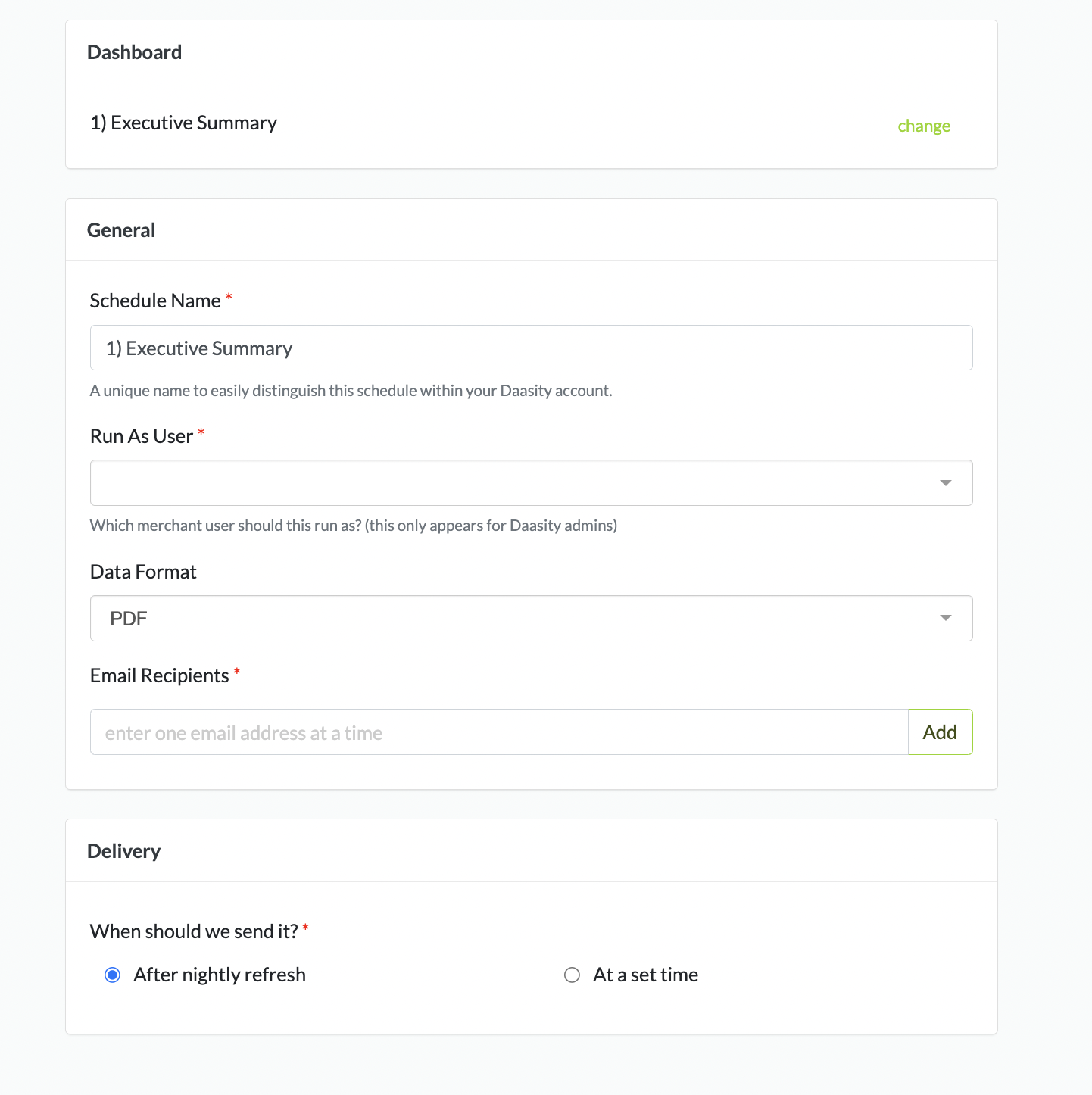
<figure><img src="https://content.gitbook.com/content/amTMWiPne1v1V3L7mbuj/blobs/JO2JeJjQ2VEZ7ypfWREl/full%20screen%20schedule.png" alt=""><figcaption><p>Set Schedule Parameters</p></figcaption></figure>

### Data Format and Recipients

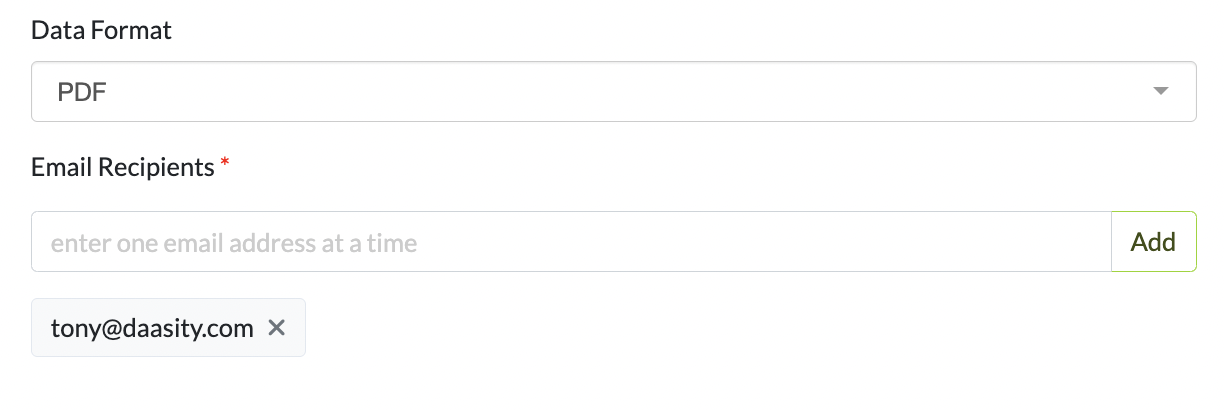
Choose the Data Format PDF or Visualization and Add the recipients' emails.&#x20;

<figure><img src="https://content.gitbook.com/content/amTMWiPne1v1V3L7mbuj/blobs/bM4rSiiWoqcuFiyO45Rb/data%20format%20and%20email%20receipennts.png" alt=""><figcaption><p>Enter Format and Email Addresses</p></figcaption></figure>

{% hint style="success" %}
A PDF Format is recommended because it will send the Dashboard as a PDF Attachment. Visualization will Embed the Dashboard in the Email body
{% endhint %}

{% hint style="success" %}
To Add Multiple Recipients Enter each one and click ADD one at a time.
{% endhint %}

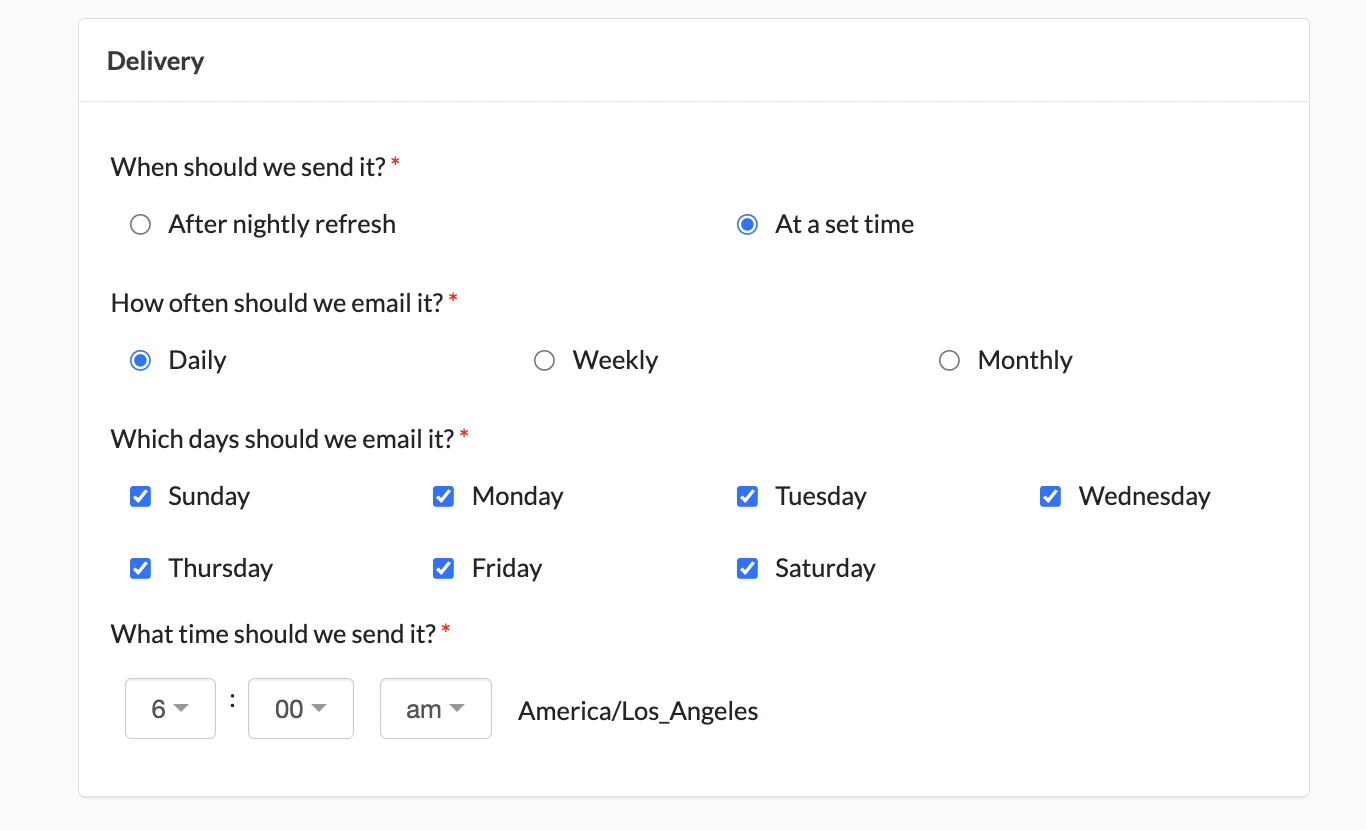
### Set Schedule Cadence

<figure><img src="https://content.gitbook.com/content/amTMWiPne1v1V3L7mbuj/blobs/jkg9KtcWxWlBwPgoWuC6/set%20delivery%20of%20schedule.png" alt=""><figcaption><p>Choose When You Want to Send The Dashbard</p></figcaption></figure>

### Create Schedule

<figure><img src="https://content.gitbook.com/content/amTMWiPne1v1V3L7mbuj/blobs/aCYuqBYCr2CVExM9QfoH/create%20button%20top%20right.png" alt=""><figcaption><p>Click Create to Save the Schedule </p></figcaption></figure>

## Enterprise Merchants

### Choose the Dashboard You Want to Set a Schedule For

{% hint style="success" %}
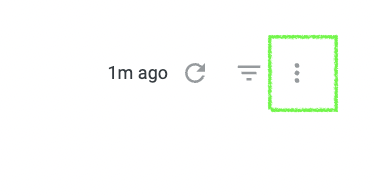
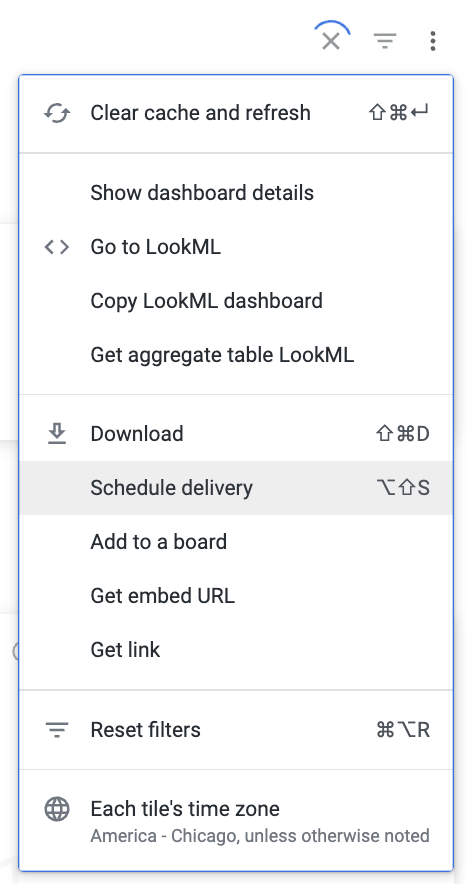
Click the Three Vertical Dots in the top-right corner to Open the Dashboard Menu > Click Schedule Delivery.
{% endhint %}

<figure><img src="https://content.gitbook.com/content/amTMWiPne1v1V3L7mbuj/blobs/ELwLjUBkvMWCtDfc1nJl/Dashboard%20Menu%20vertical%20dots.png" alt=""><figcaption><p>Click The Three Vertical Lines to Open the Dashboard Menu</p></figcaption></figure>

<figure><img src="https://content.gitbook.com/content/amTMWiPne1v1V3L7mbuj/blobs/CYEFxEUxYL95mfYKzHCz/Screen%20Shot%202023-11-27%20at%203.26.05%20PM.png" alt=""><figcaption><p>Click Schedule Delivery Under the 3 Vertical Dots Dropdown Menu</p></figcaption></figure>

### Choose the Schedule Settings

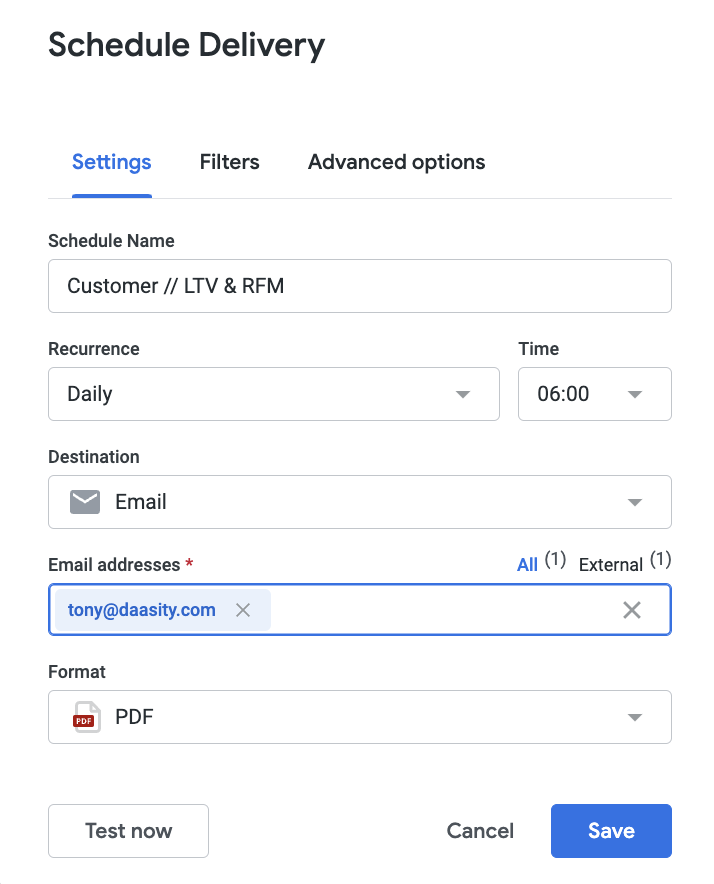
<figure><img src="https://content.gitbook.com/content/amTMWiPne1v1V3L7mbuj/blobs/NZbSLVZw96neIEAIB9Hi/Screen%20Shot%202023-11-27%20at%203.48.10%20PM.png" alt=""><figcaption><p>Fill out Schedule Settings</p></figcaption></figure>

### Set Schedule Cadence

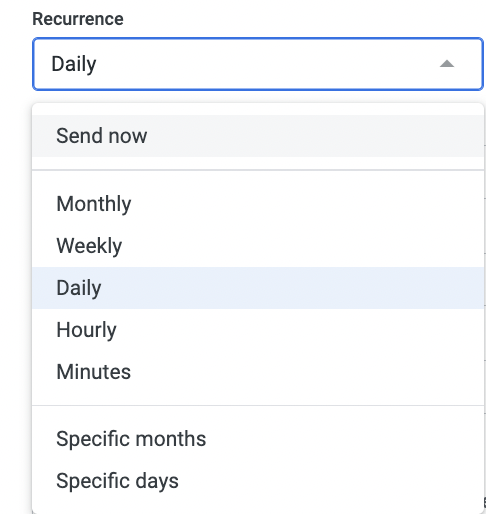
<figure><img src="https://content.gitbook.com/content/amTMWiPne1v1V3L7mbuj/blobs/Zrd26tCNbZ7oRoD8E46k/Screen%20Shot%202023-11-27%20at%203.49.43%20PM.png" alt=""><figcaption><p>Choose When To Send The Dashboard</p></figcaption></figure>

### Data Format and Recipients

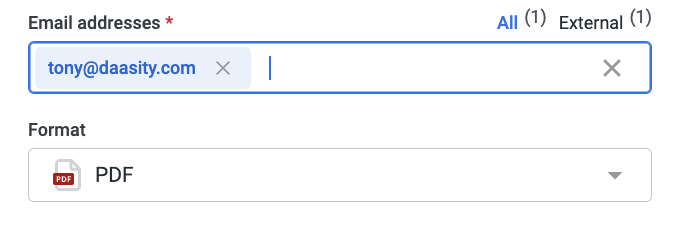
<figure><img src="https://content.gitbook.com/content/amTMWiPne1v1V3L7mbuj/blobs/u26RxS7nVo9or2qzZ8ac/Screen%20Shot%202023-11-27%20at%203.51.32%20PM.png" alt=""><figcaption><p>Add Recipients' Email Addresses and Choose the Format</p></figcaption></figure>

{% hint style="success" %}
A PDF Format is recommended because it will send the Dashboard as a PDF Attachment. Visualization will Embed the Dashboard in the Email body
{% endhint %}

{% hint style="success" %}
Use comma separation to Add Multiple Recipients
{% endhint %}

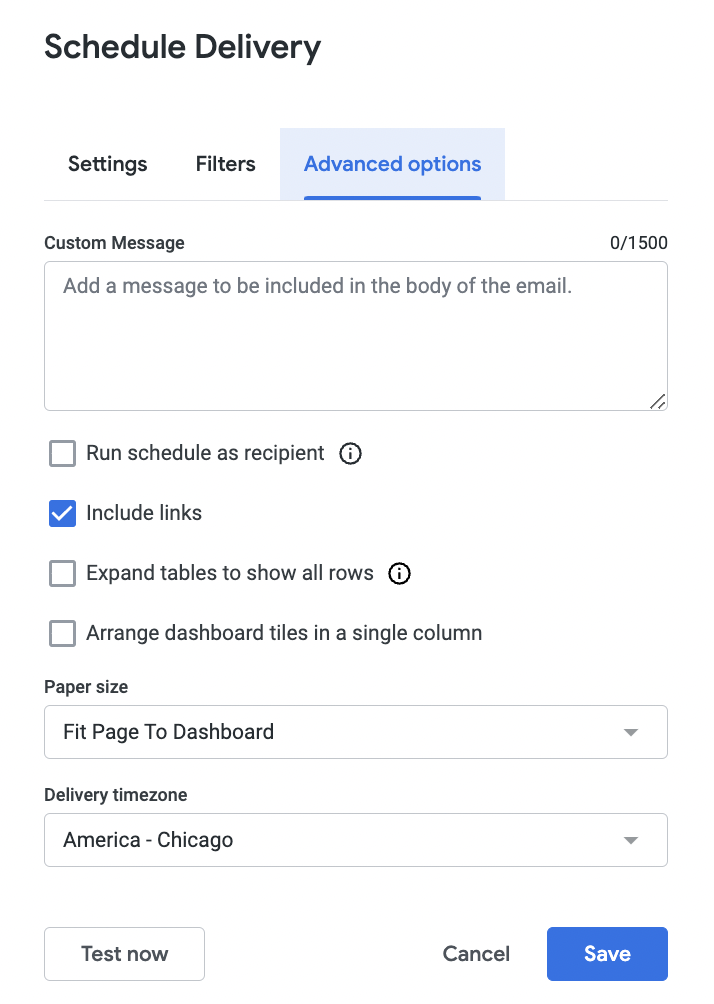
### Set Advanced Options if Applicable&#x20;

<figure><img src="https://content.gitbook.com/content/amTMWiPne1v1V3L7mbuj/blobs/Uc0yRn1tijXFoNYekN29/Screen%20Shot%202023-11-27%20at%203.55.57%20PM.png" alt=""><figcaption><p>Add a Custom Message</p></figcaption></figure>

### Click Save to Set Your Schedule

<figure><img src="https://content.gitbook.com/content/amTMWiPne1v1V3L7mbuj/blobs/cdfp808MIV6FasaAvTzt/Screen%20Shot%202023-11-27%20at%203.57.18%20PM.png" alt=""><figcaption><p>You Can Test The Schedule Before Saving</p></figcaption></figure>