> For the complete documentation index, see [llms.txt](https://help.daasity.com/llms.txt). Markdown versions of documentation pages are available by appending `.md` to page URLs; this page is available as [Markdown](https://help.daasity.com/core-concepts/audiences-reverse-elt/pushing-audience-data-to-targets/google-ads/google-ads-target.md).
# Google Ads Target
This page provides instructions on how to setup the Google Ads Target and push data into your Google Ads account to build segments in Google Ads
## Overview
In order to push data into Google you will need to complete the following steps:
1. Create a new Google Ads Audiences Target ([Create Target](#create-target))
2. Name the target ([General Setup](#general-setup))
3. Allow Daasity to access your Google Ads account ([Authorize Daasity](#authorize-daasity))
4. Choose what list you want to update ([User List Setting](#user-list-setting))
5. Define the customer report or query that will be used to create the segment ([Audience Setup](#audience-setup))
6. Select and map any additional data fields to push into the Google Ads Audiences ([Data Mapping](#data-mapping))
7. Decide how often and when the target should run ([Target Schedule](#target-schedule))
8. Complete the setup ([Finish Creation](#finish-creation))
### Create Target
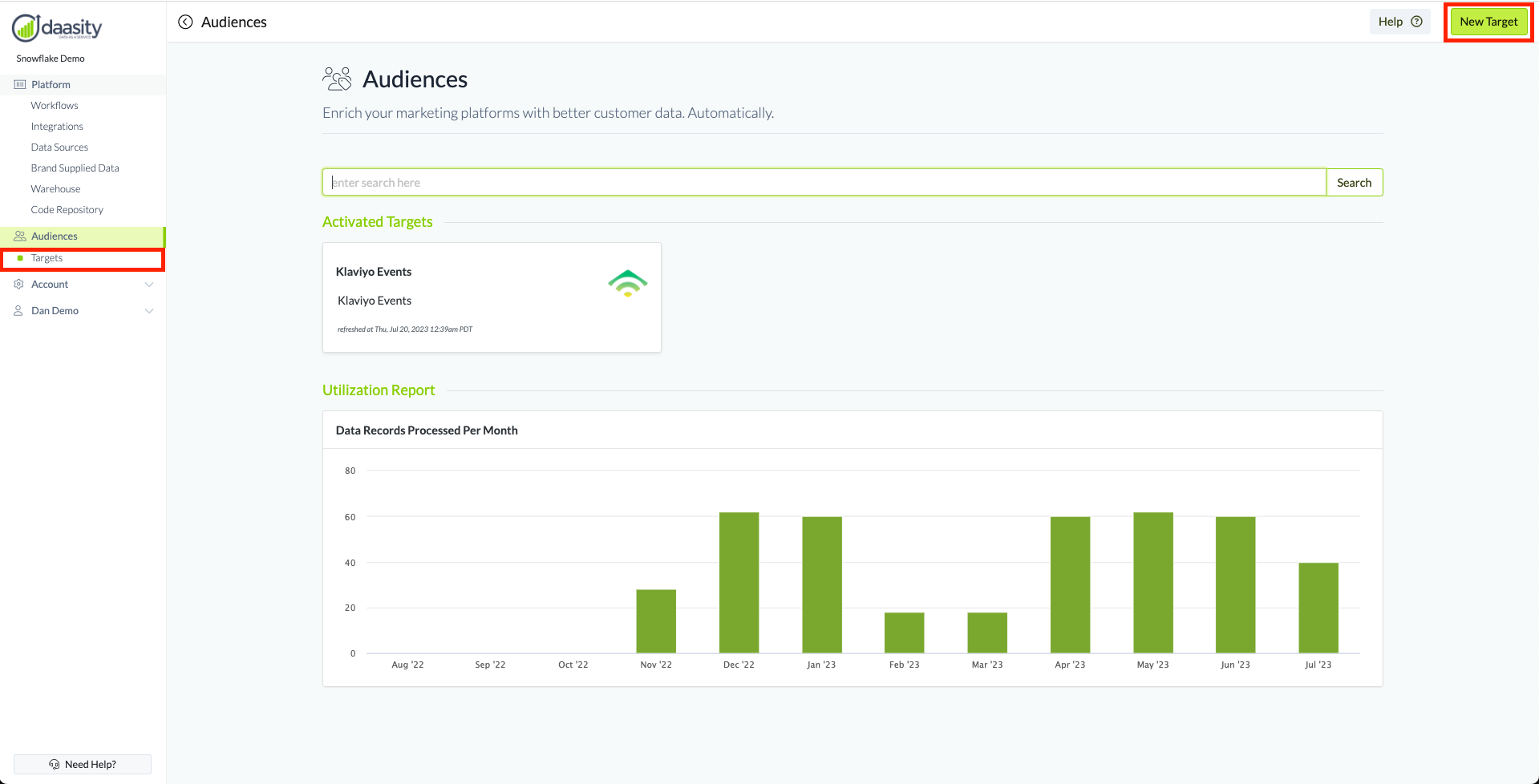
Navigate to the Targets main page from the left nav and click on New Target in the top right
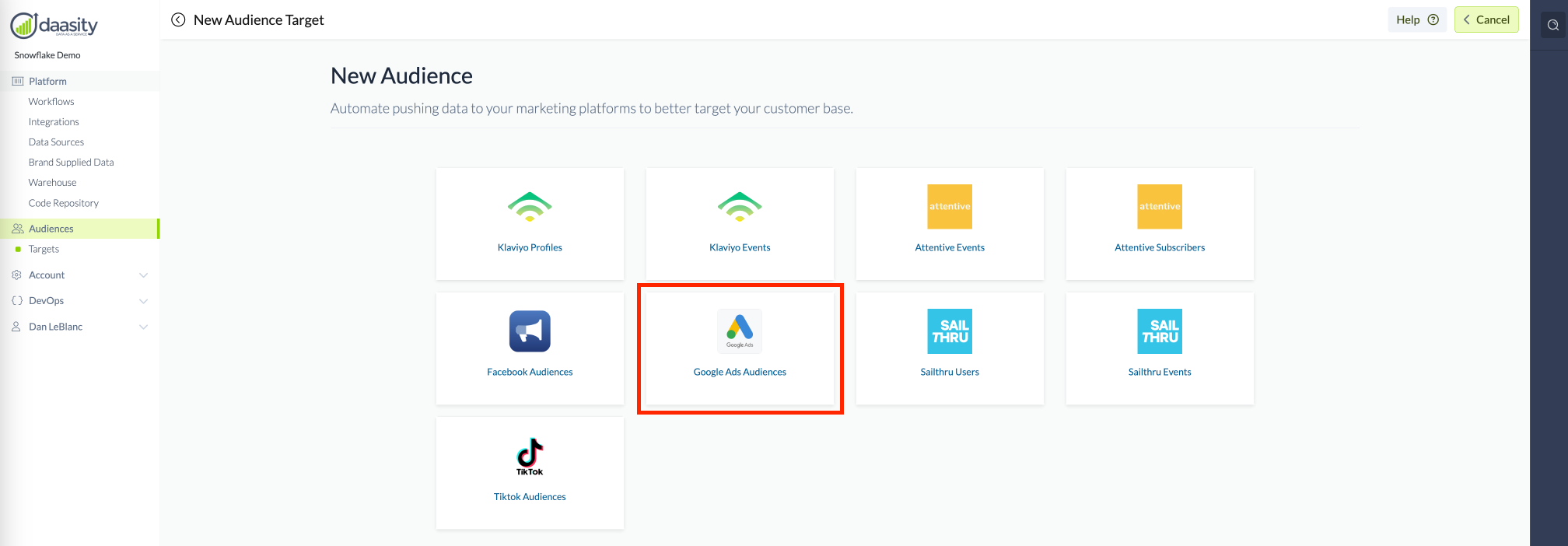
Then select the "Google Ads Audiences"
### General Setup
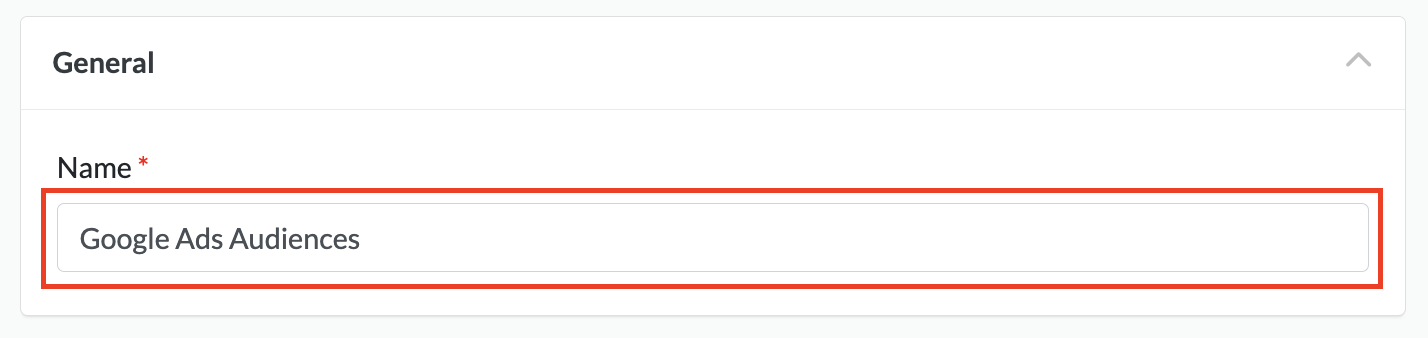
Give your new Target a name so you can find it in the Daasity platform by naming the Target in the red box below
### Authorize Daasity
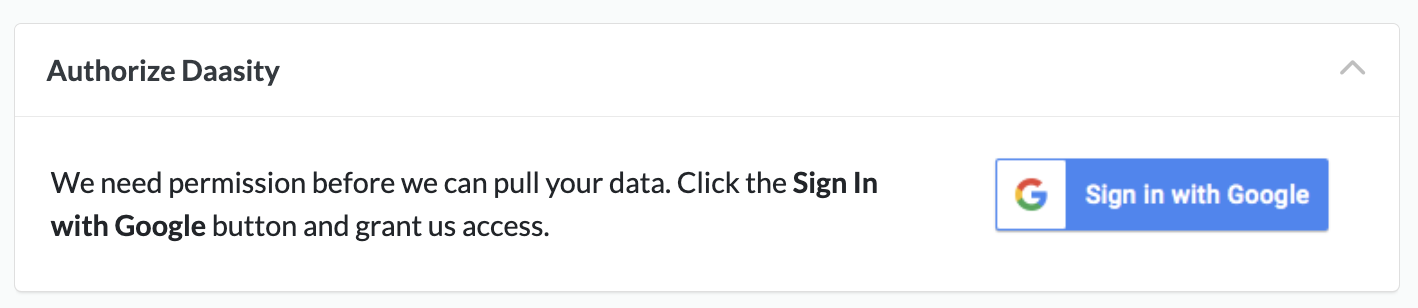
You need to authorize Daasity by clicking the "Sign in with Google" button. Before doing this, you should be logged into a Google account that has access to the Google Ads account that you want to push data to:
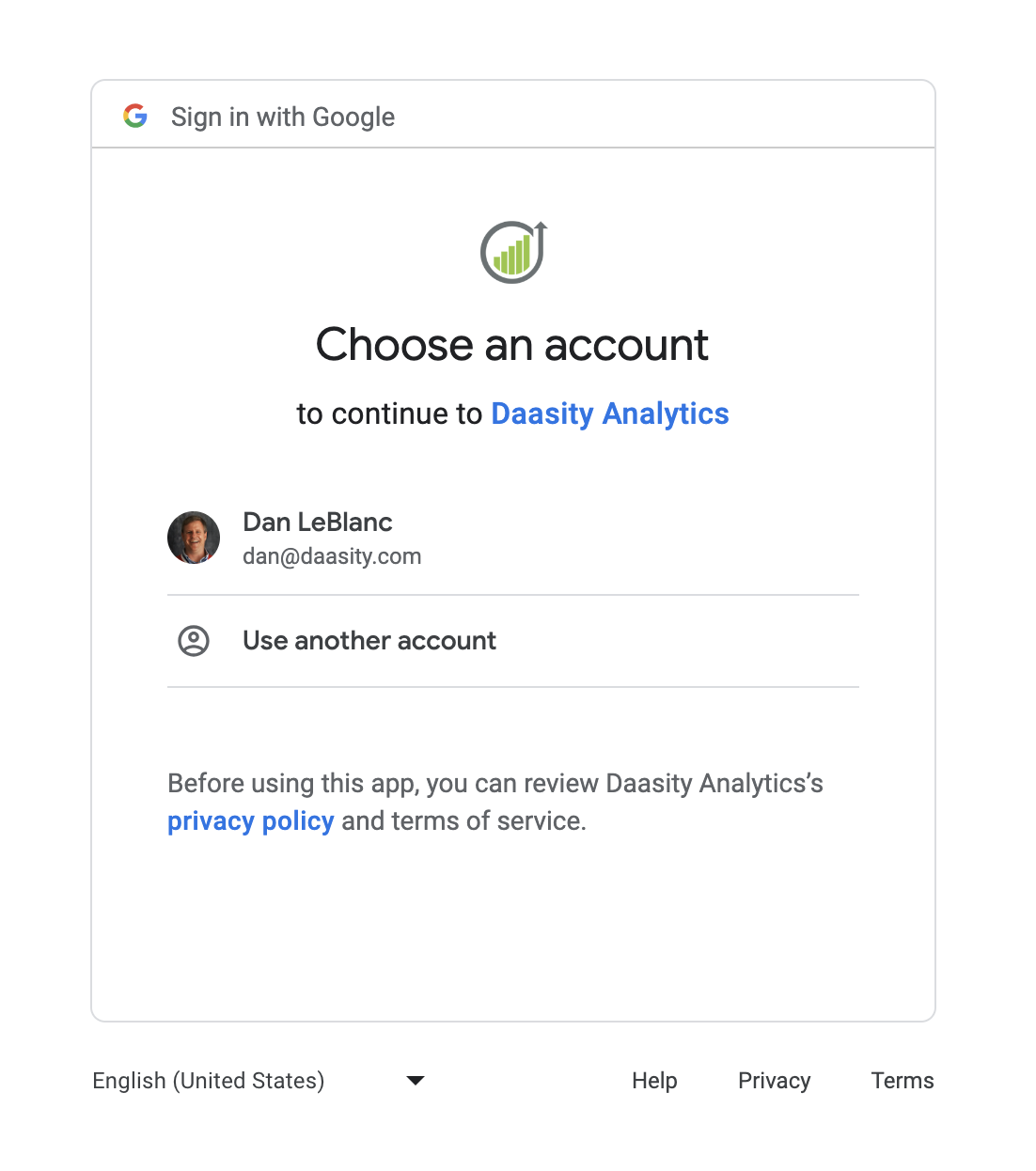
Choose the Google account you want to connect:
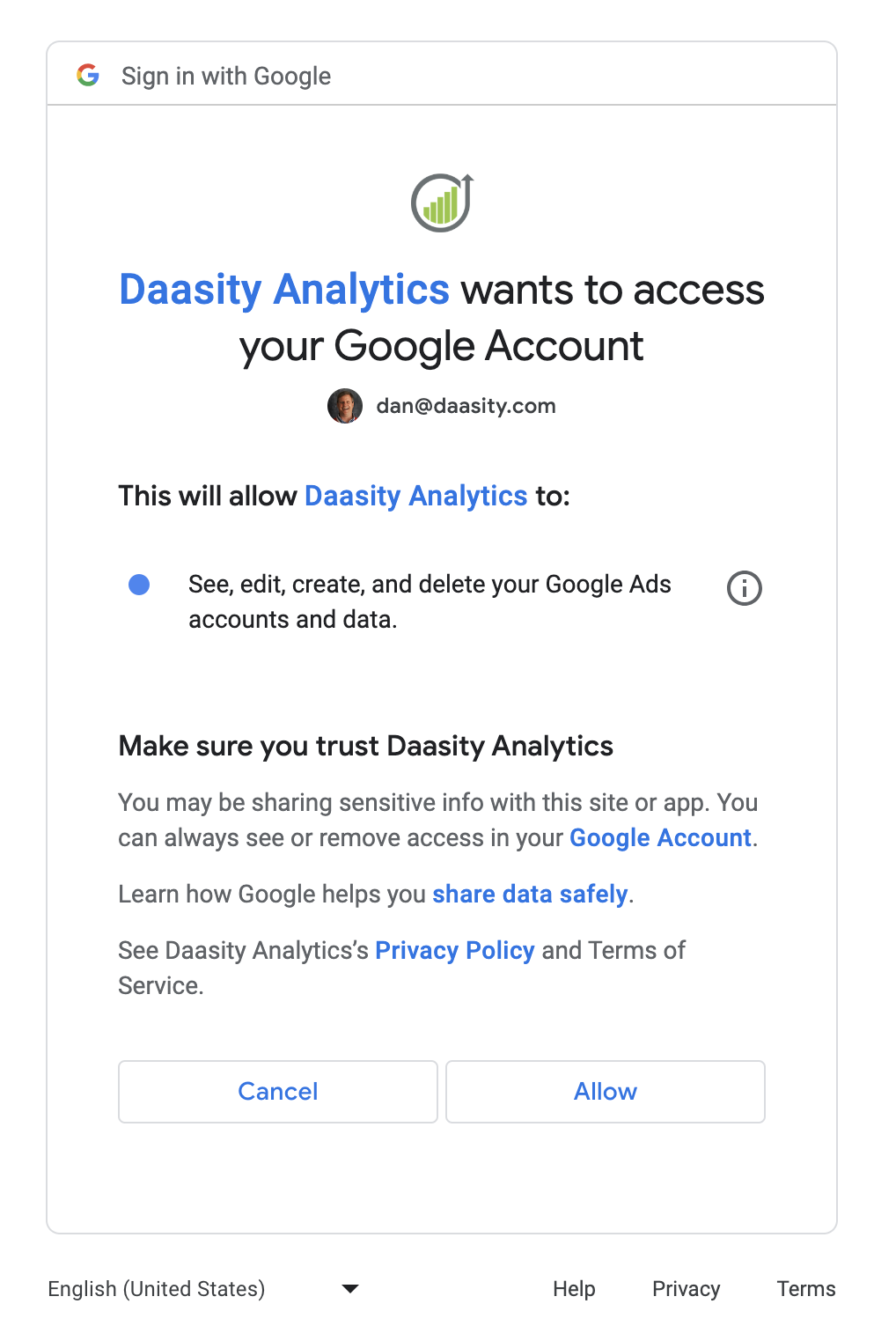
Click on "Allow" to authorize Daasity to access your Google account:
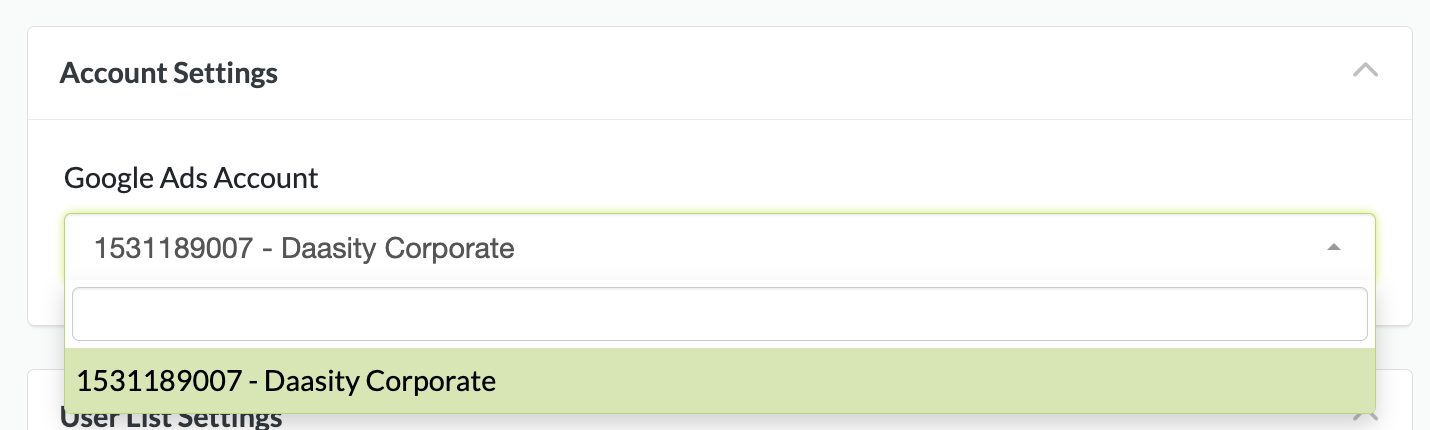
You will then need to select the Google Ads account you want to use:
{% hint style="info" %}
Selecting the Ads account will determine which Ad account you will be pushing the audience data into
{% endhint %}
### User List Setting
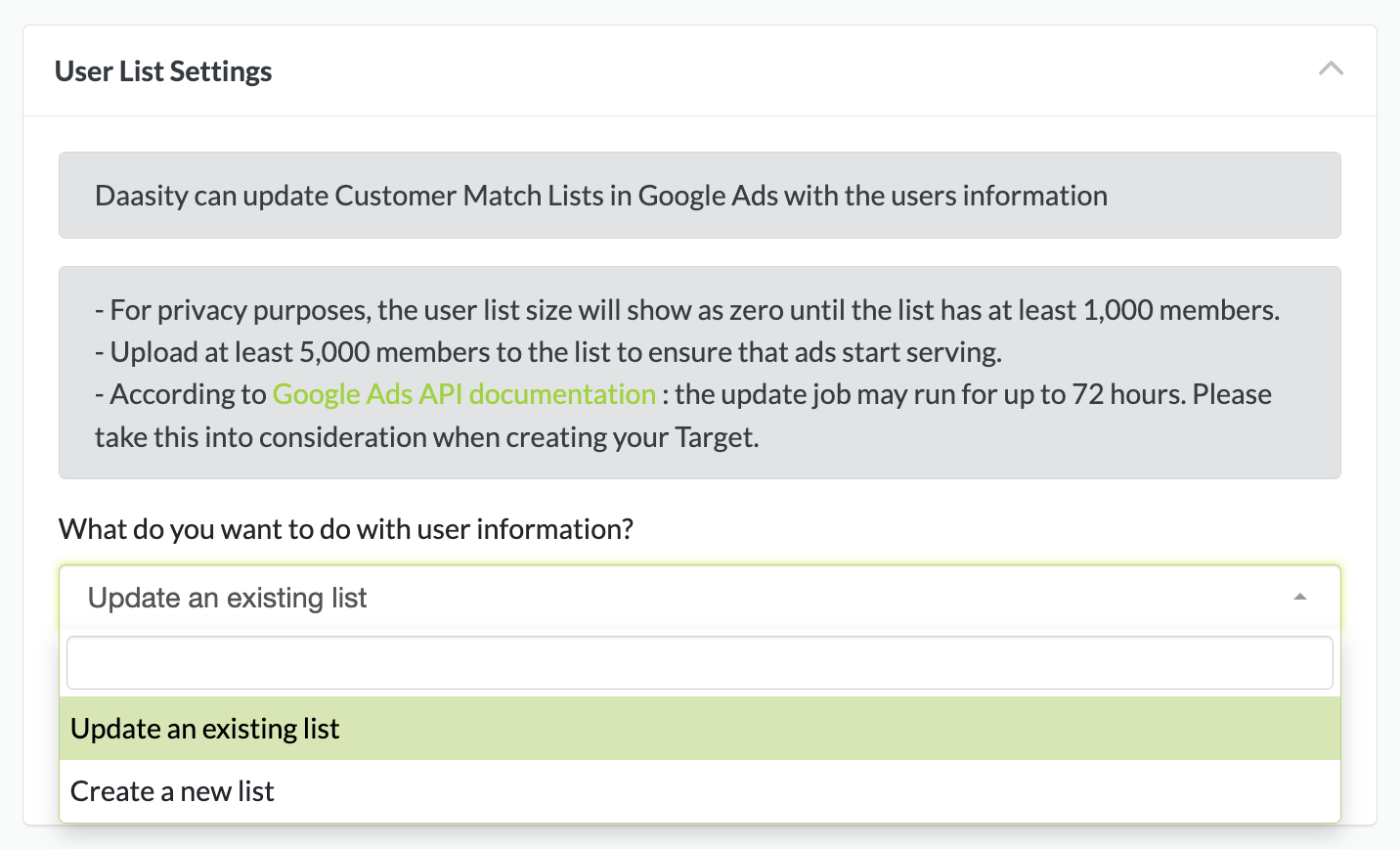
Choose whether you want to create a new Google Ads list or update an existing list in the User List Settings dropdown:
From here you will either enter the name of your new audience:
Or to select an existing audience:
{% hint style="info" %}
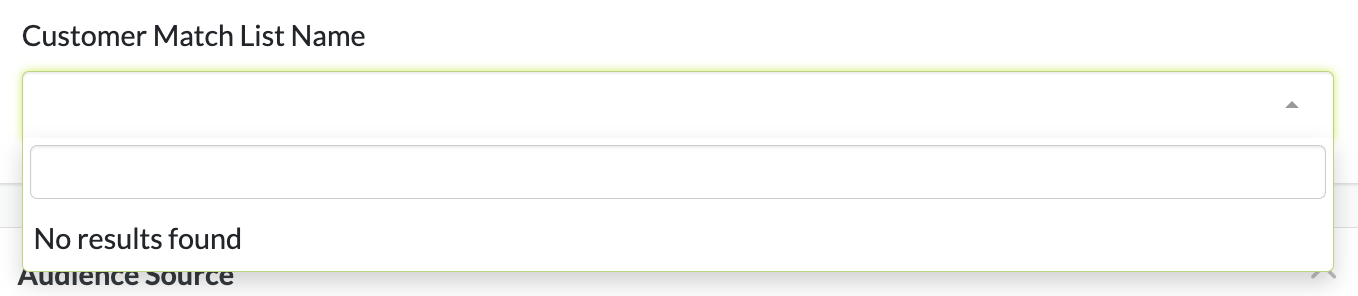
If you don't have any customer lists in your Google Ads account you will see this "No results found"
{% endhint %}
### Audience Setup
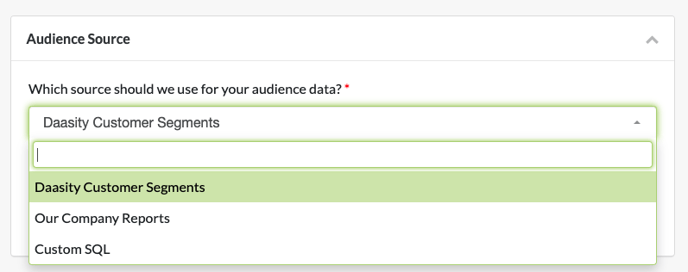
Select the source for the Audience that you want to use for this Target by using the drop-downs below. For more information on how to setup the different Audience Sources see our article on [Building Audiences](/core-concepts/audiences-reverse-elt/building-audiences.md)
### Data Mapping
{% hint style="warning" %}
* Your file must have at least 5,000 records in order for Google Ads to build a custom audience
* You can use email address, mailing address or phone number to match with users in the Google Ads network
{% endhint %}
Once the Audience Source has been selected, the Daasity platform will extract a sample file to determine what data is returned from the extract and list the Source fields that are available to be mapped.
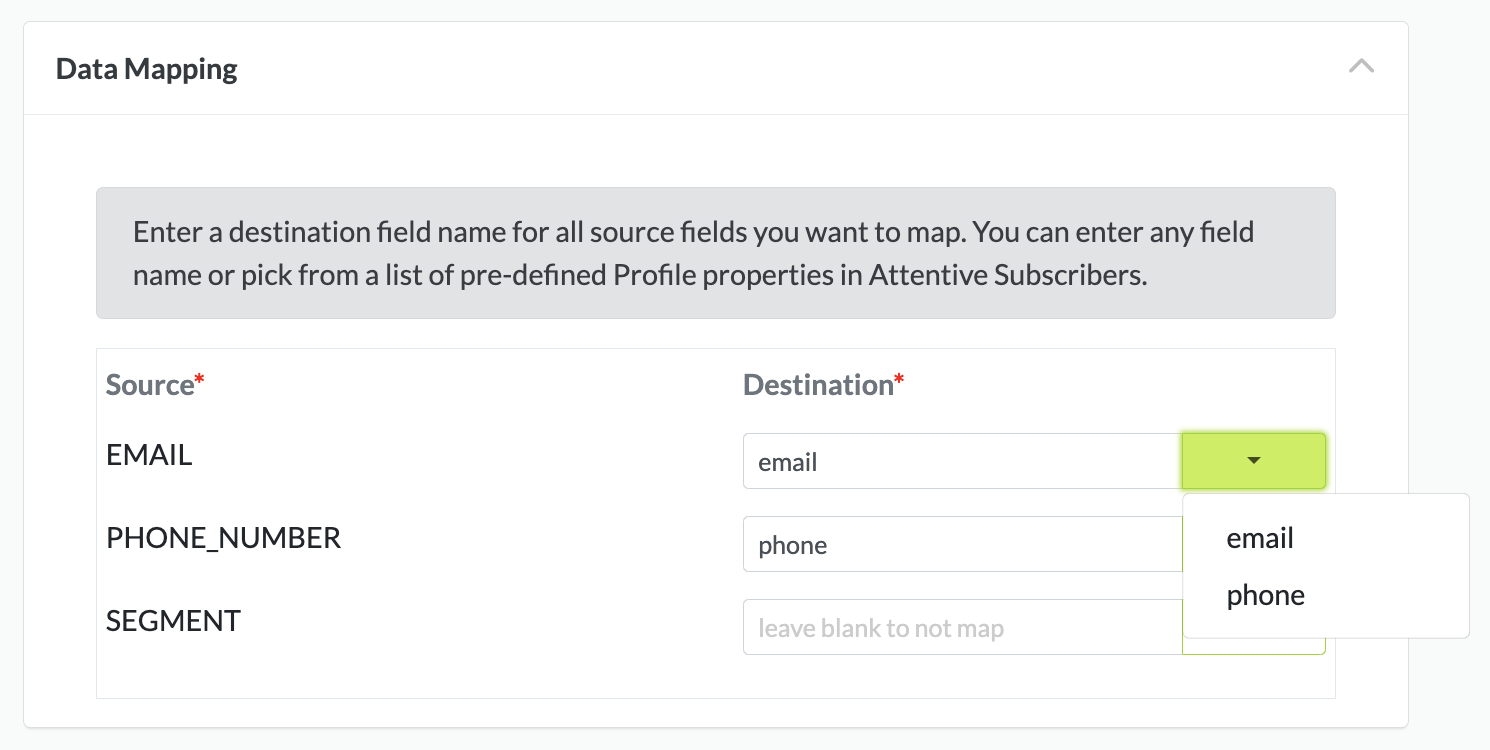
Select or enter the Destination for each Source that you want mapped and pushed to your Google Ads Audience. If you leave a Destination blank then Daasity will not push that data element into the Target:
### Target Schedule
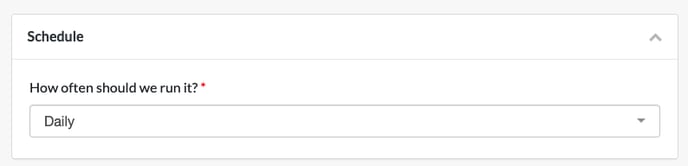
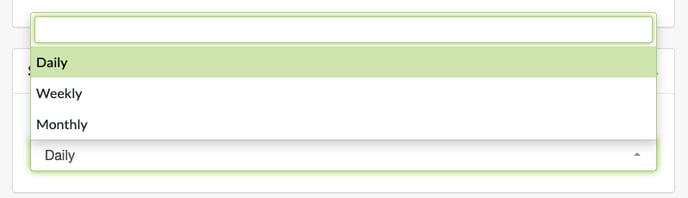
You need to schedule your target. Possible selections are:
* Daily
* Weekly (select the day of the week)
* Monthly (select the day of the month)
The Target will run after the daily workflow is completed on the schedule selected
### Finish Creation
Once all of the above steps have been completed you can finish creating the Google Ads Target by clicking on "Save" in the top right

 ### Data Mapping
{% hint style="warning" %}
* Your file must have at least 5,000 records in order for Google Ads to build a custom audience
* You can use email address, mailing address or phone number to match with users in the Google Ads network
{% endhint %}
Once the Audience Source has been selected, the Daasity platform will extract a sample file to determine what data is returned from the extract and list the Source fields that are available to be mapped.
Select or enter the Destination for each Source that you want mapped and pushed to your Google Ads Audience. If you leave a Destination blank then Daasity will not push that data element into the Target:
### Data Mapping
{% hint style="warning" %}
* Your file must have at least 5,000 records in order for Google Ads to build a custom audience
* You can use email address, mailing address or phone number to match with users in the Google Ads network
{% endhint %}
Once the Audience Source has been selected, the Daasity platform will extract a sample file to determine what data is returned from the extract and list the Source fields that are available to be mapped.
Select or enter the Destination for each Source that you want mapped and pushed to your Google Ads Audience. If you leave a Destination blank then Daasity will not push that data element into the Target:
 ### Finish Creation
Once all of the above steps have been completed you can finish creating the Google Ads Target by clicking on "Save" in the top right
### Finish Creation
Once all of the above steps have been completed you can finish creating the Google Ads Target by clicking on "Save" in the top right
