> For the complete documentation index, see [llms.txt](https://help.daasity.com/llms.txt). Markdown versions of documentation pages are available by appending `.md` to page URLs; this page is available as [Markdown](https://help.daasity.com/core-concepts/audiences-reverse-elt/building-audiences.md).
# Building Audiences
This page provides an overview of the different ways you can build an Audience (Segment) to push data into your Marketing platforms
## Overview
You can build the list of customers and the additional customer data that you want by one of three methods:
1. Using a pre-built Daasity Segment
2. Using a report you have created in Looker
3. Entering a custom SQL query into the Daasity UI
In each method, Daasity will run the report or SQL query on your database in real-time to extract the most current customer list and associated data. The platform then takes the returned data from that query, maps it to the appropriate fields in the target, and sends the data to the target.
{% hint style="info" %}
Almost all Targets will need a customer identifier to be a key field in the generated report. Often this is an email address, phone number, or the customer ID from that platform (e.g.: Shopify), so make sure your audience (segment) has a customer identifier.
{% endhint %}
## Building an Audience
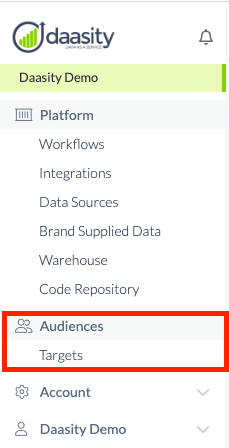
Audiences are built within your targets. To access your targets, navigate to the Targets page from the left-hand nav:
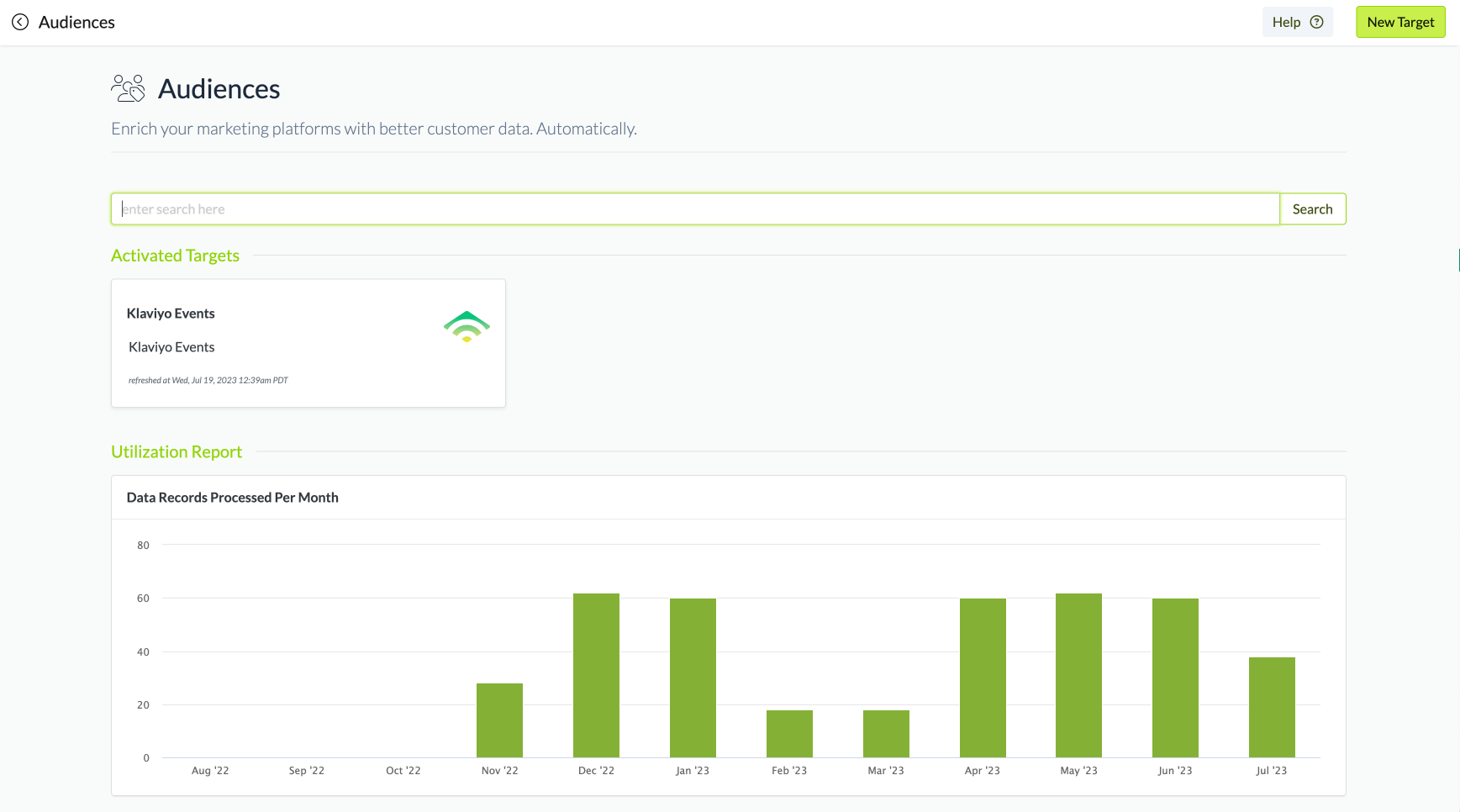
This will take you to the Targets page where you will be able to see all the targets you currently have setup and the volume of data that you have pushed into those targets as well as create a new target:
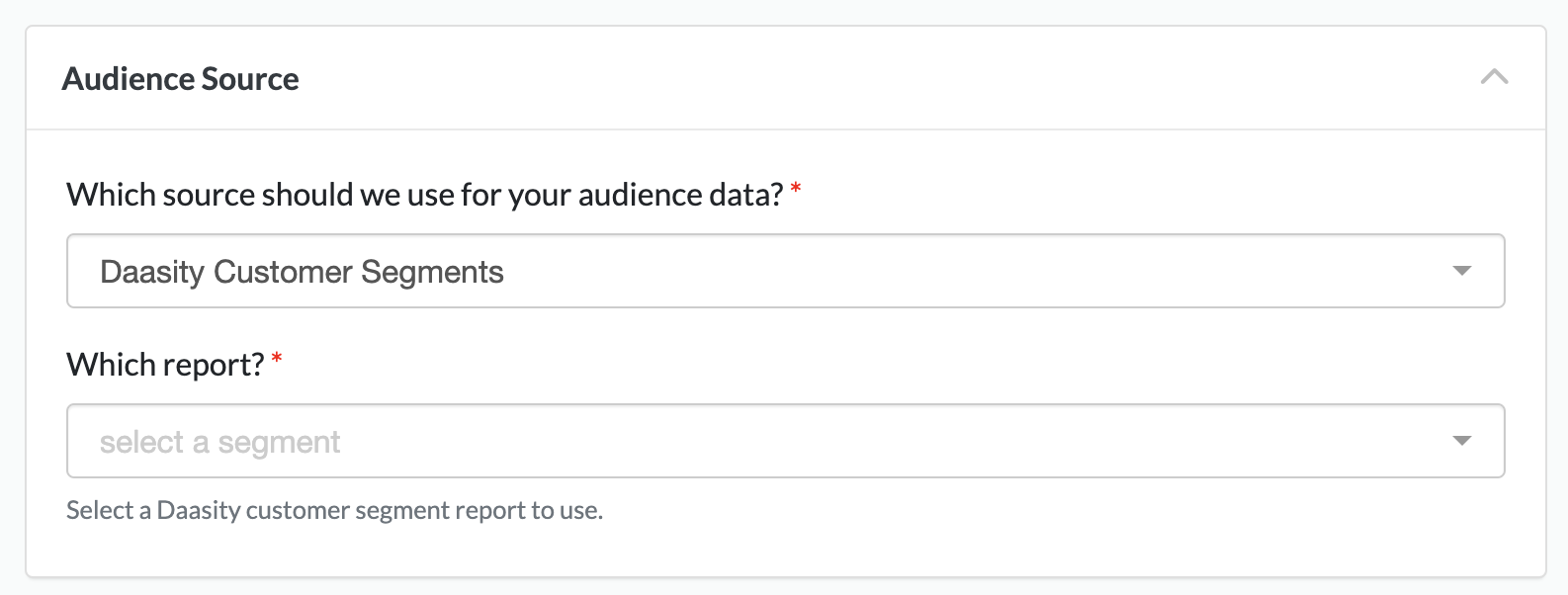
Regardless of the target, there will be an audiences section in the target setup page where you will select how you want to build your audience:
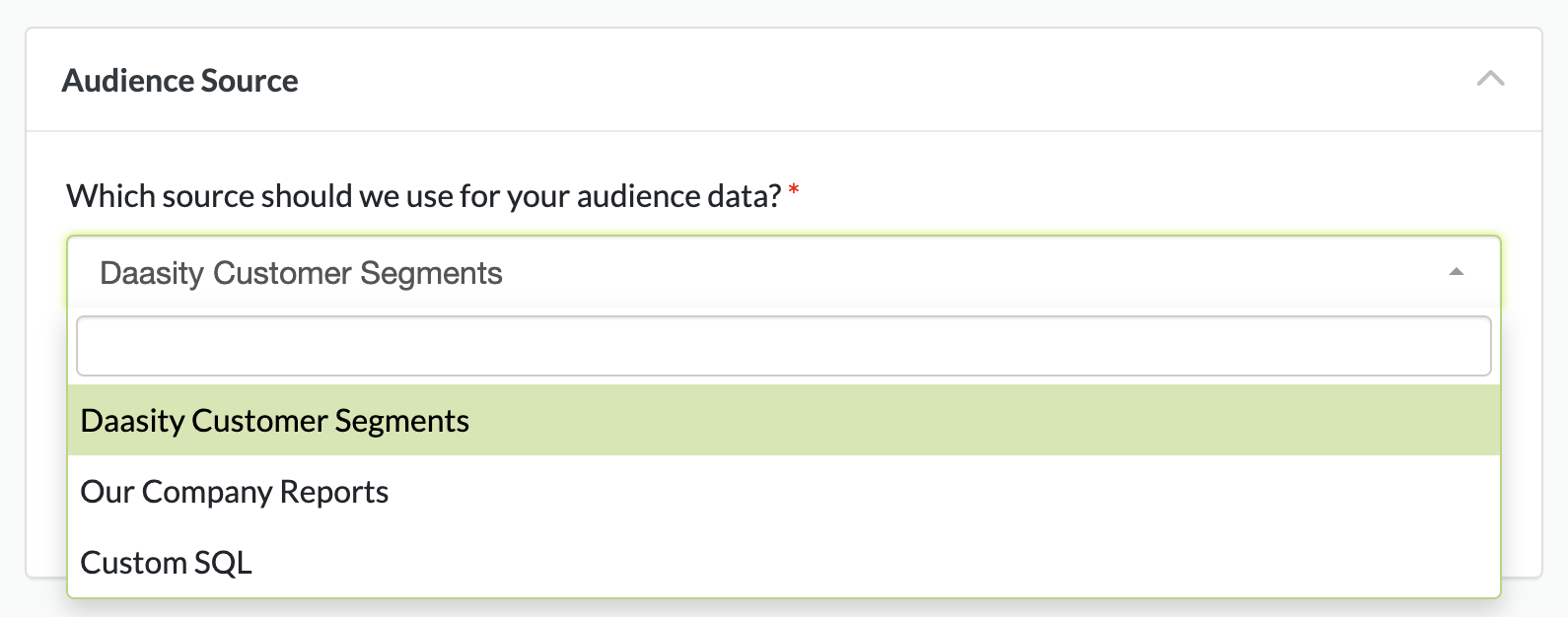
Your choices will be:
1. Daasity Customer Segments — Use a pre-built Daasity Segment
2. Our Company Reports — Use a report you have created in Looker
3. Custom SQL — Enter a custom SQL query into the Daasity UI
### Daasity Customer Segments
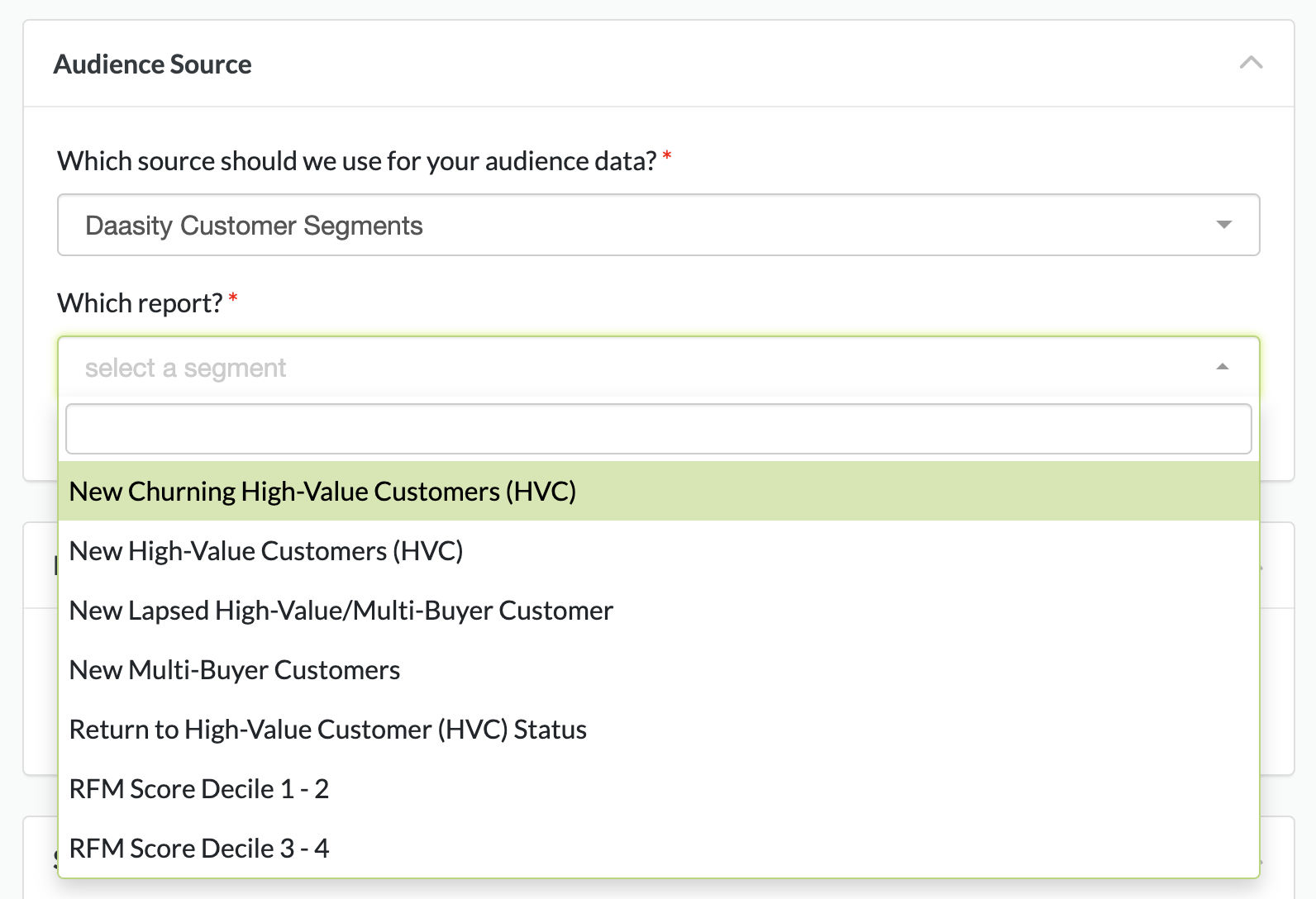
To use a pre-built Daasity segment just select the report you want to use:
{% hint style="warning" %}
Pre-built Daasity segments only work with merchants that use Looker as their visualization tool
{% endhint %}
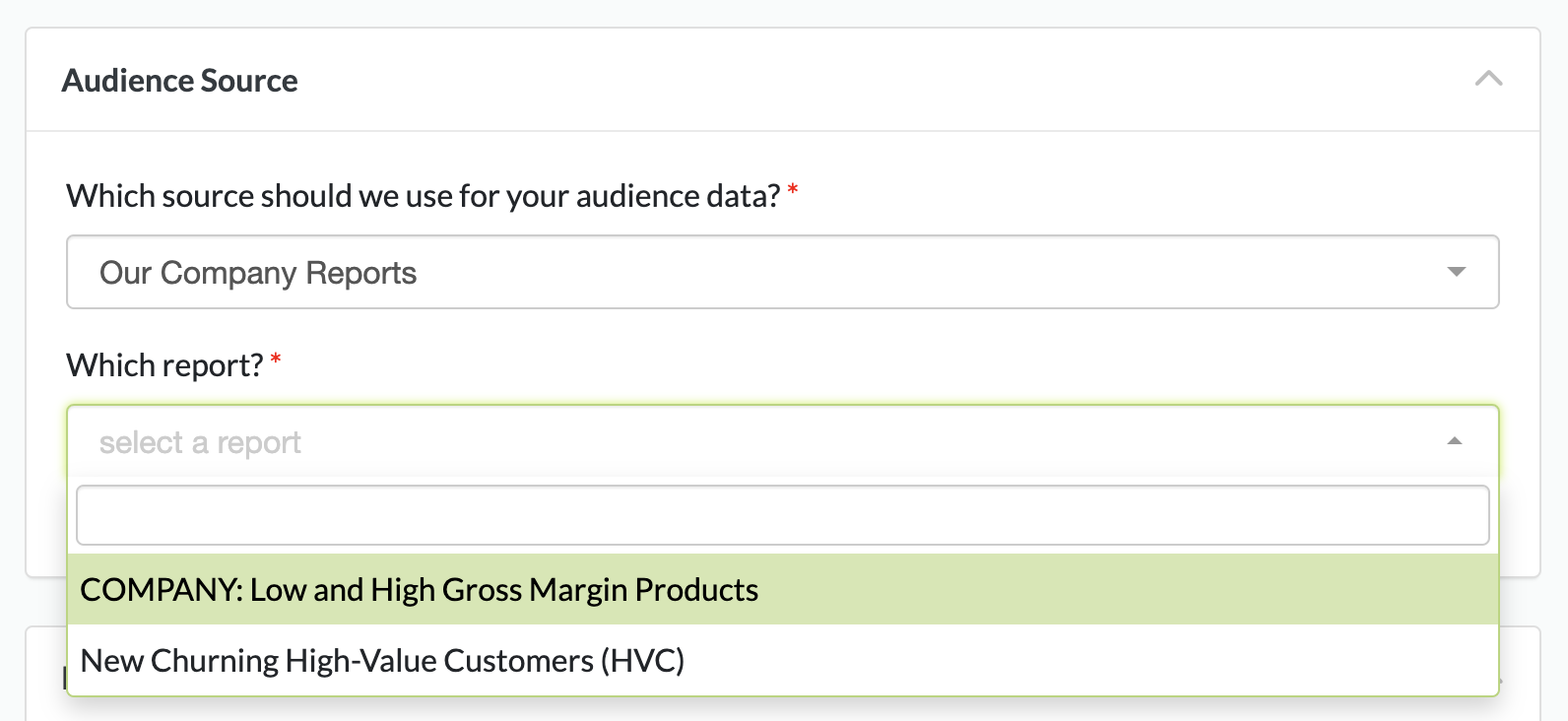
### Our Company Reports
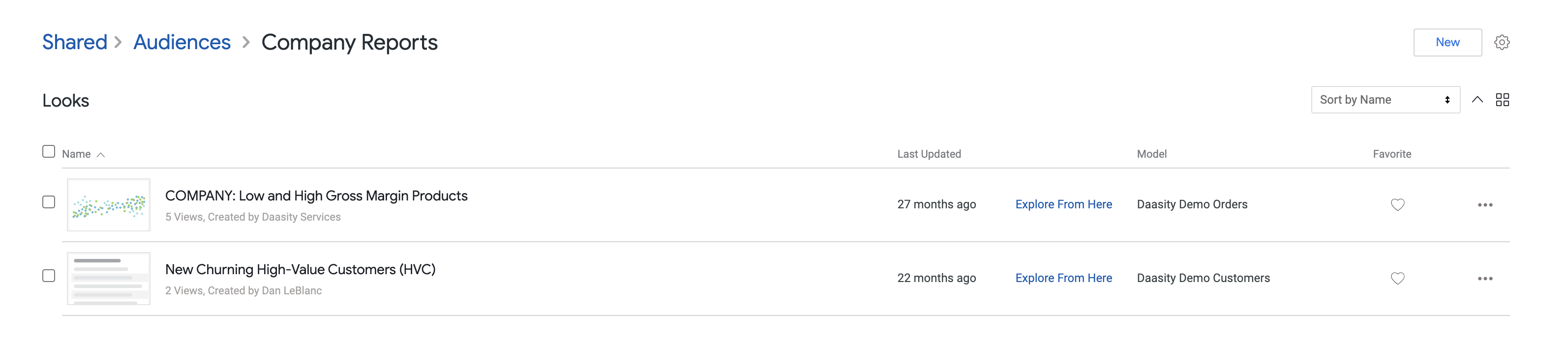
This option allows you to use reports that you have built in Looker and are kept in the "Audiences > Company Reports" folder within Looker.
### Custom SQL
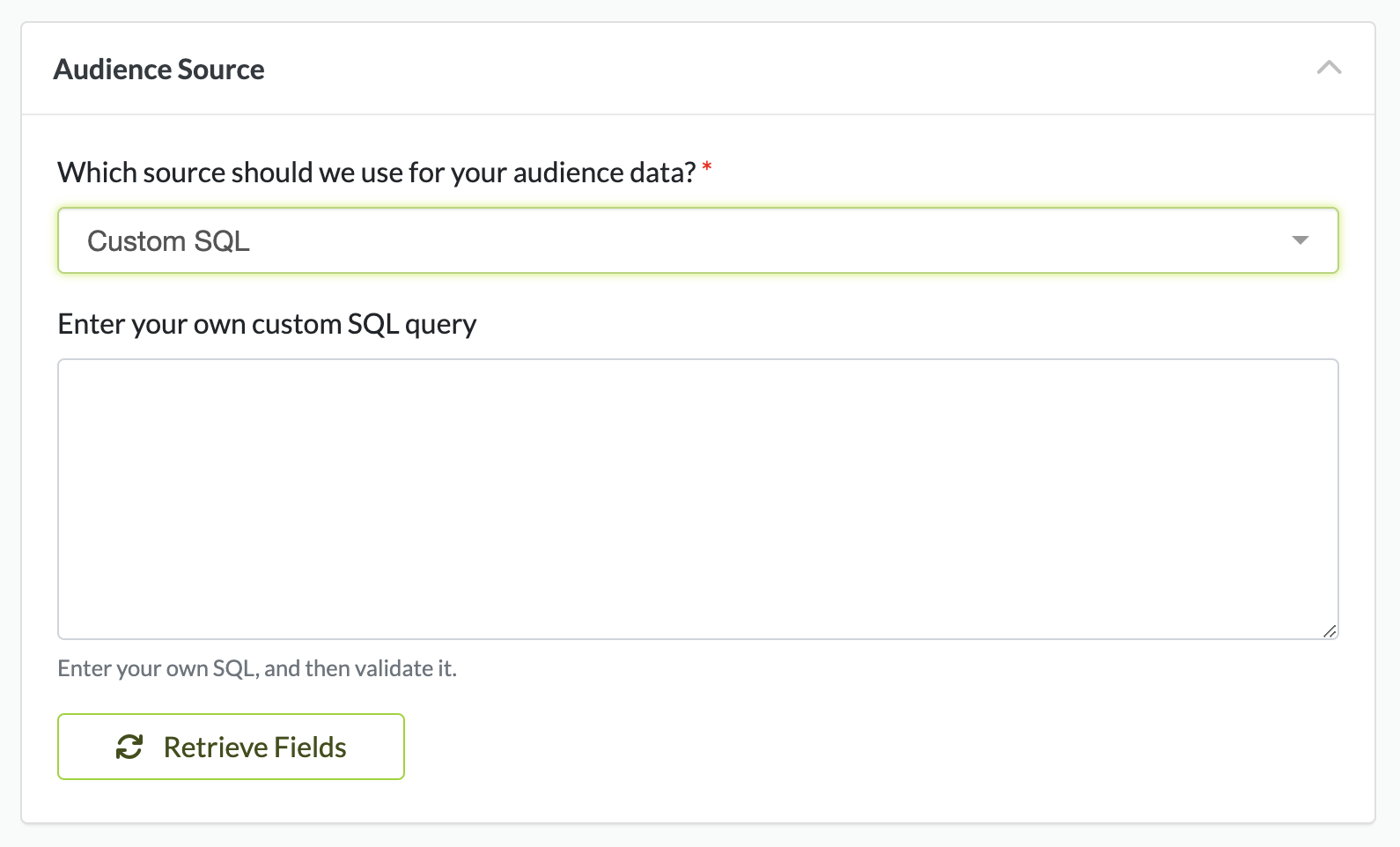
This option allows you to write any custom SQL that will run on your data warehouse at the time the workflow is set to push the resulting segment into your marketing platform: